r/HPVictus • • Dec 30 '25 Bravo

Victus 16 Hall Effect Sensor Megathread (Laptop Shutting Off Randomly)

Thumbnail
gallery
394 Upvotes

Hey Everyone,

I wanted to create a megathread to document the hall effect sensor issue on the 16-S0 and 16-R0 laptops. I have done some deep investigation here and wanted to put together a compilation of info for anyone running into this problem. There are a bunch of posts scattered around, a few videos, and WAYYY too many posts to HP's support with the HP canned response of "do these irrelevant steps and then send me a DM with your info and I will escalate your issue." These are usually dead end posts with no usable information. So, please add all of your links, information, videos, etc., to this post to keep it all together. I intend to put multiple solutions below and add more info as I test. I encourage anyone that has any correction to any of the information here to please post it. Any shared info can help the community. As always, a disclaimer: I am not responsible for any damage that you do to your laptop or yourself while using this information. Use at your own risk!

EDIT: There may be an easier fix that allows you to continue using the original hall sensor, if you choose to. It also avoids all of the cutting traces and jumper wires show in the pictures. The info is below in the "The Real Cause?" section.

The Issue

You have a Victus with either an AMD or Intel chipset. One day, the screen starts flashing and then the power turns off. Pushing the power button probably doesn't do anything. You find the "hard reset" procedure and attempt it by pulling the charging cable, and then holding the power button for 10+ seconds. It may come back on.... it may not. For this example, lets say it does. Cool! It boots up. Then the screen starts flashing again and it turns off. WELCOME TO HALL EFFECT SENSOR HELL! You will read plenty of info about it, but no proper solutions.

OK Then! What's a Hall Effect Sensor?

Glad you asked. A hall effect sensor is a very common electronic part that is sensitive to magnetic fields. Think of it as a proximity sensor for magnets. Most current laptops have one, your phone has one or more, your fancy joysticks, racing wheels, and other gaming controllers use them, even your car has at least two in the engine and one on each wheel for ABS and traction control wheel speed sensing! Those are just a few examples of the millions of devices that rely on magnetic field detection to do a task.

So Why Is There a Hall Effect Sensor In My Laptop?

Dead simple. Mechanical switches break, wear out, and also need direct contact with an object to trigger. Your laptop base is a great spot for a non-mechanical non-contact sensor that can detect when the lid is opened and closed. The lid has a small magnet that lines up with the position of the hall effect sensor near the keyboard. When you close the lid, the hall effect sensor sends a voltage to the motherboard, via a ribbon cable, to tell it SHUT OFF THE SCREEN AND GO TO SLEEP....ah ha, now we are getting somewhere! When you open the lid, the magnet is moved away from the sensor, the voltage disappears and the motherboard knows to wake up.

So Why Does It Keep Me From Gaming!!!?

Unfortunately, this particular hall effect sensor seems susceptible to heat once it starts to fail. Once the laptop heats up a minor amount, the hall effect sensor freaks out and registers the lid closed, which blinks the screen a few times and then tells Windows to activate Sleep (or what ever you have your lid close action set to do). Once "closed" the power button is not supposed to be able to be pressed since the lid would be in the way, so it seemingly doesn't work (I found this to be the case and it is the only explanation I have). Allowing the system to cool, or forcing a reset and somehow clearing the current status of the sensor allows you to turn it on for a brief period again.

Cool. So How Do We Fix It

The REALLY simple way: Send it to HP so they can take out the failing bad parts and put brand new bad parts back in. This option should only be taken if you are still under warranty and even care that you are still under warranty. This option will deprive you of your laptop for weeks, and since the part is the same brand and part number that was taken out, it will happen again.

The less simple way: Search on Google for "HP Victus 16 Service Manual" and download the PDF from HP. You will be taking the screws out of the back cover and gently prying it off with a PLASTIC tool (use a SPUDGER or a guitar pick). Once inside, find the IR board ribbon cable located on the front edge of the laptop. Take the tape off of the top, carefully flip the retaining clip up, and pull the ribbon cable out. Put the case back together and kinda sorta get your game on. (See "WHY SO SLOW NOW?!?" below)

The advanced way: You will need a decent soldering iron for this one that is capable of working with surface mount components, preferably a very fine conical tip. You may want some solder braid to clean up the pads and some alcohol to get the flux residue off. You may also want a magnifying glass. Grab the service manual and take the back case apart using the instructions. You will need to access the IR board. Work through the "removing the motherboard" instructions and remove everything that is required. Once you have the IR board in your hands, you will need to remove/replace the little 3 pin hall effect sensor with your soldering iron. It looks like a little black grain of rice. Go around with solder and "wet" each solder leg and then heat the single leg while applying a gentle upward pressure on the part or use gentle pressure from a screw driver. DO NOT PUSH TOO HARD. We don't want to rip the pads up. The goal is to get that leg free and bend the part up a little so that the joint is separated. Once that leg is disconnected, go to the two legs and heat them up by alternating back and forth quickly. WATCH OUT FOR THE VERY VERY TINY CAPACITORS BELOW THE ONE LEG!!! They are only filtering caps on the incoming power, but will be near impossible to get soldered back in place!!! At some point while alternating, the solder on both legs will liquefy at the same time and you can just move the part off of the pads. You now have a choice: you can reassemble without the hall effect sensor on there and enjoy your not-permanently-throttled laptop without lid detection OR you can buy an improved hall effect sensor and solder it in the same spot to return the laptop to normal functionality. The information about an improved compatible sensor is below.

WHY SO SLOW NOW?!?

So you went with the middle of the road option. You didn't want to get stuck without a laptop while HP does nonsense to it, but you also didn't want to tear the laptop fully apart. I understand. But, like everything in life, there's always a trade-off. A hall effect sensor is usually a three or four pin device. But that ribbon cable you disconnected has a few more connections than that. What else is going on there? Well it's listed in the manual as an IR BOARD. There is a shiny metal part on the opposite side of the board. It's an IR sensor. Since the laptop doesn't have any sort of hole to shine a TV remote through, and it certainly isn't a motion detector light, that infrared sensor must be used for something else. From the hall effect sensor's perspective, mounting that board right under the heatpipe was really a bad move, but not for the IR sensor part of the board. The IR sensor is being used to detect the temperature on the heatpipe and allow thermal throttling when things get too hot. THIS is the reason why fully disconnecting the ribbon cable causes the processor to throttle back. When the motherboard can't get a reading from the IR sensor, it plays it safe and throttles back. It is better to throttle from the unknown reading rather than cause a fire. So, if you can live with your gaming laptop functioning as a YouTube and E-Mail machine, you can stay with this option. Troubleshooting is never wasted time, and you know for a fact that the hall effect sensor is causing the issue now, should you decide to go for the advanced option in the future.

Original Sensor Info

The original hall effect sensor is a Toshiba TCS40DLR. Looking at the datasheet, the operating temperature is -40C to 85C. WHAT THE HECK HP!!!! While that is a standard low end range for semiconductor electronics, it does not give much headroom when mounted under a hot heatpipe that is funneling heat away from a GPU and CPU. The datasheet clearly states that continuous use under heavy loads (such as high temperature or significant temperature changes, high current, or high voltage) will cause a decrease in reliability SIGNIFICANTLY, even if the operating conditions are within maximums and recommended operating ranges!!!!!! Well there you have it. No fault to Toshiba. They knew that this environment was not suitable and clearly noted it. This part is fine as a low cost sensor for a safe and consistent environment, which a laptop is not. This datasheet was dated for 2015, well before these laptops were produced, and it was still chosen to be a critical part in this application. It is currently around 17 cents, in case you wanted to know the value of what rendered your laptop useless.

New Sensor Info

I found a few that will work better in this application. The one that I finally decided was perfect is the Allegro A1126LLHLT-T. This is an automotive grade, temperature compensated hall effect sensor with the same pinout and package size. The voltage range is geared towards automotive, accepting 3-24v, which is beyond suitable here. The magnetic trip point is a little higher, meaning more magnetism needs to enter or leave the range before any switching happens. We have a magnet that will be very close to the sensor, and we only care about two positions, so as long as the rating is less than the magnetic strength of the magnet, we will be good. What makes this one great is that it is rated for full operation up to 150C!! Almost double the rating of the original. If things are hitting 150C, you have bigger problems to worry about. This one fits the bill and costs right around $1. I'll gladly spend that for the quality and performance.

Whewwww That Was A Lot

You're telling me! Unfortunately, from what I can see, this problem has been ongoing for years. I can't imagine how many thousands of these laptops were thrown out because of a failure in a part that costs less than a dollar. Worse yet, the IR board is not available to the consumer from HP. There are some on E-Bay from China, and I have ordered one to see if it is the same hall effect sensor or an upgraded one (will post an update when it gets here). I hope this LONG post helps someone diagnose and repair their problem and provides some insight into the theory of the electronics behind it. EDIT: The replacement board from China uses a sensor with the LA8 marking. It may be a different sensor with markings to look like the original, but it is probably the same Toshiba sensor. The most interesting part is that the original board and replacement board had two spots to install the sensor, one on either side of the board. On the HP original, the sensor is installed on the opposite side of the IR sensor, where my guide shows to reinstall it. On the China replacement, the sensor is placed on the SAME side as the IR sensor. This puts the fiberglass circuit board between the sensor and the heatpipe. Fiberglass being a great insulator, this could reduce the occurrence or severity of this issue. I have not tested it to see if it makes a difference, but the results wouldn't be immediate anyway. My initial concern with that while I was doing my repair was that the sensor would be too far away to accurately pick up the lid magnet. Maybe not....

OK. I followed your guide, replaced the sensor, but it still isn't working right!!!!!

Yeah. I found this on mine too. After I put it back together the first time, the lid no longer detected. The original sensor, most likely driven way outside of its operating range, damaged the motherboard's power supply circuit for the hall effect sensor. But fear not! (See "The Real Cause" below) We have another source near by. The IR sensor uses the same voltage as the hall effect sensor, so the IR sensor's VCC trace can be jumped over to the hall effect sensor's VCC. I also cut the trace on the IR board for the power coming from the motherboard that feeds the hall effect sensor. The incoming power to the hall effect sensor was measuring around 1.8VDC instead of 3.3VDC (EDIT: I originally stated it was 5VDC, which is incorrect). I didn't want the supply for the IR sensor to get damaged by joining whatever was causing the severe voltage drop in the hall effect sensor circuit. BE CAREFUL WHEN CUTTING TRACES AND EXPOSING COPPER. YOU CAN EASILY SHORT OUT NEIGHBORING TRACES. ALWAYS CHECK YOUR WORK THROUGH A MAGNIFIER OF SOME KIND (EVEN YOUR PHONE CAMERA). Note: The low voltage on the power supply circuit is most likely a damaged/partially open resistor on the motherboard. If I am able to determine that, and the resistor isn't smaller than dust, this section may change from cutting and jumping traces to replacing the bad component on the motherboard.

The real cause??? (2/20/26 EDIT): It has been determined that the source of the missing power is fuse FU6. It is located right above the IR board ribbon connector on the motherboard. Rather than cutting and jumping traces (my apologies to everyone who did that fun little task), FU6 can be replaced or bypassed. The actual part has no distinct markings on it, so an exact replacement has not been determined yet. Credit goes to MitchW on badcaps.net for his excellent find. You can read more about it in this post: https://www.badcaps.net/forum/troubleshooting-hardware-devices-and-electronics-theory/troubleshooting-laptops-tablets-and-mobile-devices/3822460-hp-victus-16-hall-effect-sensor-problem. I have not performed the task myself yet. MitchW has stated that the problem is most likely caused by heat damage to the FU6 fuse and not the hall effect sensor at all. It is a plausible scenario. But, after knowing what I know about the Toshiba part, I would not feel comfortable leaving it in place, even if it isn't the root cause. Electronic components pushed to their absolute maximum rating never sits well with me. Even more so when the manufacturer has a specific warning to not even approach the maximums. The choice is yours ultimately.

INFO

  • IR board part number: N42551-001 or LS-M78IP (search on eBay, but know that the replacements use the same original Toshiba sensor part that should be replaced before using. Also note that if your motherboard took damage, just replacing this board alone will not fix the issue).

  • Original Hall Effect Sensor part number: Toshiba TCS40DLR (package marking on part is LA8)

  • Better Hall Effect Sensor part number: Allegro A1126LLHLT-T (5.5mT and 150C) or Diodes Inc AH3563Q-SA-7 (3mT and 150C) or TI TMAG5131C7DQDBZRQ1 (4mT and .5mT 125C)

  • Link to service manual: https://kaas.hpcloud.hp.com/pdf-public/pdf_7911438_en-US-1.pdf


r/HPVictus • • Feb 03 '26

Announcement New Official Discord Server 🚀

7 Upvotes

We've launched our subreddit's official Discord server for instant help, community chat, setup showcases, and live streams.

Join here: https://discord.gg/XDsg2PUHGU


r/HPVictus • • 16h ago

RDR2 - FPS ISSUE

16 Upvotes

I have got an HP Victus
i5 13240H
RTX 4050 (50W TGP)
16 GB DDR4

I am only getting fps around 40-49 in Favour Quality And Also Ultra but my PC is not using its max potential
what may be the issue here ??!!


r/HPVictus • • 1h ago

Any one have RTX 4050 80w vbios?

Post image
0 Upvotes

Does anyone have the rtx 4050 80w hp victus 15 model and if so can you share it with me,i want to test it and see if it have more EC power room for cpu and gpu.


r/HPVictus • • 1d ago Heartwarming

Tips Charge limiter for HPlaptops, now with an optional GUI!

Post image
109 Upvotes

Hey, all!

A few weeks ago I posted this reddit thread, a battery charge limiter for HP laptops. HP doesn't offer one in the BIOS or its apps, but the firmware has a charging switch built in, and the tool uses it. Thanks to everyone who tested and reported back, it now works on a lot more models. The big ask from the last thread and thread opened by other user was "I need GUI for that", so:

v0.6.0 is out, with a desktop app and tray icon.

The picture shows the dashboard: plugged in, sitting at 80%, not charging.

What's new

  • Desktop app (Windows + Linux): see battery level, health and cycle count, set your stop/resume limits with sliders, and install or remove the background service with one click. No terminal needed.

  • Tray icon (optional): close the dashboard and keep a tiny tray icon instead. It shows your status, lets you lift the limit for a full charge (Charge to full / Resume limiting), and opens the dashboard in one click. On my Linux machine the tray uses about 6 MB of RAM, versus about 200 MB with the dashboard open. You can set it to start at login.

  • Nothing has to stay open. The limit is enforced by a small background service (about 6 MB on my Linux machine). Close the dashboard and quit the tray, and it keeps working.

  • Windows installer: a normal setup .exe, with no driver needed. Windows asks for permission when you turn on the service. Heads up: I haven't tried the desktop app on Windows myself yet, since my Victus runs Linux. It passes automated install, service and uninstall tests on Windows, but nobody has run it on a real HP laptop. The CLI and service on Windows are confirmed by testers. If you try the app, please tell me how it goes.

  • Linux desktop bundle: download, extract, run sh ./install.sh. You still need acpi_call and acpica from your distro.

  • More firmware supported: some boards use a slightly different version of the charging method, and those now work too.

  • Simpler README: it now starts with what the tool does and a "pick how to install" table. The deep technical stuff moved to separate docs pages.

  • The CLI isn't going anywhere. The desktop app is optional. I still use the CLI and service myself, and you can too: everything from the last post works the same. If you change your mind later, install the desktop app on top. It detects your existing service and keeps your limits, so there's no need to uninstall anything or set it up again.

Tested models

The limit while running works on every model reported so far: Victus 15 and 16 (lots of boards), Omen 16, OmniBook 3 and HP Laptop 15s. The limit while off still depends on the model: on some it blocks charging completely, on others it only slows it (about 2–3 W). On a few boards --off-mode inhibit blocks it fully instead. Results per board: https://github.com/kralonur/hp-charge-limit-rs#tested-models

Is it safe?

It only turns the firmware's own charging on and off. It never discharges or disconnects the battery (the code can't even send those commands) and doesn't touch BIOS settings. If your firmware doesn't have the method, the app refuses before writing anything. Setting it back to Auto restores normal charging at any time. Details: https://github.com/kralonur/hp-charge-limit-rs#is-it-safe-for-my-laptop

How to try it

  1. Download from https://github.com/kralonur/hp-charge-limit-rs/releases/latest

  2. Open the app and click Run read-only diagnostics. It changes nothing.

  3. If it passes, do the timed charging check in the app, then pick your limits and click Install and enable service.

The full step-by-step is in the README: https://github.com/kralonur/hp-charge-limit-rs#desktop-app

Prefer the terminal? The README's install table links to the CLI steps for Arch, other Linux and Windows: https://github.com/kralonur/hp-charge-limit-rs#pick-how-to-install

Windows pitfalls (same as before)

  • The installer isn't code-signed yet, so SmartScreen will warn you.

  • The tray icon may be hidden under the ^ arrow next to the clock.

  • If it charges while off, turn off Fast Startup (Control Panel → Power Options → "Choose what the power buttons do").

  • A hard power-off (holding the power button, a crash, a dead battery) skips the off-limit that one time.

Testers still wanted

Windows users especially: I'd love reports on the desktop app and tray. Does it install, show your battery, set up the service and survive a reboot? Screenshots of anything weird help.

If your model isn't in the table, or behaves differently, please open an issue with your model and the diagnostics output. "Doesn't work on X" is just as useful. Off-limit tests (shut down plugged in for 30+ min, then check status) help the most.

Free and open source (MIT/Apache-2.0), written in Rust.

Repo: https://github.com/kralonur/hp-charge-limit-rs


r/HPVictus • • 13h ago

Advice Want opinions on this!

Post image
4 Upvotes

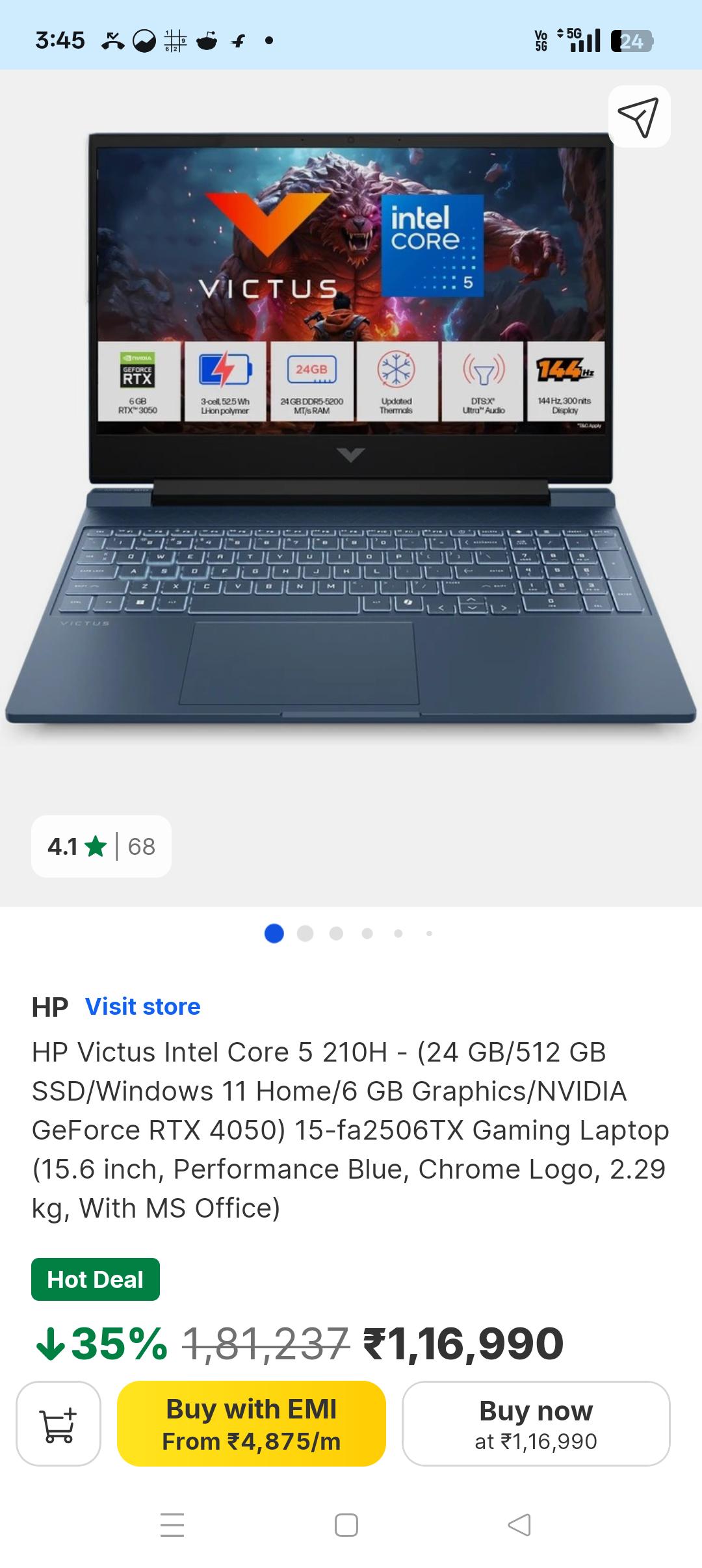
My old Asus vivobook died after 3 and half years and now I need to buy a new laptop I at least need an rtx 4050 in my laptop and in this value around 1.16 lakhs I am not getting any better deal then this HP victus one should I consider buying this I was more inclined towards Lenovo lock but even a Lenovo lock with RDT 3050 is around 1.5 lakhs so I don't think it is worth that much and tell me what thinks I should keep in mind I know all about all the hinge issues and all and about how to maintain a laptop but can you shed opinion about how to extend its warranty and what will be the price I have to pay and is this deal worth enough or I can get a better one around the same price don't have enough time so please suggest me and enrich me with your expertise


r/HPVictus • • 6h ago

Question Do I need a Cooling pad to play a game like Genshin Impact?

1 Upvotes

It's 2 beeks since I bought this laptop really wanna game on this but i had a question though.

Specifications:

AMD Ryzen 7 7445HS w/ Radeon 740M Graphics (3.20 GHz)

NVIDIA GeForce RTX 4050 Laptop GPU (6 GB)

AMD Radeon 740M Graphics (512 MB)

  1. Wanted to play Genshin Impact and I also have many Pragmata, Callisto Protocol, Batman Arkhram Series and many old COD games on Steam Family. I think i will need one cooling pad. But for Genshin do I really need one. If yes please suggest me.


r/HPVictus • • 8h ago

Help Boot time too slow

1 Upvotes

So I just bought this victus 4050 laptop day before yesterday and its starting time is approx 45 - 50 seconds. My previous laptop used to take around 15 seconds


r/HPVictus • • 11h ago

Hello guys iam going to buy HP VICTUS 15-fa2082wm - Intel Core i5-13420H - NVIDIA GeForce RTX 4050 6GB(50w) -16G DDR4

1 Upvotes

My major is computer engineering and my games are eSports do you recommend this laptop, if you had any issues with this laptop pls tell me and I was also apprehensive from the tgp which is 50w

Thanks.


r/HPVictus • • 12h ago

Help What the heck happened to my laptop??? (Need urgent h_elp)

Thumbnail reddit.com
1 Upvotes

r/HPVictus • • 18h ago

Help Automatic repair

Post image
3 Upvotes

I am seeing this screen after i clicked "update and shutdown" and when i click "CONTINUE" it shows me this screen again.

I asked gemini what to do and it told me to uninstall updates. And then it starts properly but , it still asks me to "update and shutdown" when i go to shutdown my laptop .And then the loop continues.

Can someone tell what i should do.


r/HPVictus • • 13h ago

Right fan not working hp victus 16

1 Upvotes

Just bought hp victus 16 i core 7 like a week ago i was palying games and noticed that my right fan is not working at all like my left side of the laptop is cool my right side is pretty warm and the fan is not turning on, pls help


r/HPVictus • • 20h ago

Help Can someone help me

3 Upvotes

hi guys i bought hp victus 15 fa 2013dx with i5 13420h and rtx 3050 6gb but i surprised with 50 watt tgb and i saw that peoples make flash to vbios and get 75 watt tgb so my question is it risky or it is safety ?

and if it is safety how can i make the flash vbios ?

and if someone make it give me your review is it worth or no

(i have 120w charger and i don't have money to buy 150w or 200w now)


r/HPVictus • • 16h ago

Help Help me with this issue pls

Thumbnail
gallery
1 Upvotes

🆘🚧. So i bought this Laptop day before yesterday and after I came back home and updated the windows and drivers, my laptop crashed and it said something like "your device ran into a problem and it needs to restart". After restarting it was working fine but when I saw the computer's reliability and problem page, i saw 30+ critical events. Is it normal for a new laptop, or should I go and try exchanging this device and there was some black screen issue too where I could only use my cursor but then I created a new task and the problem was solved.. 🚧🆘

The device which I'm talking about is -

HP VICTUS 15-fb3118ax

R7 7445HS 16 GB DDR5 RAM

6GB DDR6 RTX 4050

Comes with only 50w tgp.

I bought it around 98k, so if anyone can tell me is the price was good for this machine or not.


r/HPVictus • • 16h ago

Victus laptop battery issue

1 Upvotes

The charging light indicator is blinking the charging won't increase what can I do to solve that anyone please help


r/HPVictus • • 16h ago

Help \*\*Rocket League – Random Brief FPS Drops and Stuttering, Worse When Using an External Monitor (HP Victus 15 – RTX 4050)

1 Upvotes

Hello everyone,

I'm experiencing random, brief stutters and freezes while playing Rocket League, and I'm trying to figure out what is causing them. I've already tried several troubleshooting steps, but the issue still persists.

I'd appreciate any suggestions, especially from people who have experienced something similar.

Laptop Specifications

Laptop: HP Victus 15

CPU: Intel Core i5-13420H

GPU: NVIDIA RTX 4050 6GB

RAM: 16GB DDR4

Storage: Internal SSD

Operating System: Windows 11

Laptop Display: 144Hz

NVIDIA Graphics Driver Version: 610.74

Problem Description

I experience sudden FPS drops and brief freezes while playing Rocket League.

Here are the details:

The issue occurs in both Online matches and Free Play.

It usually happens once per gaming session.

It typically occurs within the first 30 minutes of playing.

The stutter lasts less than a second.

FPS drops noticeably during the stutter.

Game audio continues normally while the issue occurs.

I haven't noticed the same issue in other games so far. It seems to be limited to Rocket League.

When Did the Problem Start?

The issue started after I began playing with a friend using an external monitor connected to my laptop via HDMI. This happened while playing both Rocket League and Avatar Legends Fighting Game. The problem initially affected both games.

During those sessions:

I was using the external monitor's audio output through HDMI.

I was using Windows' Duplicate display mode, meaning both screens displayed the same image.

The external monitor runs at 60Hz, while my laptop's built-in display supports 144Hz.

Later, the issue started occurring even when playing on the laptop's built-in display alone, but only in Rocket League. Other games no longer seem to have any issues.

Important note: The problem occurs in Rocket League on both displays, but it becomes noticeably worse when using the external monitor.

Gaming Settings and Conditions

The laptop is plugged into the charger.

Battery is at 100%.

FPS limit is set to 144.

Controller is connected via USB.

The game is installed on the internal SSD.

Graphics settings are set to Performance.

Troubleshooting Steps I've Tried

Enabling V-Sync: The issue persisted.

Disabling V-Sync: The issue persisted.

Disabling NVIDIA Overlay: Stuttering became noticeably less severe, but did not disappear.

One-hour gaming session with Overlay disabled: One stutter occurred after approximately 30 minutes.

Another session with Overlay disabled: The issue occurred again after approximately 30 minutes.

Playing on the laptop's built-in display only: The issue still occurs, but only in Rocket League.

Playing on the external monitor: The issue becomes worse and occurs in both games.

I cannot confirm whether disabling NVIDIA Overlay was actually responsible for the improvement, since the issue did not disappear completely.

NVIDIA App

Version: 11.0.8.299

Performance Monitoring

I enabled the following Performance Graphs in Rocket League:

FPS

Frame

Game

Render

GPU

During the stutter, FPS drops noticeably. Some of the graphs also show spikes in their recorded maximum values.

Audio Devices Detected in Device Manager

Under Sound, video and game controllers, the following devices are listed:

NVIDIA High Definition Audio

NVIDIA High Definition Audio Wave Extensible WDM

Realtek Bluetooth LE Audio driver

Realtek(R) Audio

Intel Smart Sound Technology for Digital Microphones

Intel Smart Sound Technology for USB Audio

When using the external monitor through HDMI, I use NVIDIA High Definition Audio.

I haven't disabled or uninstalled any audio drivers so far.

What I've Found While Researching

I've come across several reports from users experiencing similar stuttering issues in Rocket League. Some mentioned possible causes such as:

Audio drivers and audio output devices.

Bluetooth.

NVIDIA Overlay or Discord Overlay.

Different refresh rates when using multiple monitors.

G-Sync and FreeSync.

Multi-monitor configurations.

Frame presentation or game-specific issues.

One Reddit user reported that disabling Realtek Audio fixed their FPS drops, but their situation doesn't seem to match mine exactly, so I'm not sure whether their experience is relevant.

What I'm Trying to Find Out

Could using Duplicate display mode with a 144Hz laptop screen and a 60Hz external monitor cause this type of stuttering?

Could the issue be related to NVIDIA's frame presentation, graphics drivers, or multi-monitor handling?

Could audio drivers or HDMI audio contribute to the problem, considering that the stuttering occurs with both the laptop's built-in audio and HDMI audio?

Why did disabling NVIDIA Overlay noticeably reduce the severity of the stuttering without completely fixing it?

Has anyone experienced a similar issue specifically in Rocket League, where FPS suddenly drops for less than a second while the audio continues normally?

I'm looking for a way to identify the actual cause rather than randomly disabling drivers or changing settings without knowing why.

I'd really appreciate any suggestions or similar experiences. Thanks!

This is the Performance Graphs after the problem.


r/HPVictus • • 1d ago

Victus 16s – Where does the hot air actually exit?

2 Upvotes

Hi everyone,

I have an HP Victus 16-s with a Ryzen 7 7840HS and an RTX 4060. I’ve transferred the motherboard and the complete original cooling system into a custom HTPC case.

I’m trying to determine the exact direction of the hot air coming from the original cooling fans.

Could someone who owns the same laptop please check the following?

* Does the hot air exit directly through the rear of the laptop?

* Does it exit downwards through the bottom of the laptop?

* Does hot air also come out of the grille between the keyboard and the screen, near the hinges?

I need to know exactly where the hot air exits before making ventilation holes in my HTPC case.

If someone could check the airflow on their laptop, preferably under heavy CPU or GPU load, I would really appreciate it.

Thanks in advance!


r/HPVictus • • 1d ago

Question What is the difference between the batteries?

1 Upvotes

I just got my laptop battery removed, it was inflated, I use the laptop without a battery until the battery I ordered arrived, the technician told me it's an original battery but I really doubt it because it's quite cheap (37 dollars or something like that) but it's a good store so I don't know, anyway I want to know what is the difference between the original battery or a semi original one, can it inflate faster?, is the capacity lower? Can it cause trouble? Also how to not get inflated battery again, it took 3.5 years for that to happen but I want to be more Caution


r/HPVictus • • 1d ago

Is it fixable? Need help ASAP

1 Upvotes

Laptop: HP Victus 15-fa0xxx (i7-12700H, RTX 3050 Ti Laptop GPU 4GB, BIOS F.28)

What happened:

Last week my external monitor (Samsung Odyssey, HDMI) suddenly stopped getting a signal ("check the cable connection"). It had worked fine every day before that. Cable and monitor are fine. On this model the HDMI port is wired to the NVIDIA GPU. In Device Manager the GPU shows Code 43. The Intel iGPU and the laptop screen work normally.

What I tried in Windows:

• Hard reset (unplugged charger, held power button for 30s)

• Reinstalled the driver from the NVIDIA app → still Code 43

• Clean install of 621.01 → installs successfully, Code 43 right after reboot

• HP's OEM driver (556.13) → "Windows encountered a problem installing the driver"

• nvidia-smi → "couldn't communicate with the NVIDIA driver"

• GPU-Z → Device ID is read correctly (10DE 25A0, HP 8A4F), PCIe 4.0 x8 link is up, but Revision: FF, BIOS: Unknown, Memory: 0 MB

• HP UEFI diagnostics (F2) → video memory test passed (I think it only tests the iGPU)

Linux test (Ubuntu 24.04 live USB, nothing touched the internal drive):

• lspci shows the card normally: rev a1, all memory regions assigned, link at 16GT/s x8, no "fallen off the bus" / AER errors

• nouveau detects the chip ("NVIDIA GA107 (b77000a1)") and reads the VBIOS (94.07.56.40.16)

• GSP firmware (RM 570.144) loads, then it times out

• No HDMI output in Linux either

Possibly unrelated: Around the same time the NVMe SSD started showing an HP SMART 301 error (critical warning bit 2, ~69k media errors). I've backed everything up and will replace it. But the Linux test didn't use the SSD at all and the GPU still fails, so I don't think the SSD is the cause.

My conclusion so far: Two different OSes and two completely different drivers both fail at the same init stage. The card responds on PCIe and its VBIOS is readable, but full initialization times out. My guess is a VRAM or GPU power rail fault on the motherboard.

Questions:

  1. Does this match a hardware failure (VRAM / power rail), or is there anything software-side I haven't tried?

  2. Has anyone had this kind of failure repaired at a board-level repair shop? Was it the power circuitry or did they have to replace the GPU chip/VRAM?

Thanks in advance. Sorry it's been a little long.


r/HPVictus • • 1d ago

Help Title: HP Victus SSD failed after just 1.5 years – HP quoted ₹13K for replacement. Should I repair it or sell it?

Post image
18 Upvotes

Hey everyone!

I own an HP Victus gaming laptop, which is around 1.5 years old. Unfortunately, my SSD has failed, and I'm now stuck deciding whether to repair it or sell the laptop.

Laptop specifications:

Processor: AMD Ryzen 5 8645HS (8000 series)

GPU: NVIDIA GeForce RTX 3050 6GB

RAM: 16GB DDR5

Storage: 512GB PCIe NVMe SSD (original)

Display: 15.6-inch Full HD IPS, 144Hz

Operating System: Windows 11

Series: HP Victus Gaming Laptop

The problem:

My laptop's SSD has failed, and I approached an HP service centre to get it checked.

They told me that the only option is to replace the SSD, and the estimated cost is around ₹13,000.

Unfortunately, my laptop's warranty expired after the first year, so it's completely out of warranty now. 🥲

I also checked how much I could get if I sold the laptop in its current condition. I'm being offered only around ₹20,000.

The frustrating part is that I've taken extremely good care of this laptop. It's only 1.5 years old, has no scratches or physical damage, and looks almost brand new.

I'm considering a few options:

Should I replace the SSD through a local laptop repair shop instead of paying ₹13K at an HP service centre?

Is it possible to install a compatible third-party NVMe SSD and continue using the laptop normally?

Would selling the laptop for parts (RAM, display, motherboard, GPU, keyboard, etc.) at local computer shops get me a better value?

Or should I just sell it for ₹20K and put that money towards buying a new laptop?

Personally, I would prefer replacing the SSD and continuing to use it because the rest of the laptop is in excellent condition.

What would you guys recommend?

Has anyone faced a similar SSD failure with an HP Victus? Any advice from people who have experience with laptop repairs would be really helpful.

Thanks in advance! 🙏


r/HPVictus • • 1d ago

Help HP Victus charger brickbmaking a alarm/buzzing/mosquito sound when plugged

4 Upvotes

It happened tonight so suddenly. Is it a sign to change it or is it still safe to keep?


r/HPVictus • • 1d ago

Tech Support Stability and memory issues

Thumbnail reddit.com
1 Upvotes

r/HPVictus • • 1d ago

Help Keyboard skin or wrap

2 Upvotes

The keyboard easily attracts fingerprints. I looked through few skin/wrap but none of them provide wrap for the keys. Where can I find skin or wrap for the keycaps ?


r/HPVictus • • 1d ago

My laptop turns on a light for 3 seconds and then turns off. The fans aren't working, and nothing is responding.

Thumbnail
gallery
1 Upvotes