r/MoonlightStreaming • u/RadishComplex1 • Jun 12 '26
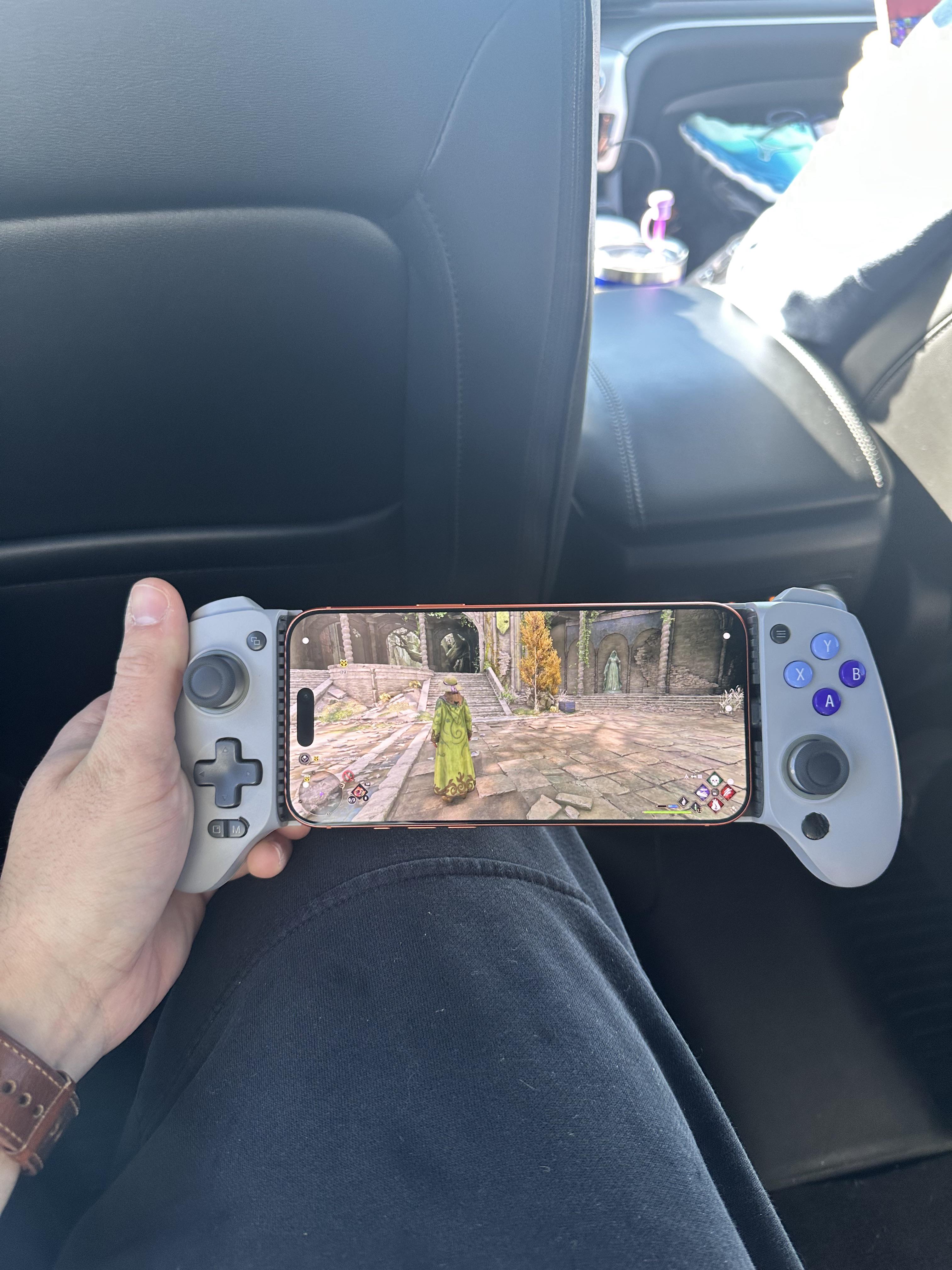
Sorry buddy..

1.0k
Upvotes
r/MoonlightStreaming • u/afterkaze • May 17 '25
Simply amazing, beautiful, and gorgeous. I picked up the Mate XT last week and have been playing Expedition 33 at its native 3K 90FPS.
I can even play outside of home using Tailscale since T-Mobile has been working perfectly fine. Has all the Google apps running nicely too.
r/MoonlightStreaming • u/Frequent_Section8178 • Jul 24 '26

Hey everyone
After countless attempts and some genuinely sleepless nights, I've finally finished my perfect streaming setup with Moonlight and Apollo. I can now stream 1440p at 120hz without any issues and with really low latency.
I started with my AppleTV 4K hardwired in, but no matter how much I tinkered with it, I could never get the latency to feel smooth. I found a bunch of people online complaining about the same issue, so I decided to install Moonlight through the Google Play Store on my (pretty new) Philips OLED TV instead, hoping the decoding would work better and latency would drop.
That worked for a while, but only at 1080p and 60hz, and Moonlight would randomly crash every now and then too.
Right when I was about to give up and just buy a 15m HDMI cable instead, I found a mini PC on Ricardo (Swiss eBay) for ~$200 CHF that already had Linux preinstalled and came with an Intel N100 processor, which turned out to be perfect for a streaming project like this.
Once it arrived, all I had to do was write a script to auto launch Moonlight and auto connect to my PC on boot, so it feels like a real console experience.
Now everything works exactly how I imagined it. I can stream up to 4k 60hz or 1440p 120hz from my gaming PC to my living room TV with almost no latency and zero stuttering.
Next up I want to mess around with HDR a bit, even though I'll admit I'm not a huge fan of it. It always looks kind of washed out to me.
Host:
Ryzen 7 7800X3D
RTX 5080
32GB DDR5 RAM
Hardwired
Client:
Intel N100 processor
Integrated UHD Xe-LP graphics
8GB DDR4 RAM
Hardwired
Apollo:
Preset P3
HEVC 265
Moonlight:
1440p
120fps
150 mbps
Hope you all have as much fun with Moonlight and Apollo/Sunshine as I have.
r/MoonlightStreaming • u/Gear_Born • Sep 29 '26

credits to the owner!
r/MoonlightStreaming • u/rySeeR4 • May 01 '25

Playing in my couch, in real 4K HDR + 5.1 Audio feels like a dream, while having the pc in other room as far as possible so the noise is not even heard.
What a time to be a pc gamer!
r/MoonlightStreaming • u/AztheWizard • Jan 24 '25
I’m streaming a virtual monitor (via Apollo) that’s ultrawide 4k, 90hz, and hdr from my gaming pc to Vision Pro.
Bonus: I’m also streaming it to my Apple TV, hooked up to my 5.1 surround sound system, so I get to see the visuals on an amazing/massive display + hear the spatial audio from real surround speakers.
Works great! I wrote a guide on my setup here - https://azadux.blog/2024/09/07/simulating-monitors-in-vr/
r/MoonlightStreaming • u/rambo3349 • 11d ago
Let's be honest. Everyone with a Claude Code license has a Moonlight fork now. At this rate there are more forks than users.
Your fork adds a stats overlay. Mine fixes HDR on one specific TV. Someone else changed the app icon and called it a day. None of us talk to each other.
So here's the pitch: Moonslop, the ultimate community vibe-coded fork. One repo. Every client: Android, iOS, Windows, macOS, Linux, Steam Deck, Apple TV, your smart fridge. Everyone's features in one place, slop and all.
Ground rules (yes, there are some):
Two human approvals to merge. At least one reviewer has to actually launch the build. "It compiles" is not a test plan.
AI code is welcome, but say so. Put your model in the PR description. Handwritten code is allowed but will be labeled "artisanal."
One feature per PR. "Added AV1 + rewrote the decoder + new theme + fixed a typo" gets closed with love.
Got a fork? Bring it here instead of starting fork #4,713.
If you break main, you get the Slopmaster flair for a week.
Leave the real Moonlight devs alone. This is our sandbox. Don't flood upstream with AI PRs or with issues about bugs from here. They built the thing we're all forking. Respect.
The changelog has to be AI-generated and contain at least one 🚀.
Is this a joke? Yes Will we actually merge stuff? Also yes.
Drop your fork links in the comments. Let's get to 1,000 contributors and 3 users.
r/MoonlightStreaming
•
u/Walkator
•
Sep 21 '25

Edit: A lot of people are asking why not use Apollo. You can definitely use it and still follow this guide, it’s completely up to you. With Apollo, you need skip the Configuring Video Signals section and for the Sunshine Priority part just change the script to prioritize Apollo instead.
After running lots of tests and reading many posts to find the best configuration, I’ll try here to share the setup that works best for me and also compile some of the information I’ve gathered.

My specs:
Internet Service:
Host: 300 Mb connected via Ethernet
Client: 600 Mb connected via Wifi
Spec PCs:
Host: R5 2600 - RX 6600
Client Macbook Air M1
Host:
This setup is specifically for Windows, but the goal is the same if you’re using other operating systems:
Reduce FPS drops
Minimize the gap between the FPS set in the Moonlight client and the host’s FPS
Reduce latency
Configure the video and audio signal you want to stream
Reducing FPS Drops
Close background apps: Only keep the essentials to minimize unnecessary processes and network calls. Task Manager → Startup Apps → disable non-essential programs.
Disable Game Mode: Prevents Windows from prioritizing the game over Sunshine. Settings → Gaming → Game Mode → OFF
Disable Dynamic Refresh Rate (DRR): Keeps FPS synchronized between host and client. Settings → System → Display → Graphics → Optimizations for windowed games (Alternatively: Windows Registry or CRU — Custom Resolution Utility)
Enable High-Performance Power Mode: Control Panel → System and Security → Power Options → High Performance
Disable Energy Saver: Settings → System → Energy Saver → OFF
To optimize Windows 11 performance, consider using Win11Debloat or AtlasOSAdditional powershell script to improve performance
Enable: https://pastebin.com/42YBtx6T
Disable: https://pastebin.com/bKpmmFQC
FPS Capping
Once FPS drops are minimized, cap the FPS to keep it in sync with Moonlight’s client settings.
There are three ways to do this: using the NVIDIA Control Panel, AMD Adrenalin, or RTSS. In my case, I used RTSS and it works well for me, but you can try your GPU’s software if that’s sufficient. The advantage of RTSS is that it allows more precise configuration for greater stability.
Another thing I do is also limit the FPS within the game itself.
Reducing Latency
The most important step is to have your host computer connected via Ethernet. In terms of configuration, you can disable the Rx/Tx buffers on your network card, along with a few other tweaks that may slightly improve stability.
Device Manager → Network Adapters → Properties → Advanced →
Flow Control Disable
Advanced EEE Disable
Energy-Efficient Ethernet Disable
Gigabit Lite Disable
Green Ethernet Disable
Power Saving Mode Disable
Interrupt Moderation Disable
Large Send Offload Enable
Configuring Video Signals (avoid this step when using Apollo)
There are two scenarios:
You have a monitor connected with the same resolution and refresh rate on both the client and the host.
You have a monitor on the host that is different from the client.
For the first case, congratulations! You don’t need to do anything and can skip this part.
For the second case, you have two options:
Install a Virtual Display Driver to Windows, and optionally a Virtual Audio Driver.
With the Virtual Display Driver, you can simulate any resolution and refresh rate your screen supports.
I don’t recommend the Virtual Audio Driver because it can cause issues with BattleEye anti-cheat. It’s better to just use a wired headset you already have.
Microphone Streaming
For those who need to use in-game voice chat, there are two main options for passing the microphone through streaming:
AudioRelay
VoiceMeeter
I haven’t personally tested either since I don’t need this feature, but they’re worth trying if microphone input is important for your setup.
Sunshine Priority (Windows Only)
Finally, for Windows users, one important step to do every time you connect from the client is to change the priority of the sunshine.exe process to Realtime. You can do this manually from the Task Manager or by using the following .bat script:
@echo off
powershell -command "Get-Process sunshine -ErrorAction SilentlyContinue | ForEach-Object { $_.PriorityClass = 'RealTime' }"
pause
Always remember to run it as administrator.
Windows Adaptation for Handheld Devices
For those using a touchscreen device as a client, such as a smartphone, tablet, or handheld, the Windows interface—originally designed for desktop use—can be quite uncomfortable. With the new release of the ROG Xbox Ally, Windows has introduced a more suitable adaptation for handheld devices, which can be enabled through the following repository: XboxFullscreenExperienceTool
Client:
The main goal on the client side is to reduce Moonlight’s decoding time and minimize latency.
In my case, I’m using a MacBook with an M1 chip, and the only way to reduce decoding time is by testing which codec works best—in my case, HEVC (H.265).
To reduce latency on macOS, the only (but very important) thing you can do—since it can cause micro stutters—is disabling Location Services:
System Preferences → Security & Privacy → Privacy → disable Location Services
Another important change to make on macOS is to disable the long key press for special characters. This prevents issues during streaming when holding down a key for example, the W key so it doesn’t get stuck or stop repeating.
defaults write -g ApplePressAndHoldEnabled -bool false
More info about shuttering in Mac OS
If you’re using a PC, you can improve decoding time by upgrading your hardware, and reduce latency by disabling the Rx/Tx buffers and tweaking your network card, following the same steps as on the host.
Moonlight Configuration:
Set Moonlight to use your monitor’s resolution and an FPS value that matches your internet connection. Leave some headroom compared to your client’s max download speed and your host’s max upload speed.
For example, my monitor is 1440p and 180 Hz, but I have it set to 1440p at 120 Hz. Higher resolutions and refresh rates consume more bandwidth on both the client and host, and require greater decoding and encoding power.
Note: Higher compression codecs (like H.265 or AV1) → less bandwidth needed → more CPU/GPU power required for encoding/decoding.
| Codec | Compression | Bandwidth | CPU/GPU |
|---|---|---|---|
| H.264 | Lower | High | Lower |
| H.265 | Medium | Medium | Medium |
| AV1 | High | Lower | High |
More info: https://www.reddit.com/r/MoonlightStreaming/s/MqoI9LVQ4C
Recommended Settings:
Display Mode: Full Screen
V-Sync: Unchecked (Recommended in single-player)
Frame Pacing: Unchecked (ONLY single-player may add delay)
Video Decoder: Force hardware decoding
Note: Both V-Sync and Frame Pacing are highly recommended for single-player games since they provide a much smoother experience. However, in multiplayer games, V-Sync may cause screen tearing, and Frame Pacing can introduce a bit of input lag by delaying frames to improve synchronization.
Enable HDR (Experimental): I keep this enabled even though my monitor isn’t HDR because it can bring out better shadow details. I recommend trying it—you might see an improvement or no noticeable difference.
Unlock Bitrate Limit (Experimental): Enable this if you have enough upload bandwidth on the host and download on the client. Otherwise, leave it off and increase the video bitrate slightly if you notice small lag spikes.
Sunshine Configuration
I mostly keep Sunshine/Apollo at its default settings, except for the GPU options. Below, I’ll share what works best for AMD GPUs. If you’re using NVIDIA or Intel, you may need to experiment to find the optimal configuration for your system.
Note: My goal is low latency for online gaming. If you’re playing single-player games, you can prioritize quality over latency.
AMF Usage: ultralowlatency
AMF Rate Control: vbr_latency
AMF Hypothetical Reference Decoder: unchecked
AMF Quality: speed (may add artifacts)
AMF Preanlalysis: unchecked
AMF Variance Based Adaptive Quantization: checked
AMF Coder: cavlc
LAN (Local)
For players who want to play over LAN, there’s little to worry about since latency will be very low. In my tests, I observed only about 5 ms of extra delay.
If you want the absolute best performance, you can connect both devices directly via an Ethernet cable. This can reduce latency to around 1 ms, making it almost like playing directly on the host.
You can turn on the host remotely using the motherboard’s Wake-On-LAN feature. Moonlight even allows you to power on the host directly from the client.
WAN (Remote)
For those who need to play over WAN, there are a few additional steps required. It can be more challenging if you want the lowest possible latency, but if you can tolerate 15–20 ms, it’s not too difficult.
There are several ways to achieve this, but I’ll explain the three main approaches:
Using a service like Tailscale, ZeroTier, or Netbird
Opening ports on your network to access the host externally and setting up a VPN
Setting up a private service (similar to the first option) with Headscale or another program, possibly using a cloud server like AWS
These applications are simple to install and configure, making them accessible to most users:
Tailscale: Free
ZeroTier: Free
Netbird: Free (uses WireGuard directly through the Linux kernel—potentially a great option for Linux users)
For the other options, I won’t go into detail because they are more complex and require technical knowledge. However, they are certainly the best options for users who need the absolute lowest latency.
To power on your PC over WAN, a simple Wake-on-LAN (WoL) won’t work unless your host has an internet-facing connection. In my setup, I use a TP-Link smart plug to turn the PC on remotely from my phone. Make sure to enable “Restore Power after AC Loss” in your BIOS/UEFI so the PC powers on automatically when the smart plug is switched on.
I hope this guide helps you and gives you everything you need to get these amazing tools running without too much hassle. The post is open to improvements, so if you have any suggestions or tips, don’t forget to share them in the comments!
Shoutout to everyone working on these open-source tools mentioned in this post.
After the launch of the Steam Deck and Steam Machine, Steam has worked quite a bit on improving Steam Remote Play, which now supports Virtual Display Driver and performs much better than before. I'm leaving this comment here for those of you who aren't too demanding or don't want to overcomplicate things, so you feel encouraged to give it a try.
Update 13.10.25: MacOS client settings
Update 23.10.25: New scripts for Windows host and Windows handheld mode
Update 13.04.26: Windows optimization recommendation
Update 17.07.26: Steam Remote Play alternative
r/MoonlightStreaming • u/Gear_Born • Sep 22 '26

I wanted my game stream to run on its own desktop instead of hijacking the whole PC — so the physical monitors stay free and untouched while the stream runs on the side. Duo does exactly this, but the free tier caps your physical desktop at 30Hz, and the rest is behind a supporter unlock.
I built ChildStream — a proof of concept that does the core thing for free, with no license checks and no shady hacks:
How it works:
• Windows has a documented but almost unknown feature called child sessions ( WTSEnableChildSessions ) — a second, fully independent logon session on the same PC, same user
• A portable Sunshine instance runs inside that session on separate ports (48989), so it coexists with an existing Apollo/Vibepollo/Sunshine install
• A small launcher app (C#, compiles itself with built-in Windows tools) opens the child session via RDP loopback, auto-logs in, sits in your tray, and auto-reconnects
• One registry value ( DWMFRAMEINTERVAL ) lifts the session compositor from ~30fps to ~120fps
Results on my machine (RTX 5060 Ti, Win 11 Pro 25H2, OnePlus 15R + Artemis):
• Stream: 2800×1272 @ 119.96 FPS, 0.00% dropped, ~2ms host processing
• Physical desktop simultaneously at 143Hz, fully usable
• Child session takes ~4GB RAM, GPU encode barely registers
Honest limitations vs Duo (credit where due — Duo proved this concept and their custom display driver is still ahead):
• One child session max, same user as console (Windows limitation)
• The viewer app must stay running (minimized to tray is fine) or capture dies
• No per-session HDR
• Refresh depends on the RDP compositor (~60–125fps depending on build)
Setup is one elevated PowerShell script: it compiles the launcher, enables child sessions, downloads Sunshine, sets ports/firewall/autostart, and drops a desktop shortcut.
GitHub (MIT): https://github.com/mattxslv/childstream
Legal note: no Duo code was touched or reverse-engineered — this is an independent implementation on top of Microsoft's documented Child Sessions API + open-source Sunshine.
Happy to answer questions or take PRs. If you try it, I'd love to hear your fps numbers and hardware.
r/MoonlightStreaming • u/SuperDubert • Nov 29 '25
Btw, the average frame count it took to reach button press to my RP5 was 19 frames on average. Under 240fps recording, 19 frames is 80 milliseconds. Pretty damn good. Steam Link was 29 frames/120 milliseconds or so.
I also hate Steam Link capping your frames on your PC
r/MoonlightStreaming • u/youplaymenot • Mar 07 '26

I recently got the Lenovo Tab One for about 85 bucks and a controller that fits it screen of about 8.7 inches. The controller is a game sir x5 mobile light for 35 bucks on Amazon. Pretty great controller with hall effect sticks for this price. The sceen on the tablet isn't full HD, but honestly for steaming my pc to it for about 120 bucks it's been great. The battery life is fantastic and it's super light to carry.
r/MoonlightStreaming • u/OwenWard • May 14 '26
Hey everyone!
For anyone who is not aware, this sub has been the subject of spam attacks over the past couple of weeks. This sub only had a single inactive mod, so the spam posts flourished.
Having seen this happen to another sub before, I followed the procedure to take over this community and as of today, that request has been granted. I am working my way through all the spam (thanks to everyone who reported the posts), and cleaning this place back up. Right now, I'm actually at a industry event and the connection isn't the best, so it may take a bit of time. But rest assured, this place will be free of spam.
I don't want what happened to happen again. As of right now, I am the sole mod - but this place needs more than that. There are a few community members that have also been doing what they can to help combat the spamvasion that I will personally reach out to, as they seem to be a great asset to the community. But please feel free to let me know if you wish to be up for consideration.
As for the future of the sub? I would like this place to be a centralised hub for all things Moonlight/Apollo/other forks. This place is already a wealth of knowledge, and it would be great to compile that for some more up to date guides. But right now, the sole focus is on getting this place back to the way it was.
May your bitrates be high and your latency low!
r/MoonlightStreaming • u/cd912yt • Jul 06 '25
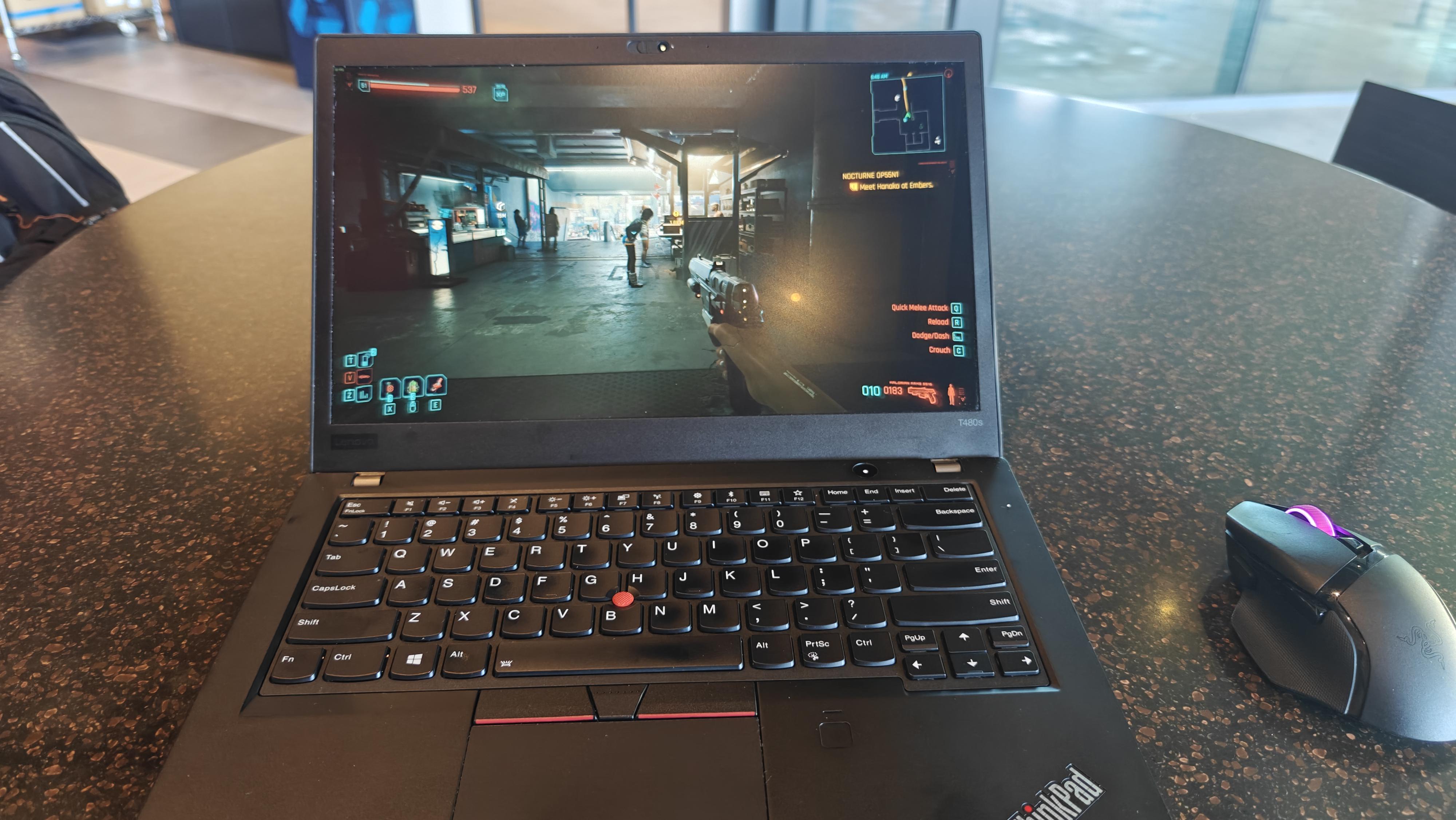
I never thought I'd be a laptop gamer ever again but Moonlight on my Thinkpad (while at work too!!) works amazing. 35-40 ms latency, feels really nice for what it is.
r/MoonlightStreaming • u/GlassAdvance306 • Oct 04 '26

r/MoonlightStreaming • u/eggalones • Jun 01 '26

After a lot of experimentation, I finally got my setup to the point where it genuinely feels like a native console experience in the living room, while still keeping my desktop gaming setup intact. The only thing I might do later is upgrade the host, but Apple TV is working pretty good for our first round.
The goal was simple:
• Game at my desk on an Alienware AW3423DW (3440×1440 @ 175Hz)
• Walk into the living room and continue playing on a Sony A95L
• No moving hardware
• No manually changing resolutions
• No Bluetooth controller weirdness
• No Wi-Fi
The final setup:
Gaming PC
RTX 3090
Sunshine
Virtual Display Driver
Alienware AW3423DW
Living Room
Apple TV 4K
Moonlight
Anthem AVM 90
Sony A95L
Controller Path
Xbox Controller
Xbox Wireless Adapter V2
GL.iNet Beryl AX (PoE powered behind TV)
VirtualHere USB-over-IP
Everything is wired with Ethernet.
The biggest breakthroughs were
* Creating a dedicated 4K60 virtual display for streaming instead of trying to stream my ultrawide monitor.
* I originally assumed higher refresh rates would be better, but matching the entire chain at 60Hz dramatically improved responsiveness (at least for now while relying on Apple TV)
* Using the Xbox Wireless Adapter through VirtualHere (USB over IP) instead of Bluetooth.
* Enabling the actual hardware-level Game Mode on the A95L. The picture preset alone wasn’t enough.
The really cool part is that when Moonlight connects, games launch on the virtual display automatically. When I disconnect, my AW3423DW becomes the primary (and only) display again. No manual monitor switching required.
I ended up creating the attached infographic documenting the architecture and signal flow because I couldn’t find a single diagram that showed all of these pieces working together.
Curious if anyone else is running a similar Apple TV + Moonlight setup, and whether you’ve found any additional latency optimizations beyond what I’ve implemented. Particularly curious if people have seen any significant improvement by upgrading Apple TV to a MiniPC that is worth dealing with the extra complexity. I really like being able to control this all with my TV remove because Apple TV supports CEC.
r/MoonlightStreaming • u/Last_Jedi • Dec 21 '24
Found here, I think the developer is on this sub too.
What's great about Apollo? It does what Sunshine does, except it will automatically create a virtual display on the host computer with the same properties as the display you are streaming to (resolution, refresh rate, SDR/HDR). No more mismatches between host and client displays, no need for a dummy HDMI plug. It just works.
My monitor on the host PC disconnects when it's turned off, but with Apollo, I don't need any display connected - it will create a virtual display and stream from it.
Highly recommend checking out if you are trying to solve host display problems like these.
r/MoonlightStreaming
•
u/Embarrassed_Humor_92
•
Apr 01 '23

I have written down the below steps to assist anyone struggling to stream games to an LG TV as I did. As you may know, there is no Steam Link app for LG TVs yet and after some search I concluded that probably the most efficient way to play Steam games to my TV (which is in a different room from my pc), is through Moonlight and the following procedure:
***The below mentioned links and procedure are working on win11x64 with an amd cpu, nvidia 40xx gpu and LGTV CX as of 31/3/23, with all Windows and webOS updates installed up to this date. It worked for me, it may not work for you, follow the below at your own risk, I am not a programmer or developer and I have not looked into the process for other hardware or software.***
To the mods: I have searched and have not found something like this but if I missed it I am sorry and please close/delete my post.
General idea is that Moonlight must be installed on both PC and TV (which are on the same network) for the stream to work. Installing the app on PC is simple, the "complex" part is to install it on your LG TV:
Dev mode must be enabled on tv. To do that:
Create a dev account on LG Developer website: https://webostv.developer.lge.com/
Download the official dev app from LG store on your TV.
Open the dev app and login with dev account.
Turn on wired (or wireless) connection.
Turn on Key Server.
Extend session time (was already on in my case). You will have to renew the session from time to
time.
Write down IP of TV. (Prefer wired IP if available).
2. Download and install on PC "WebOs Dev Manager".
From https://github.com/webosbrew/dev-manager-desktop/releases/tag/v1.10.1
go to the bottom of the page and choose the .msi file corresponding to your OS (e.g.
"webOS.Dev.Manager_1.10.1_x64_en-US.msi" for Windows x64).
Open it and: Add device-> Choose a Name
Host address=IP of TV from step 1. (wired or wireless)
Authentication method=Official Dev mode
Passphrase=Passphrase on TV in dev mode app.
Click Add.
If all goes smoothly your TV should be successfully added. If not, make sure that your PC and TV are
on the same network.
Install Moonlight app from "Apps". App is installed on TV.
3. Download and install Moonlight app on PC and follow the basic instructions mentioned on the
website's Setup-Guide. (reg. nvidia shield, Hardware-accelerated GPU scheduling, etc).
If your gpu is amd the procedure has some differences, I have not looked into it.
Setup guide: https://github.com/moonlight-stream/moonlight-docs/wiki/Setup-Guide
Open Moonlight app.
4. Open Moonlight app on TV.
Start session
Input code from TV to prompt on PC (it will be an nvidia shield window if you gpu is nvidia-follow the
corresponding process on
the moonlight website if your gpu is amd or other).
Steam should appear on your TV.
Open a game and enjoy.
Important: In-Game resolution should be the same as the resolution chosen in Moonlight TV app
(even if your monitor is not 4K but say 1440p like mine, you should choose 4k in game settings in
your monitor). For further troubleshooting and optimizations please see the official FAQ and
troubleshoot page.
r/MoonlightStreaming
•
u/antoinebou13
•
Aug 17 '26

If you are looking to tweak your streaming setup, fix stuttering, or find a headless virtual display solution, you don't have to stick strictly to the baseline Sunshine + official Moonlight setup.
Here is a breakdown of the active forks, alternative hosts, and FFmpeg-powered clients currently in the ecosystem based on what the community and developers are running right now.
NVIDIA GameStream: The original foundation that started it all. Officially deprecated by NVIDIA, but the bedrock of the protocol.
Sunshine: The modern, open-source standard GameStream compatibility baseline that replaced NVIDIA's official host.
Apollo: A Sunshine fork featuring capability-gated extensions and built-in virtual display support using SudoVDA. It is great for headless setups and auto-matches the resolution/framerate of your client.
Vibeshine: A highly active, AI-enhanced Sunshine fork focusing heavily on display automation, Windows Graphics Capture running as a service (which allows full framerate capture of frame-generated titles without VRAM crashes), and strict RTSS frame pacing integration.
Vibepollo: An Apollo fork that integrates Vibeshine's features (like the native virtual display driver and HDR handling) right into the Apollo architecture. This is highly recommended if you already use Apollo but want tighter frame pacing.
Foundation-Sunshine: A fork by AlkaidLab that adds HDR10/HDR Vivid, advanced audio support, optimized encoders, and a modernized control panel.
Wolf (Games on Whales): A completely different streaming server built from the ground up for Linux and Docker. It allows you to share a single host machine with multiple remote clients simultaneously by running games inside isolated containers.
Punktfunk: A newer, highly experimental low-latency streaming host/client protocol if you want to test out a completely different capture approach.
Official Moonlight PC / Mobile: The standard baseline client for PC, macOS, Linux, iOS, Apple TV, Android, etc. (The PC Qt version heavily utilizes FFmpeg and libplacebo for decoding and rendering).
StreamLight: A massive Moonlight fork that completely overhauls the UI for gamepads. When paired with "StreamTweak" on the host, it unlocks deep integration like built-in Tailscale, live host metrics/NIC speed matching, remote pause, and the ability to remotely trigger Windows Updates and shutdown.
Artemide: Highly recommended for Android users. It features ultra-low latency (ULL), direct presentation, and built-in FSR presets (Performance/Balanced/Quality).
Artemis / Moonlight Noir: Apollo’s dedicated Android companion client, offering excellent host UX and virtual display integration.
Moonlight V+: An alternative Android fork that adds frame-generation support and extra host tools.
Artemis Switch: A Moonlight-Switch fork focusing on Switch-specific video presentation, FSR/RCAS filtering, and adaptive low-latency pacing.
Moonlight-Switch: The original upstream Switch client that Artemis is built on.
A little about my setup and testing: I actually work on the Artemis Switch fork, looking at multiple optimizations to eliminate stuttering and improve low-latency pacing on the console. Because of that, I’ve personally tested almost all these major combinations to see what actually works. My testing stack includes:
Hosts: Sunshine, Apollo, and Vibepollo.
Clients: Moonlight-Switch, my Artemis Switch fork, the Artemis companion client, and standard Moonlight Android.
I like vibepollo and Artemis
Let me know if I missed any niche forks or experimental branches you guys are using!
(Note: I had an AI help format this post to make sure links were laid out clearly!)
r/MoonlightStreaming • u/iamdistrict • Nov 18 '25

After trying to use a Steam Deck to do 4K 90Hz streaming to my TV, but struggling with stutters and latency, I decided to start a little budget build project.
I did my research and I didn’t really feel like limiting myself to a NUC/mini PC because I still wanted to be able to run some light games locally on the PC. Also, capable mini PCs seemed to be 1.5-2x the cost of this build. Double also, I just love sourcing and building components. I have the space near my TV to hide it away so why not!
So this led me to start sourcing a GPU as the decoder. For this I needed a 4K120 capable output (HDMI 2.1/DP 1.4), but I also wanted AV1 capabilities, so I required something more recent. Turns out this was probably the right call anyway as I wanted to be able to run a couple of light games locally as a potential portable PC. The options therefore were an RX 6600, Arc 310/380 or an RTX 3050. The RX 6600 was a bit more expensive, the Intel Arcs had great encode but bad 3D performance, and the RTX 3050 was the logical choice for me due to the solid encoder and decent enough game performance.
For the rest of the PC, I bought a cheap complete gaming PC off of eBay which I then gutted but kept the PSU, cooler and motherboard. I then sold the rest for an overall profit to subsidise the GPU and bought a cheap CPU and DDR4 RAM. I threw in a spare 128GB SSD i had lying around, bought the smallest cheap mATX case I could find on Amazon, and so my budget client PC was complete. Ignore the cable management, there is 0 space elsewhere for cables.
The final client specs are:
CPU: Intel i5 9400f - $25
GPU: Gigabyte RTX 3050 8GB -$138
RAM: HyperX 16GB 3200MHz DDR4 - $20
Motherboard: Gigabyte H310m SH2 - Free
Cooler: Noctua L9i - Free
PSU: Thermaltake Smart Pro RGB 650W - Free
Case: ALAMENGDA V500 - $45
Total: $228
Profit made in reselling: $35 $65 (Edit: forgot to add the case I sold which was $30)
Final cost: $193 $163
After a GPU deshroud and 2 spare Noctua fans later, I have a very silent client that pulls 60W from the wall and can reliable stream 4K120Hz with HDR at AV1 500bit (overkill I know) at sub 0.5ms decode. I also can do YUV 4:4:4 but this changes my encoder to HEVC for some reason (?). My host is a 7800x3D with a 5070Ti that can do 4K high refresh in most games I play with some up scaling.
Very content with my setup after some some tweaking, especially considering the whole rig was cheaper than most mini PCs and can be used as an actual gaming PC if needed. The case is small enough it can tuck away behind/under my TV (my main rig is also a small case for context). Have got wake on LAN set up as well as auto boot into Steam Big Picture mode for a console experience. Almost looks and feels like native.
With a bit more of a budget I would’ve gotten a Velka 3 style case, an ITX motherboard and a flex psu. Itx motherboards for 9th gen Intel are expensive and I didn’t want to drop down to 6/7th gen Intel. But this is compact enough for now.
Next steps are to design and 3D print a smaller console-style case with a flex power supply, but that’s for another day.
QUESTION: Why does my stream automatically switch to HEVC when I enable YUV 4:4:4 in Moonlight? This is despite forcing AV1 decoding.
(edit: formatting and bad maths)
r/MoonlightStreaming • u/Vodque556 • Mar 09 '26
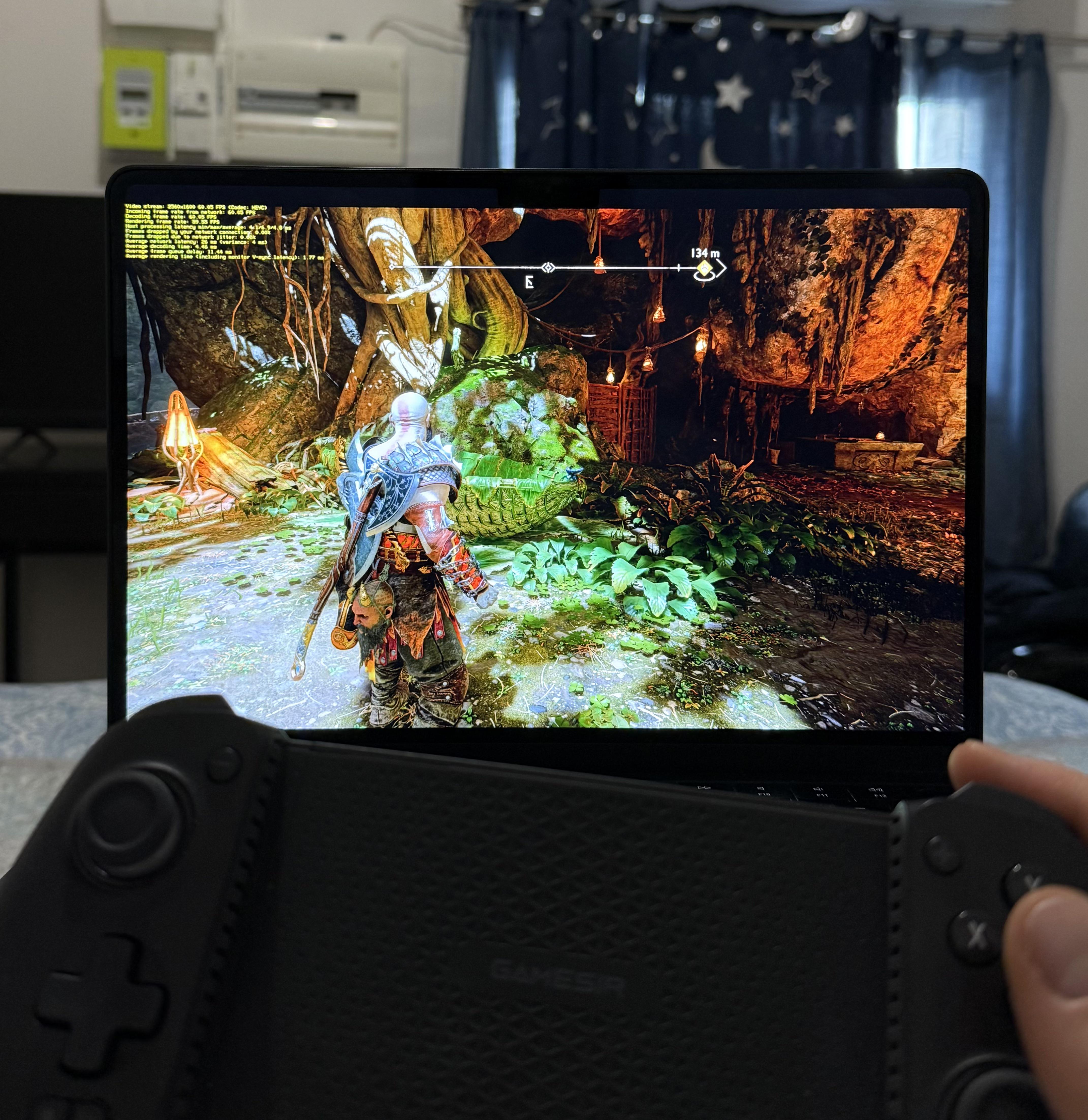
Incredible, 900km away from my pc but I’m able to play without problem with high quality image with low latency
Client : MacBook Air m2
Host plug via ethernet : Rtx 5070, i9 9900k, 32gb 3200mhz ddr4
r/MoonlightStreaming • u/Protomize • Feb 18 '26
r/MoonlightStreaming • u/asmkgb • Jul 27 '26

batman arkham origins (PC) on windows VM with GPU to my tab s8+ in the living room 😍