TL;DR: DIY ambilight for Samsung TVs that takes colors directly from the TV itself. No HDMI splitter, no camera, no subscription, works with Netflix. ESP32 + WS2811 LED strip + a phone app to control it. Code: https://github.com/exzos28/tizen-os-ambilight
So, I wanted ambilight. What could be simpler? Here's the official way to get it on a Samsung TV:
Buy a Hue Bridge
Buy Hue lights (and the gradient strips aren't cheap)
Buy the Hue Sync TV app, and it's paid: either a one-time purchase or a monthly subscription
A subscription. For LEDs. Behind my TV. Yeah, no.
The usual DIY options didn't work for me either:
Android ambilight apps (the screen grabbers people use with Hyperion and friends): Samsung TVs don't run Android. They run Tizen, Samsung's own Linux-based OS. No APKs, no Play Store, no sideloading
HDMI splitter + capture card: everything I watch comes from the TV's built-in apps, so there's nothing to split. Also, HDCP says hi
Camera aimed at the screen: hang a webcam in front of the TV so it can watch Netflix with me? Thanks, no
Tizen apps are their own world (web apps or .NET/native packages), so nothing from Android carries over, and I had to write mine from scratch.
And here comes the interesting part: Samsung doesn't give third-party developers any API to read pixels from the screen. Older Tizen versions had something like that, but it didn't work with DRM content, so Netflix and other streaming services were out.
But Hue Sync exists and works. So there's clearly some kind of deal between Samsung and Philips, and somewhere inside the TV there's a way to hand screen colors to an app. Which means that, in theory, you could figure out how they do it (I, of course, didn't do that, lol). Anyway, my app now gets those colors too.
what it does
A small service runs on the TV and sends the colors along the screen edges to the ESP32 over Wi-Fi
The ESP32 drives a WS2811 LED strip behind the TV
Works with DRM content: Netflix, YouTube, built-in apps, all of it
No extra boxes between your devices and the TV, nothing in front of the screen
Honest downside: it updates about 5 times per second. That's a hardware limit, nothing I can tweak. But with smooth transitions between frames on the ESP side it looks totally fine, see the video.
hardware
Photos of the strip on the TV and the controller (ESP32, DC-DC converter, a capacitor and a power jack in a tiny box) are in the album: https://imgur.com/a/3wkmb4c
ESP32 (any variant)
12V WS2811 LED strip, any length
slim 12V power supply, fits behind the TV
DC-DC converter, 12V to 5V for the ESP32
a resistor and a couple of capacitors
About $20–25 for everything on AliExpress (most of it is the power supply). No bridge, no branded lights, no subscription.
The wiring diagram and the full parts list are in the repo.
By the way, this was my first time soldering anything, and I'd never done an IoT project like this before. So please don't judge my soldering too harshly. But if I could pull it off, so can you.
One more confession: I didn't have wires of the right gauge on hand and was too lazy to order new ones, so the power lines are doubled-up wires. It works, but please don't do this (close-up in the album)
the app
The ESP32 hosts a PWA, so you can install it on your phone like a regular app, no app store needed. On first boot the ESP creates its own Wi-Fi network, and the setup page pops up by itself as a captive portal. There you connect the ESP to your home network, and your router gives it an IP via DHCP (better to reserve that IP on the router so it doesn't suddenly change). The TV finds the ESP on the network by itself with an automatic handshake, so you never have to re-pair anything.
strip layout: tap the corner where the strip starts, tap a side to flip its direction, set the LED count for each side. Any strip length works
calibration preview: each side lights up in its own color, so you can see right away if you got the direction wrong
color correction: brightness, gamma, saturation boost, white balance per channel
static color mode for when you just want mood lighting
Screenshots are in the album.
will it work on my TV?
Confirmed on Tizen 9: QN90D and Q60D (a random dude sent me a PR for the Q60D, which made my day). It didn't work on a Q6F, most likely because cheaper models just don't have the hardware for it.
Nobody has tested it on older Tizen versions yet. If you have an older TV and feel like testing, you're very welcome to try, I'd really appreciate it.
Installation instructions are in the repo.
disclaimer
Hobby project for educational purposes. It relies on undocumented TV internals, so any firmware update could break it. Use at your own risk.
Got a Samsung TV? I'd love to hear reports, especially "doesn't work on model X".
I got tired of the ads, the "recommended" rows and a TV that never stops talking to the internet, so I spent a few weeks taking my own S90D apart (Tizen 9, 2024 OLED). The result is a minimal home screen (clock, date, my apps) and a lot less running in the background, and all of it survives reboots.
No root? The README starts with 5 things anyone can do: the privacy switches, stopping Smart Hub and TV Plus from autostarting, building a small DNS blocklist from your own TV's log (the big public lists break the app store and TV Plus), ad-free YouTube via TizenBrew, and holding off updates.
If you know Quiet Tizen: that project is great for TVs used as HDMI displays. The difference here is persistence. A boot script re-applies everything at every start, so there's no need to re-root after a reboot. There's a comparison table in the README.
What's in the write-up:
Disabled, not hidden. 41 Samsung apps disabled in the package manager (pkgcmd -D), 33 system services blocked at boot (ACR, telemetry, ad ID, auto-update), and 15 restart loops fixed. Background crash loops went from 55 app launches every 40 s to 0.
A web app as the home screen, with Home/Back/Power handled by small awk daemons. Pressing Home brings it back in ~0.45 s.
Native pop-ups over any app (Netflix, YouTube…) without libnotification: a D-Bus client written in awk, because Tizen 9 blocks unsigned binaries and shell scripts.
Why Picture Clarity greys out when you replace Samsung Home: a stuck new_home flag in the AV-output daemon. One D-Bus call fixes it.
Privacy research first: what the TV contacts, and how to block it at the router (works without root).
Real measurements (no "x times faster" claims), plus the dead ends and mistakes (don't rename app folders!).
A read-only compatibility check for your model, a recovery chapter, and an AGENTS.md if you want Claude or Codex to do the work without repeating our mistakes.
It needs a root shell on your own TV. The repo doesn't include a root method. Everything is reversible, and it's all at your own risk.
So yesterday we released v3.0 stable, but still had some issues, those issues have been sorted and there for a quick follow up version Apps2Samsung 3.1
Quick follow-up to last week's 3.0 release.
Android: the "not responding" hang at launch is fixed. If you have animations turned off on your phone (Developer options or Samsung's Remove animations), every 3.x build froze within seconds. Found thanks to a bug report with an Android bug report attached. Thank you!
On the TV: Update now opens the app's sheet with "Update on {TV}" and the version the TV runs, instead of just jumping to the Install tab. Installed apps also get a "View in catalog" row.
Sort your installed apps by size, name or newest installed, on Android, iPhone and desktop. Apps with an update always come first.
Arming TV-Store now tells you when the TV is unreachable and points at Developer Mode, instead of claiming TV-Store isn't installed. If you still have the old TV-Store, it tells you to update it.
One bug report form for every platform, with the log steps for the platform you pick.
If 3.0 froze on your phone, this is the one to grab.
A month or so I posted about v2, haven't been doing nothing in the meanwhile, today I'm proud the announce v3 and its a biggy.
📺 TV-Store: install apps from the TV itself
This is the one I'm most proud about. TV-Store is a small app that puts the whole Apps2Samsung catalog on your TV.
Install TV-Store once from Apps2Samsung.
Press Arm TV-Store in the TV's Toolbox.
Point Developer Mode's Host PC IP at the TV itself.
From then on you browse the catalog with your remote, press OK, and the app installs straight into your Apps row. No phone or PC needed after that first setup.
Arming works from the Android app, the desktop app and the command line. Arming from the iPhone app is still beta, like the iPhone app itself.
Under the hood the TV signs the app with your own certificate and installs it through its own developer connection, the same way Apps2Samsung does from a PC. Every catalog and download is checked against a signed catalog, so nobody on your network can slip a different package in.
And no it's not the same as TizenBrew, just take a look and you'll know.
🎨 A completely new look
Desktop, Android and iPhone now share one design, split into four places:
Install
On the TV
Remote
Settings
The catalog is a grouped list with search, and every app opens in a sheet with its description, variants, versions and source link.
🍏 iPhone app (beta)
There's now an iPhone app with the same screens as the Android one. It isn't on the App Store, but you can install it through SideStore with your own Apple ID (a free one works).
It's still beta, so for now Android and desktop are the solid choice, also for setting up TV-Store. Testers very welcome, details are in the README.
🔄 Updates for your installed apps
The On the TV screen shows what's installed next to the newest version in the catalog, with a one-click Update. That works for Jellyfin, TizenTube and all the community apps.
🧩 Smarter catalog
A Most downloaded group, with download counts
Category filters
Adult (18+) apps stay hidden until you opt in
Apps that need an API key or server address ask for it before installing, and remember it for the next update
Apps that need root on the TV are clearly marked and ask first
You can suggest a new app for the catalog from inside Apps2Samsung
🤖 Command line
For the scripting crowd there's now apps2samsung-cli: the same catalog, certificate and install pipeline from a terminal, a script or an AI agent. Every command can output JSON.
🛠️ And a pile of fixes
TVs that refuse an app's package id (the infamous 118 -22) can install it under a new id
Better uninstall handling on older Tizen 3 TVs
Waking a TV from network standby works more reliably
Lots of smaller installer and connection fixes
📦 Downloads
Apps2Samsung 3.0 is available for:
🤖 Android (also through Obtainium and F-Droid)
🍏 iPhone (still beta, through SideStore)
🪟 Windows
🐧 Linux x64 / ARM64
🍎 macOS Intel / Apple Silicon
⌨️ Command line for all of the above
It's free and open source under the MIT license, and available in 30 languages thanks to the people translating on Crowdin.
Thanks again to everyone who tested the betas, reported weird TV behaviour and sent in logs. If you try TV-Store on your TV, I'd love to hear how it goes, especially on older Tizen 4 sets. 😄
I just bought a new Samsung TV with Tizen OS and I am sorry to say this but the OS is a complete rubbish. When I compare it with Google TV, Google TV is logical. Tizen OS has no logical UI. Nothing makes sense.
The onboarding process was was difficult and time consuming. I have no clue how normal people even start using the TV. So much crap going on just to turn the TV on for the first time.
No logic in app management.
So much unimportant bloatware.
Samsung TV is another crap which constantly interfere with the TV. Clearly a bloatware pushed by Samsung.
After some time struggling, i just went and purchased Google TV and plugged it into the TV.
Tizen is a complex bloatware. They should take notes from Roku and make it easy for people to use the TV.
Why Samsung cannot provide a clean interface? Why do they have to load all their devices with as much crap they find? I believe that majority of people do not like Samsung because everything they create is over complicated and bloated. Including their phone UI. Google's simple and clean approach is much better.
I have been investing some time on research and this is what I came up with. Hopefully this is useful to somebody out there.
Below is a comprehensive guide for sideloading third‐party apps on Samsung TVs running Tizen (and some additional hacks you can consider). Note that these “hacks” aren’t officially supported and may void your warranty or risk instability. Proceed only if you’re comfortable with advanced troubleshooting and understand the security risks involved. Note that these procedures have not all been thoroughly tested for all cases and may also depend on your TV model and specific configurations.
You probably have tried solutions like accessing the apkpure.com website and finding out that message saying "This function is not compatible". Please note that some of these methods, like remote access via SDB, will require you to have a valid certificate. Where and how you can get or build those from is beyond the scope of this guide (start here f.i.).
However, if you are looking for the PIN, you may find it in your TV settings menu after you grant the "Remote access" permission.
Most of this guide is thought for Samsung UHD Smart TVs model UE65TU8506UXXC (TU8506) or similar/later. That means year 2020 and around Tizen5.5 (version 9 had already been released when I wrote this, though nothing is currently supported beyond version 6 for this model) and a TizenBrowser internet browser at version 3.5. If you have newer versions, most likely it's much easier for you to install apps on your device.
Honestly, Samsung should allow its users to update both Tizen OS and the TizenBrowser on their smart TVs to reasonably new versions (say one or two major revisions -at worst- behind the current branch). This would ensure that users have access to the latest features and security patches, enhancing their overall viewing experience and protecting their devices from potential vulnerabilities. But that's just my opinion.
1. Sideloading Apps via USB
Overview: Older (and in some cases even newer) Tizen-based Samsung TVs let you install a third-party “widget” (the Tizen equivalent of an Android APK, keep reading for further details) from a USB drive. Typically, the app must be packaged as a TPK file.
Steps:
Prepare the App Package:
Find a trusted source for the TPK file (for example, some developers offer a beta version of YouTube without ads or custom IPTV apps). (reddit.com)
Download the TPK file on your computer.
(Optional) Use Tizen Studio to compile or repackage the app if needed. This tool lets you build TPK packages from source code if you’re a developer. See: TV Device | Samsung Developer
Format a USB Drive:
Ensure your USB drive is formatted in a file system supported by your TV (usually FAT32 or NTFS).
Copy the TPK file onto the USB drive.
Install the App:
Insert the USB drive into your TV’s USB port.
Using your TV’s file manager (often accessible via the “My Files” or “Source” menu), navigate to the TPK file and select it.
Follow on-screen instructions to install the app.
A “.wgt” file is simply the packaged format for a Tizen web application—essentially a widget. It bundles all the resources (HTML, CSS, JavaScript, images, etc.) along with a manifest that tells the TV how to run the app. Once you have a valid .wgt file, you can sideload it onto your Tizen device using the Tizen Command Line Interface (CLI), which is part of Tizen Studio.
Here’s how it works in practice:
Before anything else: Enable Developer Mode and Connect Your Device. Before you can install any third‑party app, you need to enable Developer Mode on your TV. This involves entering a secret code (like 1-2-3-4-5) in the Apps section of the Smart Hub and then entering your computer’s IP address. In this mode, you can already install some extra applications from the store (see image). This should be satisfactory enough for many average users who only want to expand functionality by adding Amazon Luna, GeForce Now, TikTok, and whatnot. To my knowledge, Steam Link is still inaccessible there though (which is a pity, because it was there previously and it worked great).
Once the TV is in developer mode, use the “sdb” (Smart Development Bridge) tool to connect to your device (e.g., using a command like sdb connect <TV_IP_address>).
Use Tizen CLI to Install the .wgt File: With the device connected, you can use the sdb command to install the widget package. In your command prompt or terminal (with Tizen Studio’s tools installed), navigate to the folder containing your .wgt file and run: sdb install your_app_file.wgt ; this command tells the TV to extract and install the widget package. If the process is successful, your app should be available from the TV’s home screen or apps list.
Additional Tizen CLI Commands: The Tizen CLI doesn’t just install apps—it can also be used for debugging and managing installed widgets. For instance, you can list all installed packages using: sdb shell "pkgcmd -l" ; this way, you can verify that your sideloaded app is present. You can also uninstall an app if necessary.
Using the Tizen CLI in this way is particularly useful if you need to install apps that aren’t available in the official Samsung app store or if you want to test and customize your own Tizen apps.
2. Sideloading Apps Using Command-Line Tools (SDB)
Overview: Samsung’s Tizen OS supports a Smart Development Bridge (SDB) similar to Android’s ADB. This method requires a computer, Tizen Studio, and SDB installed on it. Check out this fantastic tutorial reference I stumbled on: 4waytechnologies.com
Steps:
Enable Developer Mode on Your TV:
On your TV, navigate to the “Apps” screen.
Enter Developer Mode by pressing the sequence (typically 1-2-3-4-5) on your remote with the coloured key labelled "123". (eu.community.samsung.com)
Enter your computer’s IP address when prompted to link your TV to Tizen Studio.
Install Tizen Studio and SDB on Your Computer:
Download and install Tizen Studio from Samsung’s developer website.
Ensure that SDB (Smart Development Bridge) is included and available in your command-line PATH.
Connect to Your TV:
Ensure your TV and computer are on the same network.
Open a command prompt (or terminal) and type: sdb connect <TV_IP_address>
Verify connection with sdb devices.
Install the App:
Navigate to the folder containing your TPK file.
Execute: sdb install yourapp.tpk
Wait for confirmation that the app installed successfully.
To get SDB working on your home (domestic) LAN with your Samsung Tizen TV, you need to ensure that your TV and your development computer are on the same network and that your TV is set up for developer access. Here’s a step‑by‑step explanation in case you need it:
Install Tizen Studio and SDB: Download and install Tizen Studio from Samsung’s developer site. SDB (which is similar to Android’s ADB) comes packaged with Tizen Studio, so once you install it, you have the tool you need to communicate with your TV.
Enable Developer Mode on Your TV: On your Samsung Smart TV, go to the Apps section on the home screen. By pressing the sequence (often 1‑2‑3‑4‑5) on your remote, you can access the hidden Developer Mode settings. In Developer Mode, you’ll be prompted to enter the IP address of your “host PC” (i.e. the computer where Tizen Studio is installed). This tells your TV that it can accept remote connections for app installation and debugging.
Ensure Both Devices Are on the Same LAN: Make sure that both your Samsung TV and your computer are connected to the same local network—either via Wi‑Fi or, preferably, via a wired connection for greater stability. This shared network is critical because SDB uses the network’s IP addressing to establish a connection. You can verify the TV’s IP address by checking the network settings on the TV itself (or through your router’s device list).
Connecting via SDB: Open a terminal (or Command Prompt) on your computer. Use the SDB command to connect to your TV by entering:sdb connect <TV_IP_address> Replace <TV_IP_address> with the actual IP (for example, 192.168.1.45). If the connection is successful, you can verify by running: sdb devices ; this should list your TV as a connected device.
Firewall and Network Considerations: Ensure that your computer’s firewall (or any router-based security settings) isn’t blocking the necessary ports for SDB. The connection must be allowed over your LAN without any network isolation (such as guest network restrictions) interfering.
Once connected, you can use SDB to install, debug, and manage apps on your TV. For example, to install a .wgt (widget) file, you’d navigate to its folder in your terminal and run:
sdb install your_app_file.wgt
This process essentially “pushes” the Tizen app package onto your TV.
Using SDB on a domestic LAN requires that every device is properly set up and that your network allows communication between them. Checking these details will help ensure that the connection is stable and that you can successfully sideload and manage third‑party apps.
3. Additional Hacks & Alternative Methods
Installing Other App Stores: Officially, Samsung’s Tizen doesn’t support installing the Google Play Store or other large app ecosystems. However, some developers have created “alternative” app stores for Tizen that aggregate third-party apps (often in TPK format). You can search community forums like XDA Developers or Tizen-specific communities for repositories or unofficial app stores. (forum.developer.samsung.com)
Using Tizen Studio to Build Custom Apps: If you’re comfortable with coding, you can use Tizen Studio not only to sideload apps but also to create your own custom applications. This is ideal if you want to tailor an app (or even a “clean” version of an existing app such as YouTube) for your TV.
Web Browser Workaround: Some users bypass the native app limitations by using the built-in web browser to access web versions of services (e.g., YouTube, Hulu). Although this method may not offer the best user experience (navigation can be clunky), it can serve as an interim solution.
External Streaming Devices: While not a “hack” on the TV itself, using a device like an Amazon Fire TV Stick, Chromecast with Google TV, or even an Nvidia Shield can provide full access to a wide range of third-party apps and sideloading options. This bypasses Tizen’s limitations completely while preserving your TV’s warranty.
Linux: External devices are expensive, sometimes more than the TV itself, require additional hardware, and may be unavailable in your region. Besides, you may want to take advantage of all the power of Linux in your hands! There are several Linux distributions focused on media center functionality that can be used as alternatives to smart TV operating systems, including:
OpenELEC (Open Embedded Linux Entertainment Center): A lightweight Linux distribution optimized for media playback, using Kodi as its media center software. It supports various devices, including Raspberry Pi. Please note that while some of these solutions cannot directly replace Tizen OS on Samsung TVs, they can be installed on separate devices (like Raspberry Pi or other compatible hardware) and connected to the TV to provide similar smart TV functionality.
LibreELEC: Similar to OpenELEC, it's designed as a "Just enough OS for Kodi" and supports a wide range of devices, including Raspberry Pi, AMD, and Intel-powered devices.
OSMC (Open Source Media Center): Another Kodi-based distribution that can be installed on various devices, including some set-top boxes.
Mythbuntu: A Ubuntu-based media center that uses MythTV. It can function as both a client and a server.
LinuxMCE (Linux Media Center Edition): A Linux distribution designed for home entertainment systems, which can be installed too on desktop environments or virtual machines.
Others, e.g.: Ubuntu TV, Debian... the sky is the limit!
Final Considerations
Security Risks: Always download TPK files from trusted sources. Sideloading bypasses official security measures, so there’s a risk of malware or unstable apps.
Warranty and Stability: Sideloading or hacking your TV can void your warranty and may cause system instability. Always consider the trade-offs before proceeding. Always backup your whole Tizen system before attempting to flash your device to prevent bricking it.
Community Resources: Check forums such as XDA Developers, Tizen-specific subreddits, and Samsung Developer Forums for up-to-date guides, user experiences, and troubleshooting tips. (xdaforums.com)
Below is a list of ten resources that—based on community consensus and developer discussions—are among the best places to hunt for TPK packages (Tizen app files) for your Samsung TV. Note that no single “official” repository exists for sideloadable Tizen apps; most of these are community‑driven or provided as samples by Samsung’s own development tools. Use caution and only download from trusted sources.
Samsung Developer Forums An official hub where many developers share tips, sample TPKs, and troubleshooting advice for Tizen apps. It’s a good starting point if you’re looking for apps built or modified for Samsung TVs.
Tizen Developer Community onTizen.org The Tizen.org site (and its associated forums) often feature sample projects and downloadable TPK files. Many of these projects come with source code so you can build and customize apps yourself.
XDA Developers – Tizen Section XDA’s Tizen threads (and dedicated subforums) host numerous posts where users share custom TPK files (such as tweaked versions of YouTube or IPTV apps) along with step‑by‑step installation guides.
SamyGO Forums Although originally known for hacking older Samsung TVs, SamyGO remains a valuable resource. Several members share TPK files (like the Plex beta or other media apps) and discuss how to back up and sideload apps between Tizen TVs.
GitHub – Tizen Open-Source Projects Searching GitHub for “Tizen app” or “TPK” often leads you to repositories where developers publish their Tizen projects. Many of these repos include precompiled TPK files or build instructions so you can create your own.
StackOverflow: Always a good place to start where you can check and answer questions and connect with other users.
Tizen Studio Sample Apps Repository Samsung’s Tizen Studio comes with a collection of sample apps. These projects are fully documented, and the provided TPK files can serve as both a learning tool and a base for further modifications.
Tizen App Portals/Collections (Community‑Curated) Some enthusiasts maintain their own “app portals” or blog posts that compile a selection of useful TPK files for Tizen TVs. A search for “Tizen app repository” or “Tizen TPK collection” on developer blogs or Reddit can yield curated lists.
Redditr/Tizen The r/Tizen subreddit where you are at is a community (admittedly not too active) where users post discoveries, custom builds, and links to TPK files. Although not a formal repository, many posts include links to hosted TPKs on sites like GitHub or personal blogs.
Third‑Party App Store Alternatives for Tizen (Unofficial) While Samsung’s own app store is limited, a few developers have attempted to build “alternative app stores” for Tizen. Although these are less common and require extra caution, they can sometimes offer a broader range of TPK files. Look for posts and repositories on GitHub or community forums that mention “Tizen alternative app store.” However, if you just google it you'll probably just find a reddit post asking where to find "Tizen alternative app store", unfortunately.
Custom Collections on XDA – “Sideloadable Tizen Apps” Threads Some long‑running threads on XDA Developers are dedicated to sideloading tips for Samsung TVs; these threads often include user‑compiled lists of working TPKs from various regions (for example, versions of Hulu, BBC iPlayer, etc.) and instructions for repackaging apps.
Each of these sources has its own strengths and limitations, and because the Tizen ecosystem isn’t as open as Android’s, many developers rely on a mix of official samples, community backups, and custom projects. Always verify the authenticity and security of any TPK file before installing it on your TV.
My Samsung screen was getting painful to use: laggy menus, slow to respond to the remote, ads everywhere, and a pile of Samsung services running in the background and slowing everything down for nothing. So I built my own launcher for Tizen OS, inspired by the Apple TV.
What it does:
- A fast tvOS-style home screen: full-screen Top Shelf, glass dock, app grid, smooth at 60 fps - An optimizer that removes the ads and tracking, turns off the Samsung services you don't need and uninstalls unused apps (it shows everything first, and it's fully reversible) - Apps left in the background for 10 minutes close by themselves, so the TV keeps its memory free - A Control Center you can open over any app (sleep timer, brightness, Wi-Fi, Bluetooth audio and AirPods) - Continue Watching cards for AquaPlay, Hot Player and Stremio, with artwork and progress bar - Alexa on the remote's microphone button, with a Siri-like glow - Household profiles with Memoji, and Apple's aerial screen saver in 4K - English and French, plus a Windows setup app that installs, optimizes and restores everything
The catch:
It needs a rooted screen with Vetro. It's not a new OS: Tizen still runs underneath, the launcher replaces the home screen and the menus on top of it. I developed and tested it on a Samsung Smart Monitor M8 (Tizen 9); other models aren't tested yet, so reports are welcome. There's a compatibility list in the repo.
I know TizenTube exists, but I had a lot of video and audio bugs with it. Since it’s built on YouTube’s web app and runs in the TV’s browser, there’s only so much it can fix: it will always depend on YouTube’s web player.
While digging around I found SmartTube, but it’s Android TV only, so I thought: “why not build my own YouTube client inspired by SmartTube?”
The app is fully native and handles the whole video stream itself: no ads, SponsorBlock built in.
Disclaimer: it’s still experimental (Tizen 6.0+, mostly tested on my 2021 TV), so expect bugs.
Feel free to try it if you’re interested, and send me feedback on GitHub!
Recent Samsung TVs already carry Cobalt, the engine YouTube built for televisions: it is what the stock YouTube app runs in, tuned by Samsung and YouTube for each model. This app runs inside that same engine, not the TV's web browser. So what you watch is the stock app's own playback, with the 4K, HDR and smooth 60fps your set was made for, and none of the adverts.
The mods are built the same way. Wherever they can, they change what YouTube is told rather than painting over it, and leave the drawing to YouTube itself. The start page opens the way a YouTube link would, scroll speed is YouTube's own animation run faster, quality is set per video through the player's own controls, and every setting is a real row in YouTube's own Settings.
I was tired of the usual options on my Samsung TV looking like shit, so I made my own.
Couch TV is a clean, fast Tizen app that works as soon as it’s installed. It supports Stremio add-ons, so you can keep the sources you already use. You can also add your own stream server or IPTV playlist.
Why I prefer it instead of Stremio onto the TV:
Built for Samsung Tizen TVs (2019+), not a phone UI stretched onto a big screen
Better looking and smoother with the remote, even on weak TV hardware
The stuff that makes streaming less annoying: My List, Continue Watching, auto next episode, subtitles
I’ve been vibe coding a launcher called Flix Home with Codex, specifically for my Samsung UE43NU7409 (2018, Tizen 4.0 / ARMv7). I wanted to give this older TV a cleaner, Apple TV / visionOS inspired interface instead of replacing the hardware.
The idea: big app tiles, a large pixel clock, beige/light and dark modes, subtle glass effects, and no ads or recommendation rows in the launcher itself.
What’s working
It’s signed, installed and running on this particular TV.
App launching works; YouTube has been tested on the TV.
There’s a square-dot-matrix clock, light/dark switching and remote controls for sorting/hiding favourites.
Transparent app logos and local focus lighting are implemented.
Samsung Home remains accessible as a fallback.
Once installed, the launcher runs without a computer staying on.
What’s still rough
The design still doesn’t really match the attached references. The glass, lighting, proportions and logo sizing don’t yet feel like one consistent interface.
Performance has also been a problem. Earlier versions lagged badly with larger animated layers. The current version uses pre-rendered textures and small local fades, but I wouldn’t call the experience polished yet. Some checks and recordings were done in a browser, which doesn’t prove how smoothly it runs on the TV.
What I wanted but haven’t solved
Physical Home-button integration: Home still opens Samsung Home. I wanted it to open my launcher, including from streaming apps.
Reliable autostart: opening after a cold boot or waking from standby isn’t implemented. Simply resuming the last app wouldn’t fully solve this.
System integration: HDMI shortcuts exist, but switching to a connected source still needs testing. Direct TV settings didn’t visibly open, so those are currently reached through Samsung Home.
Other models haven’t been validated. This is currently a manually launched app, not a replacement OS.
Where I’m stuck
Codex helped get it running, but I’m going in circles trying to turn these references into a coherent design that the old TV can render smoothly.
The reference images show the target; the current-build video shows where it is now.
What would you change first? I’d appreciate honest design feedback, concrete CSS/SVG suggestions, or help with the Tizen-specific Home/autostart limitations. If you’ve done something similar on an older Samsung TV, what actually worked on your model?
Hello guys, and sorry for the wait! I've written a simple guide on how to install TizenBrew on your TVs. My goal was to make it easy to follow, and I hope I accomplished that. If you have any questions, leave a comment below or ask for help on the official discord server.
Apps2Samsung has grown into a Samsung Tizen toolbox
A while ago I posted here about Apps2Samsung getting an Android app, making it possible to install Tizen apps directly from your phone without needing Tizen Studio or a PC.
Since then, quite a lot has changed.
What started mainly as an easier way to sign and install Tizen apps has gradually become much more of a Samsung Tizen toolbox.
🧰 New TV Toolbox
Apps2Samsung now includes a dedicated Toolbox for interacting with and troubleshooting your TV.
Among other things, you can:
List installed apps
Launch apps manually by App ID
Launch apps that normally aren't visible in the Samsung UI
Send remote/service-menu key sequences
Open several hidden TV menus
Inspect the TV's install staging folder
Clean up leftover installation files
See the TV's actual response when launching apps
There is also a small Apps2Samsung Debug Agent that can be installed on the TV, allowing Apps2Samsung to retrieve information and perform diagnostics that aren't available through SDB alone.
🐛 Much better troubleshooting
A big focus since my previous post has been figuring out why something doesn't work instead of Apps2Samsung simply reporting that it failed.
The Toolbox/debug console can provide information about:
App and service logs
Running applications and contexts
SDB connection problems
Service endpoints
Installation status
What Apps2Samsung is currently waiting for
Timing information
This should make troubleshooting weird Tizen behaviour considerably easier.
📺 Improved TV detection & diagnostics
TV discovery has been reworked as well.
Apps2Samsung now checks the relevant TV services independently, so TVs can still be discovered in situations where Developer Mode isn't currently available.
The TV information screen also shows the TV's configured Developer Host IP alongside your device's local IP, making the classic wrong-IP / DUID problems much easier to identify.
📦 Installer improvements
The installer itself has received quite a few improvements since the previous Android release:
Better detection of failed installations
Better overwrite/force/remove handling
WGT/TPK filenames containing spaces work correctly
Better handling of TVs with insufficient storage
Installation leftovers can be inspected and removed
Improved SDB connection handling
Partner signing support for apps requiring additional privileges
The last one is particularly useful for projects such as TizenTube, where Apps2Samsung can now handle the required partner signing.
📱 And yes, Android is still fully supported
The basic idea from my previous post hasn't changed:
Thanks to everyone here who tested the earlier versions and reported issues. A lot of the improvements since my previous post came directly from people trying Apps2Samsung on different Samsung TVs and finding all the weird edge cases that Tizen has to offer. 😅
Samsung can quietly push a firmware update even with Auto update turned off in the TV menu. That setting doesn't cover every update path the TV has (background firmware loop, app/package updater, app-binary manager, system components), and firmware updates can block rooting or remove root you already have.
Lose root and you lose the ability to customize your TV the way you want: launcher, remapper, privacy controls, all of it.
Vetro 0.7.0 adds Block firmware and software updates under Quick settings → General → Essential settings. If your TV is rooted, update to 0.7.0 and turn it on. It's off by default and needs root.
It stops and masks Samsung's firmware, app/package, app-binary and system-component update services, turns Auto update off, and reapplies the block after every restart. USB recovery still works.
It should keep updates from installing through those services, but so far it has only been tested on a Q80A. It can't undo an update that has already arrived, and it can't guarantee you'll keep root.
What's new in 0.7.0
Vetro UI (Experimental Preview). Vetro now draws its own TV interface, and each part has its own switch in the dashboard:
A launcher with your own row (hold OK to move or remove a tile), an All apps screen, and TV/HDMI inputs
A Control center (Down on the apps row) with Task manager, Audio output, Picture mode and Custom Cards (such as Home Assistant)
Its own Live TV screen: Banner, Channel list, TV guide, Info, subtitles
A volume bar and number pad
The video above shows it in action. Some parts may not work on every TV yet.
Also new:
Quick boot (experimental): Vetro's startup on the Q80A went from about 97 s to 28-31 s.
More debloating: Netflix, Prime Video, Disney+, Spotify and others can be switched off, plus Samsung TV Plus and Vision AI, and there's a new Uninstall tab.
Vetro 0.5.0 updates itself to 0.7.0 from the dashboard, no reinstall.
If you try 0.7.0, let me know what works or breaks on your TV. Include your TV model and attach the diagnostic report from Quick settings → Developer settings → Diagnostic report → Download report. Reports from TVs where everything works are welcome too. Open a GitHub issue, or come say hi on Discord if you'd rather chat.
If Vetro is useful to you, a star on GitHub helps other people find it.
Vetro 0.3.0 is out. Quick reminder for anyone who missed the earlier posts: it's an open-source manager for rooted Samsung Tizen TVs, running on the TV itself and controlled from a browser on your network.
This is the main thing in this release. It's a minimal-style launcher on the Home key, with the same apps, icons and order as Samsung's Home. It's native, not a web app: it behaves like the original one, showing up above your apps. While it's on, Samsung's Home is closed, so it isn't sitting in memory. On my Q80A, available RAM went from 533 MB to 662 MB, about 24% more.
Nothing is removed or disabled. If the launcher stops, the Home key goes back to Samsung's Home, and Vetro starts it again after a restart, a crash or standby. Samsung Home is one button away in the bar.
It's a beta! Not very customizable at the moment.
The rest, briefly:
- The dashboard is redesigned. Quick settings now work as quick wins: HbbTV, MultiScreen autostart, all ads and tracking (ACR included), voice assistants, domain blocking, automatic firmware update. Each one says whether it's done.
- The Debloater is now the Task manager.
- The Remote panel is now the Remapper.
Thanks.
A good part of this release is your bug reports.
If you try it, please send a diagnostic report (Diagnostics, then Download) through the GitHub issue form. Every report adds a row to the compatibility table, and this release exists mostly because of them.
A couple of weeks ago I said 3.1 was the quick follow-up to 3.0. Then I kept going: 3.2 is the biggest update since 3.0. So here's my solemn promise: this version will hold for a while. I'm going to sit on my hands. I may even go outside. (Past me also said that, so keep your expectations reasonable.)
📺 TV-Store got its own place
TV-Store kept growing, so it moved out of the Toolbox and got its own spot: a TV-Store entry in the sidebar on desktop and its own tab on Android and iPhone.
It opens with a setup check that reads your TV without changing anything. It tells you whether TV-Store is installed and which version, whether Developer Mode is on, what your Host PC IP setting means for TV-Store, and whether the TV answered at all.
Arm TV-Store, Send sources and Send a package all live there now.
Host PC IP can simply be 127.0.0.1 now. Apps2Samsung then talks to the TV through TV-Store's own relay, so you don't have to keep changing it.
TV-Store can update itself through that same relay.
Using the relay and TV-Store isn't open? The app tells you, and one tap opens TV-Store on the TV for you.
Works on older Tizen 3.0 (2017) sets too, thanks to a tester who stuck with it.
🍏 The iPhone app is out of beta
The iPhone app now has the same screens as Android, TV-Store tab included, and it's no longer beta. It's still not on the App Store, so you install it through SideStore with your own Apple ID (a free one works).
🧰 A tidier Toolbox
Every tool starts closed, with a one-line summary, so you see everything at a glance instead of one giant app list.
The debug agent is now a single button at the top. Attach it and "Open an app" can show what's really installed on the TV, hidden system apps included.
🔐 A second certificate type: no Samsung account needed
Next to the Samsung certificate you can now pick the Tizen certificate. It's made on your own device, with no Samsung sign-in and no device ID. Some TVs accept it and others don't; when a TV refuses it, the app says so and offers the Samsung sign-in instead.
🧾 Signed repositories
App authors can publish their own signed repository. You approve its key once, and after that every catalog load is checked against it, so a swapped package simply won't show up. You can also send your approved repositories to TV-Store on the TV.
🗂️ Your own sources
Add a GitHub repository, a release or a direct .wgt/.tpk link as a catalog source, on every platform.
✍️ Sign without installing
Sign a package and keep the file, or hand it straight to TV-Store on the TV, which signs and installs it there.
⌨️ Typing into YouTube and TizenTube
Those apps draw their own on-screen keyboard, so the remote now walks it for you. You can also type live from your laptop keyboard. Contributed by a community member, thank you!
🧩 Catalog improvements
App icons in the catalog, and now also next to your installed apps and in the app settings.
Search is smooth now: no more freezing while you type.
Warnings like "Self-updating" or "Needs Tizen 6" sit neatly under the app name instead of crowding it.
"Needs Tizen X" badges, so you know before installing if an app won't run on your TV.
Closed-source and self-updating apps are marked, with a setting to hide closed-source ones.
Updates install the same variant you installed before.
Apps removed from the catalogue get a quiet note explaining why, and your installed copy keeps working.
Forks that reuse another app's package id no longer overwrite that app.
🤖 Command line
A new look, with --plain if you liked the old one.
An interactive menu.
A Termux build for Android.
New commands: leftovers, tvstore status and tvstore sources.
Fixed an install freeze on Linux and Termux.
🛠️ And the usual pile of fixes
Clearer certificate error messages.
Android scans your phone's own hotspot.
The desktop notices when your network changes.
Jellyfin plugins work again on older TVs.
Now in 31 languages (welcome, Slovenian!), thanks to the Crowdin translators.
Hi ! Vetro 0.3.5 is out, and the big news: Vetro is now in the Apps2Samsung catalog, so you can install it without Tizen Studio or your own Samsung certificate.
Quick reminder: Vetro is a launcher, debloater and remote remapper for Samsung Tizen TVs, with a web dashboard you open from your phone or PC. It needs root on the TV.
Install with Apps2Samsung
Apps2Samsung by u/Pitiful-Store7076 is a one-click installer that runs on your PC or phone: it handles the certificate, the signing and the install for you. Huge thanks, Patrick!
Install Vetro from the Apps2Samsung catalog (you can also pick the dashboard port there; default 8099).
Open Vetro once on the TV.
In Developer Mode, set Host PC IP to 127.0.0.1 and restart the TV.
Prefer to do it yourself? The installation guide now covers three ways: Apps2Samsung, with an AI coding agent, or fully manual.
What's new in 0.3.5
This is a minor release before 0.4.0.
- Redesigned TV screen
- *More advertising components in the debloater list
- Select the TV tuner directly from a remapped key and fixes to the remote pairing
- App-only mode on Node 4.4 for 2020 TVs on Tizen 5.5
This release is largely community work. Code and docs: tomcraft, SalustLab, domenix, bertrandom. Reports and tests: Nyar-cloud, JamesMills818, torresdrew, Inderdeep29. And u/PatrickSt1991 for Apps2Samsung. Thank you all!
What's coming next
- 0.4.0 – the Security update: sign-in/pairing with a code shown on the TV before the dashboard can be used. It will change how you connect to the dashboard, with clear upgrade instructions. Also planned: more detailed diagnostic export, a wider "stop viewing-data collection" option, and the version shown in the dashboard.
- 0.5.0 – the Launcher update: more customizable, easier to use and even faster.
TL;DR: Apps2Samsung now has a native Android app. Your phone becomes the installer — scan your network, pick your TV, sign in with your Samsung account (it provisions the certificate for you), and it downloads, signs and installs on-device. Same app catalog as the desktop. It's a beta APK you sideload. Desktop also moved to .NET 10.
Hey all — a while back I shared the Apps2Samsung rebrand (the no-Tizen-Studio desktop tool that downloads, signs and installs apps onto Samsung TVs over the network). The most common request since then was some version of "great, but I don't want to boot a laptop just to install an app." So — here it is.
📱 The big one: Apps2Samsung for Android
Your phone is now a full installer head. No PC in the loop.
Scan & pick your TV — finds debug-ready Samsung TVs on your network and lists them in a dropdown. It also shows your phone's own LAN IP up front, since that's fiddly to find on mobile.
Samsung sign-in + automatic certificate — log in with your Samsung account and it provisions the signing cert for you. No manual cert handling.
Download → re-sign → install — the whole thing happens on-device over the developer protocol.
Post-install popup with a Ko-fi QR if you feel like buying me a beer 🍺.
🧩 Same catalog as desktop
The App / Version sources are shared with the desktop tool — Jellyfin and its variants, Moonfin, Litefin, the Tizen Community bundle, and the rest — loaded from the same catalog.
⚙️ Settings that carry over
GitHub token — avoids API rate limits when listing releases.
Extra TV DUIDs — one certificate can cover several TVs (same multi-TV idea as desktop).
Toggles for Remove old version, Open after installation, Preserve WGT file, and Show all Jellyfin versions.
🧱 Under the hood
The TV scan, the SDB engine, and certificate provisioning now live in a shared Apps2Samsung.Core library used by both desktop and mobile, so fixes land in both. Certificates are now built as PKCS#12 so Android can read them too.
💻 Desktop also got some love
Upgraded to .NET 10.
Added an Open Logs Folder button to the error dialog.
⚠️ Beta notes
Pre-release for testing. The Android APK is unsigned for the store — sideload it and allow installs from your browser/file manager. Available for Android, Windows, Linux (x64 + ARM64), and macOS (ARM64 + Intel).
Hey everyone! A few days ago I shared APL Launcher, an Apple TV style home screen for Samsung TVs. Today I'm releasing its companion, the app I actually wanted to watch TV with: APL TV, an IPTV player for Samsung Tizen TVs and Smart Monitors that looks and feels like the Apple TV app.
You bring your own M3U playlist or Xtream account, and APL TV turns that wall of "FR| TF1 FHD" style names into something nice to browse: artwork, real plots in your language, a TV guide, a proper player, all with the remote.
(Screenshots use demo content only: Blender Foundation open movies and public domain classics.)
Watching • Home like Apple TV: featured titles with their logo, Continue Watching, Up Next for series, your favorite channels with what's on now. • Live TV with the channel playing behind the interface, what's on now and next, number keys, previous channel. 4K / FHD / HD versions of a channel are grouped on one card. • A real TV guide (your provider's, plus free guides for channels that have none). • A player that feels finished: Subtitles and Audio menus while you watch (movies, series and live), OpenSubtitles with a delay adjustment, precise seeking, previous/next episode with a card that doesn't spoil anything. No autoplay unless you turn it on. • Pick up where you left off: open the app and it offers the movie, episode or channel you were on, at the right minute.
Finding things • Movie and series pages with real info from TMDB in your language: plot, cast, director, sagas, and More Like This picked from your own catalog. • Search across channels, movies and series. • Age ratings in your own country's scale (France -12/-16, US PG-13/R, Germany FSK…). • Hide what you don't want to see: adult categories are hidden by default, and you can hide whole themes or single titles.
Voice (Alexa on the TV) • "Alexa, pause" and other playback commands go straight to APL TV. • With a small free skill you add to your own Amazon account: "Alexa, ask APL TV to put on M6" and the channel starts, "Alexa, ask APL TV to search Dragon Ball movies" and the results are on screen.
Easy • Set up from your phone: scan the QR code on the screen, paste your playlist, done. • It updates itself from GitHub, your playlists and settings stay. • English and French.
With APL Launcher It has the launcher's look, sounds and fonts, and the launcher's Top Shelf shows what you were watching in APL TV (at the right minute) and your last channel, one press of OK and you're back in it. APL Launcher Setup can install it with one switch.
Install • No root needed: APL TV is an ordinary app, installed in Developer Mode like any other (APL Launcher itself still needs Vetro, APL TV doesn't). • With APL Launcher Setup: turn on "Also install APL TV". • Or by hand: the .wgt from the GitHub releases, signed for your TV.
Free and open source, nothing to watch included MIT licensed. It ships with no channels, no playlists and no provider, it only plays your own. No account, no tracking, no ads, and your playlists stay on your TV.
Tested every day on a Smart Monitor M8. If you try it on another Samsung TV, I'd love to know how it goes (the issues on GitHub are open), and ideas are very welcome. Thanks!
Your TV comes with plenty of features. You probably don’t use all of them - but some still run in the background.
Vetro is an open-source manager for Samsung Tizen TVs, and the new version focuses on turning off what you don’t need, reducing viewing-data collection and understanding what your TV actually runs.
The new Quick settings panel brings together switches for:
Alexa, Google Assistant and Bixby, plus shared voice services.
ACR viewing data - the supported services that recognise what’s on screen and collect viewing information.
HbbTV interactive broadcast features.
Local domain blocking, while keeping your existing DNS servers.
Debloating without guessing every package name
Vetro’s Debloater gives components descriptions, feature groups and roles.
You can see what a component does, inspect its declared dependencies, disable supported targets, stop processes and manage startup flags. User packages can also be uninstalled.
Quick settings and Debloater share the same inventory, so you can see exactly which components a switch affects.
Less background work. More room for what you use.
Disabling unnecessary services can free resources, depending on what was running. The dashboard lets you inspect CPU, RAM and processes rather than assume a change helped.
There’s also a cleanup for leftover installer packages to reclaim storage. No “double your TV’s speed” promises — just practical controls and visibility.
Root-powered, managed from your browser
Vetro’s separate on-TV integration provides the root privileges needed for these controls. Once configured on the tested TV, it can reacquire root autonomously, without a computer maintaining a connection.
Open the dashboard from a computer or phone on your local network. Remote-button shortcuts, supported picture settings and MQTT/Home Assistant integration are also included.
Still experimental: tested on a Samsung Q80A with firmware 2301.1. Other models remain unverified, and there’s no universal installer. The dashboard currently has no login: keep it on a trusted LAN and never expose it to the internet.
After spending way too many evenings fighting Samsung's Tizen ecosystem, I finally built something I've wanted for a long time:
VLC TV -- a VLC-inspired media player for Samsung Smart TVs running Tizen. It supports local files, USB drives, and network streams, all wrapped in a TV-friendly interface that feels familiar to anyone who's used VLC.
Before anyone asks:
⚠️ This is NOT VLC from VideoLAN. ⚠️ It does not use libVLC. ⚠️ It is not affiliated with VideoLAN in any way.
The name and UI inspiration come from VLC because that's the experience I wanted on my Samsung TV, but under the hood this is a completely different project built around Samsung's native AVPlay framework and the limitations that come with it.
What it can do
✅ Play media from USB drives ✅ Open network streams (HLS, DASH, RTSP, MP4, and more) ✅ Full TV remote navigation ✅ Audio and subtitle track selection ✅ Recent playback history ✅ Hardware-accelerated playback through Samsung AVPlay
Why?
Samsung TVs still don't have a true VLC-style experience available out of the box, something many users have been asking for for years.
I originally started down the rabbit hole of trying to port the real VLC engine to Tizen, but reality quickly reminded me that Samsung TVs are not exactly the most developer-friendly platform. Eventually I took a different route and built a pure Tizen web application that gets as close as possible to the VLC experience while staying within the boundaries of what Samsung's AVPlay platform allows.
Is it a perfect VLC replacement? No.
Is it probably the closest thing you'll get on a Samsung TV without rewriting half of Tizen? Also yes. 😄
The project is fully open source. AI assisted with parts of the development process, but this isn't an AI-generated "vibe coded" project - it's a real Tizen application built, tested, and optimized around Samsung's AVPlay platform and its limitations. Feedback from fellow Samsung TV owners and developers is always welcome.
After personal annoyance with existing tools for both managing homebrew apps and the YouTube mod's that are available I decided screw it, i'll do it myself.
Since I was working on a homebrew app I thought why not make it a nostalgia trip so the UI is very inspired by the homebrew channel from the Wii, it even plays the music!
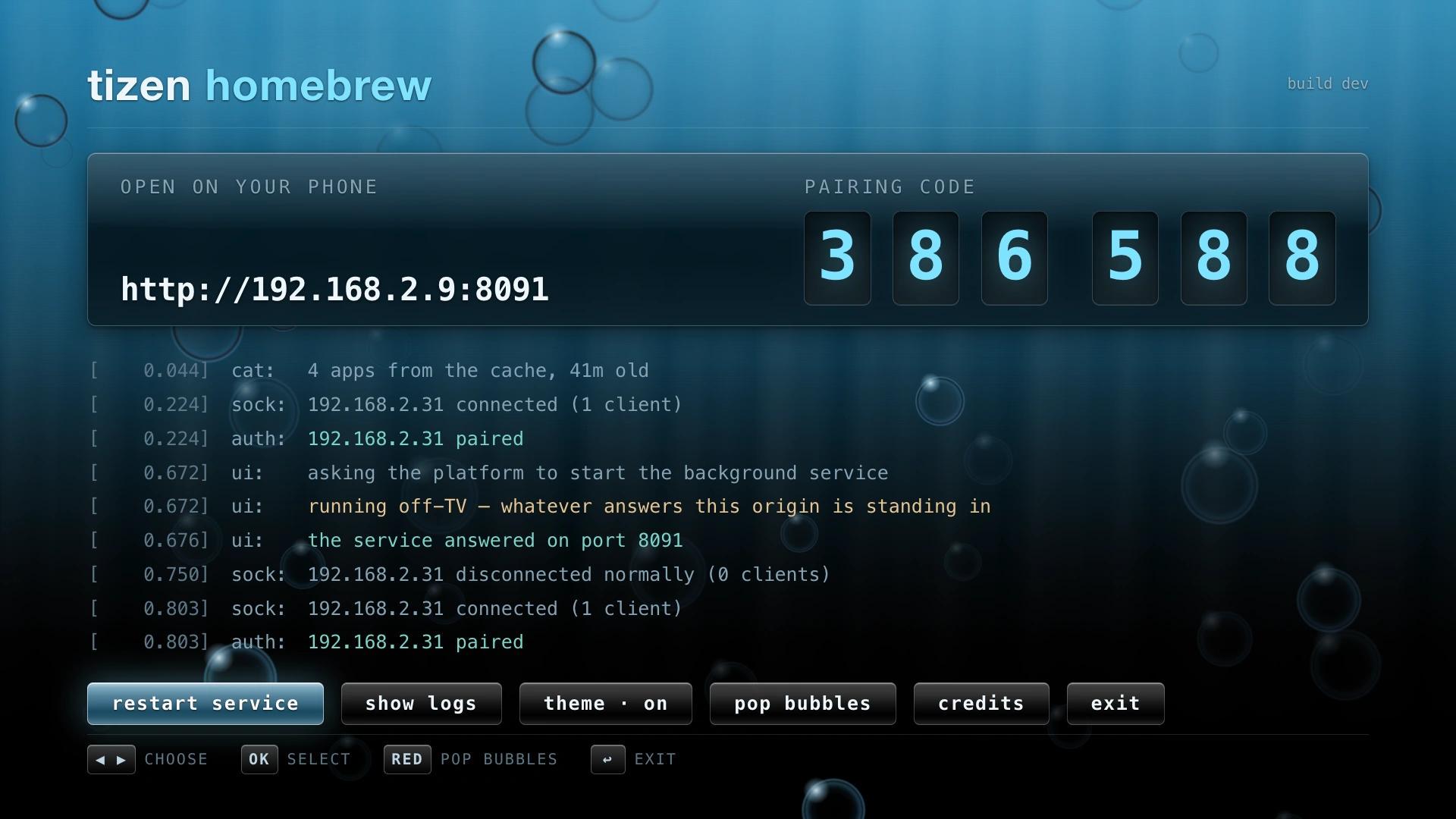
tizen-homebrew can be installed on any Tizen OS device in just 3 steps, written down in the README.md of the repository. It makes installing and future updates for tizen-youtube a breeze.
Comforts of tizen-homebrew include:
- 3 Step installation.
- One time PC necessary only - sdb relay/proxy.
- Auto resigner, no need for messing with creating Samsung certs every time you want to install/update something.
- Remote usage on any device in a webbrowser. Install and update apps from your phone.
- A very nostalgic theme.
tizen-youtube brings what you have already come to expect from similar YouTube mod's for TV, it is a not a fork but a continuation of https://github.com/reisxd/TizenTube, slimmed down and focused on implementing fixes for my personal annoyances and any community feedback that I like.
So far on top of TizenTube's featureset and lots of under the hood improvements I have added:
- A High contrast / OLED theme very carefully tuned to the YouTube TV UI.
- Blocking YouTube shopping interactions (Those annoying QR-code popup's at the bottom left). on by default.
Of course it is open source and you can find it all here: