r/MacStack • • Oct 04 '26

DockDuck 1.1.7: a file manager for Mac that is powerful, not complicated

Thumbnail
gallery
20 Upvotes

Disclosure: I'm the developer of DockDuck.

What it is

DockDuck is a native file manager for Mac. It is built to be powerful without being complicated: no wall of settings, no three hundred integrations, just the things you actually do with files, each one a click away.

Who it is for

People who find Finder too limited but don't want a "pro" file manager with a hundred panels and a learning curve. If you just want to send a big file, clean up your disk or sort your Downloads without reading a manual, that is the idea.

What it does

Send any file as a link. Right-click, Share Link, done. The other person opens it in any browser, with no app and no account. The file is encrypted on your Mac before it leaves. Up to 2 GB, with an optional password, and it expires in 24 hours or 7 days.

See what is filling your disk. Free Up Space shows where your storage went and lists what is safe to remove: old downloads, installers for apps you already have, zip copies of folders you still keep. Everything goes to the Trash first.

Get photos off your iPhone without iCloud. Plug in the cable and the camera roll shows up like a folder. Import New copies only the photos you don't have yet.

A Downloads folder that tidies itself. Set a rule once, like "installers go to the Trash after a week", and it keeps itself clean.

Rename many files at once. Pick them, choose Rename, see every new name before you apply. One undo puts them all back.

Servers side by side. Connect to FTP or SFTP and your Mac sits on the left, the server on the right. Drag files across.

The rest. Tabs, up to six panes in one window, tags, saved searches, a shelf to park files while you move around, workspaces, and iCloud Drive, Dropbox, Google Drive and Box in the sidebar.

Limitations, so nobody is surprised

  • Requires macOS 15 or later.

  • It is a paid app after a 14-day trial. The trial needs no account and no card.

  • Sending links needs a license and is not part of the trial. Each link holds up to 2 GB.

  • From an iPhone it reads photos and videos, not other files.

  • Cloud support is the four services above. There is no S3, OneDrive or similar.

Pricing and the download are on the site: https://dockduck.app/?src=macstack

Happy to answer questions here. If you try it, tell me the first thing that annoyed you.


r/MacStack • • Sep 22 '26

5 local-first Mac apps I found while curating a Mac app directory

20 Upvotes

I've been spending a lot of time looking for smaller Mac apps that don't need a subscription or send everything to the cloud.

Here are 5 that caught my attention recently:

1. Vorssaint — a surprisingly packed menu-bar toolkit.
It combines things like per-app volume control, system monitoring, window snapping, clipboard history, an app uninstaller, keep-awake, and more into one lightweight app.

2. Supaste — a visual clipboard manager.
Instead of just showing a list of copied text, it keeps a visual history of text, images, screenshots, links, files, code, etc. Everything stays local.

3. Lattix — for people who constantly rebuild the same workspace.
You can save groups of apps, files, folders and URLs as workspaces and reopen them with their preferred window layouts.

4. Refine — an offline AI writing assistant.
It can check and rewrite text across Mac apps, with local AI processing and support for custom writing styles.

5. Compresto — batch compression for Mac.
It handles images, videos, PDFs and GIFs from a native Mac app, with free and one-time-purchase options.

What I like about these is that they're not trying to be another huge SaaS platform. They're focused on doing a specific job well, locally on your Mac.

Full disclosure: I run a small directory called OwnYourMac, and these are 5 apps I came across while curating it.

There are currently 30+ apps listed across utilities, productivity, AI, developer tools, writing, and audio/video.

You can find the collection here: Ownyourmac


r/MacStack • • Jul 22 '26

My Complete Mac Stack for Remote Work in 2026: Best Mac Apps for Productivity, Focus, Communication, Security, and File Management

20 Upvotes

I work remotely from my Mac most days, so I have spent a lot of time trying different apps, removing the ones I rarely use, and building a setup that feels fast without turning my menu bar into a crowded mess.

This is my current Mac stack for remote work. It covers communication, meetings, task management, writing, window management, screenshots, file storage, security, backups, and focus.

I am not trying to install an app for every small problem. My goal is to have a reliable macOS setup where every app has a clear purpose.

1. Raycast for launching apps and controlling macOS

Raycast is probably the app I use most throughout the day.

I use it for:

  • Launching apps

  • Searching files

  • Clipboard history

  • Text snippets

  • Quick calculations

  • Window management

  • Running shortcuts

  • Searching browser tabs

  • Opening frequently used folders

It replaces several smaller utilities for me. Clipboard history and snippets alone save a surprising amount of time when I am replying to messages, copying links, or reusing common text.

Spotlight is fine for basic searches, but Raycast feels more like a command center for the Mac.

2. Rectangle for window management

Rectangle handles window snapping with simple keyboard shortcuts.

I use shortcuts to move windows to:

  • The left half of the screen

  • The right half of the screen

  • Full screen

  • The center

  • The top or bottom half

  • Another display

My most common remote work layout is a browser on one side and Slack, notes, or a document on the other.

Rectangle is one of the first apps I install on a new Mac because macOS window management still feels slower without it.

3. Slack for team communication

Slack is where most day-to-day communication happens.

I try to keep it under control by:

  • Muting low-priority channels

  • Disabling unnecessary notifications

  • Using saved items for messages that need action

  • Setting a clear status when I am focusing

  • Leaving channels that are no longer relevant

Slack can easily become a distraction if every message creates a notification. The app works much better once the notification settings are cleaned up.

For smaller teams, Discord or Microsoft Teams could fill the same role, but Slack is still the main communication app in my setup.

4. Zoom for video meetings

Zoom is still my main app for calls with clients, coworkers, and external teams.

The features I use most are:

  • Screen sharing

  • Virtual backgrounds

  • Meeting recording

  • Audio controls

  • Calendar integration

  • Background noise reduction

Before important meetings, I usually open Zoom early and check the microphone, camera, and screen sharing permissions. That simple habit prevents most meeting problems.

Google Meet works well for quick browser-based meetings, but I prefer having Zoom installed for longer or more important calls.

5. Krisp for cleaner meeting audio

Krisp removes background noise from calls.

It is especially useful when working from:

  • A shared apartment

  • A cafe

  • A room with a fan or air conditioner

  • A space with traffic noise

  • A home where other people are talking

Good audio matters more than perfect video during remote meetings. People can tolerate an average webcam, but constant background noise becomes annoying very quickly.

Krisp is not essential for everyone, but it is useful when the work environment is not always quiet.

6. Notion for project notes and documentation

I use Notion for information that needs structure and may be useful again later.

That includes:

  • Project documentation

  • Meeting notes

  • Standard operating procedures

  • Research

  • Content planning

  • Client information

  • Recurring checklists

  • Internal guides

I do not use Notion for every quick thought because opening a large workspace can feel unnecessary for small notes.

For anything temporary, I use Apple Notes. For anything that needs organization, collaboration, or long-term reference, I use Notion.

7. Apple Notes for fast capture

Apple Notes is where I put ideas that need to be saved immediately.

I use it for:

  • Quick meeting notes

  • Temporary checklists

  • Drafts

  • Links

  • Scanned documents

  • Personal reminders

  • Random ideas

It opens quickly, syncs across Apple devices, and does not require me to decide where every note belongs.

Not every note needs a database, tags, templates, or a complicated folder structure. Sometimes I just need a blank page.

8. Todoist for task management

Todoist is where I keep tasks that have a deadline or require action.

My system is simple:

  • Inbox for quick capture

  • Today for current priorities

  • Upcoming for planning

  • Separate projects for work and personal tasks

  • Labels for tasks that are waiting on someone else

I try not to turn every small action into a task. The list should show meaningful work, not every click I need to make during the day.

The most useful feature for me is natural language entry. I can type something like “Send client report Friday at 10 AM” and move on.

Things, TickTick, and Reminders are also good options, but Todoist works well across different platforms.

9. Google Calendar for time blocking

Tasks tell me what needs to be done. Calendar blocks tell me when I plan to do it.

I use calendar blocks for:

  • Deep work

  • Meetings

  • Lunch

  • Admin work

  • Writing

  • Weekly planning

  • Breaks

  • Personal appointments

Without time blocking, it is easy for remote work to become a full day of switching between messages, meetings, and browser tabs.

I do not schedule every minute. I mainly protect a few focused blocks so important work does not get pushed to the end of the day.

10. CleanShot X for screenshots and screen recordings

CleanShot X is one of the paid Mac apps that has been worth it for me.

I use it for:

  • Annotated screenshots

  • Scrolling captures

  • Screen recordings

  • GIF recordings

  • Blurring private information

  • Adding arrows and text

  • Quickly copying screenshots to the clipboard

Screenshots are a major part of remote communication. A clear screenshot can explain a bug, process, or design problem faster than a long message.

The built-in macOS screenshot tools are good, but CleanShot X makes the entire process faster.

11. Loom for asynchronous video updates

Loom is useful when a written explanation would take too long.

I use it for:

  • Product walkthroughs

  • Bug reports

  • Project updates

  • Design feedback

  • Process explanations

  • Client instructions

A three-minute recording can sometimes replace a 30-minute meeting.

I try to keep Loom videos short and focused. Long recordings often create more work for the person watching them.

12. Dropbox for shared work files

I use Dropbox for files that need to be shared with clients or teammates.

My folder structure is usually:

  • Active projects

  • Shared resources

  • Client folders

  • Templates

  • Archive

I avoid storing random files directly on the desktop because they quickly become difficult to find.

Google Drive is another strong option, especially for teams that use Google Workspace. I prefer Dropbox for normal file syncing and Google Drive for collaborative documents.

13. iCloud Drive for personal documents

I use iCloud Drive for personal files and documents that I want available across my Mac, iPhone, and iPad.

It works well for:

  • Personal documents

  • PDFs

  • Scans

  • Downloads I want on multiple devices

  • Apple app files

  • Small personal projects

I keep work collaboration in Dropbox or Google Drive and personal files in iCloud Drive. Separating them makes everything easier to manage.

14. 1Password for passwords and secure information

A password manager is essential for remote work.

I use 1Password for:

  • Passwords

  • Passkeys

  • Secure notes

  • Software licenses

  • Backup codes

  • Payment information

  • Work logins

  • Shared team credentials

It is much safer and faster than remembering passwords or reusing the same password across different services.

Bitwarden is also a good option, especially for anyone who wants a lower-cost password manager.

15. Little Snitch for network monitoring

Little Snitch shows which apps are connecting to the internet.

I mainly use it to understand:

  • Which apps communicate in the background

  • Which services start connections automatically

  • Whether an unfamiliar app is sending data

  • Which apps are constantly active

It can feel overwhelming at first because many normal apps make frequent network connections.

I would not recommend blocking everything randomly. The value is visibility and control, not breaking every connection.

LuLu is a good free alternative for people who want a simpler outbound firewall.

16. Backblaze for cloud backup

Cloud storage and backup are not the same thing.

Dropbox, Google Drive, and iCloud can sync files, but they should not be the only protection against hardware failure, accidental deletion, or device loss.

I use Backblaze as an automatic off-site backup.

My basic backup setup is:

  • Cloud backup with Backblaze

  • Local backup with Time Machine

  • Important active files synced through cloud storage

This gives me more than one way to recover files if something goes wrong.

17. Time Machine for local backups

Time Machine is still one of the easiest ways to create a local Mac backup.

I connect an external drive regularly and let macOS handle the backup.

Time Machine is useful when I need to recover:

  • An older version of a file

  • A deleted folder

  • Data from a previous Mac

  • Files after a system problem

Backups are boring until the day they are needed. Remote workers often keep important client files, project assets, and personal data on the same machine, so having more than one backup is worth the effort.

18. Amphetamine for keeping the Mac awake

Amphetamine prevents the Mac from sleeping during specific situations.

I use it when:

  • Uploading large files

  • Running long exports

  • Downloading backups

  • Presenting from my Mac

  • Monitoring a process

  • Keeping a connection active

It is a small utility, but it solves an annoying problem without changing the system sleep settings permanently.

19. Bartender for controlling menu bar clutter

Remote work apps can fill the menu bar very quickly.

Between communication tools, cloud storage, security software, audio controls, calendars, and utilities, the top of the screen can become crowded.

Bartender helps hide apps I do not need to see constantly while keeping them easy to access.

I keep important items visible, such as battery, Wi-Fi, calendar, and active meeting controls. Everything else stays hidden until needed.

20. Arc or Safari for browsing

The browser is where most remote work actually happens.

I use separate profiles or spaces for:

  • Work accounts

  • Personal browsing

  • Client accounts

  • Testing

  • Research

Keeping work and personal sessions separate reduces account confusion and helps me stay focused.

Safari is excellent for battery life and Apple ecosystem integration. Arc is useful for people who like organized spaces, pinned tabs, and a different approach to browser navigation.

Chrome is still useful when a website or extension works best in Chromium.

21. Focus modes for separating work and personal time

This is a built-in macOS feature, but it is an important part of my stack.

My work Focus mode limits notifications from personal apps while keeping work communication available.

After work, I switch to a personal Focus mode that reduces Slack and email interruptions.

Remote work makes it easy for work hours to expand into the evening. Focus modes create a clearer boundary without needing to quit every app manually.

My typical remote work workflow

At the start of the day, I check Todoist and Google Calendar, then choose the most important task before opening Slack.

For focused work, I use Rectangle to set up my windows, enable a Focus mode, and keep communication apps out of sight.

For meetings, I use Zoom with Krisp and keep notes in Apple Notes or Notion.

For explanations, I use CleanShot X for screenshots and Loom for short video walkthroughs.

Files are stored in Dropbox, Google Drive, or iCloud Drive depending on whether they are shared, collaborative, or personal.

Passwords stay in 1Password, and files are protected with both Backblaze and Time Machine.

My complete Mac remote work app stack

Productivity: Raycast, Todoist, Notion, Apple Notes, Google Calendar

Communication: Slack, Zoom, Loom

Meeting audio: Krisp

Window management: Rectangle

Screenshots: CleanShot X

File storage: Dropbox, Google Drive, iCloud Drive

Security: 1Password, Little Snitch

Backups: Backblaze, Time Machine

Utilities: Amphetamine, Bartender

Browser: Safari, Arc, or Chrome

Final thoughts

The best remote work Mac setup is not the one with the most apps.

It is the one that reduces friction.

Every app in my stack solves a specific problem. Raycast helps me move faster, Rectangle keeps my workspace organized, Todoist shows me what matters, Zoom and Slack handle communication, CleanShot X improves async explanations, and my backup tools protect the work itself.

The biggest improvement came from removing duplicate apps and giving each tool one clear job.

A good Mac stack should make remote work feel simpler, not give you another system to manage.


r/MacStack • • 26d ago

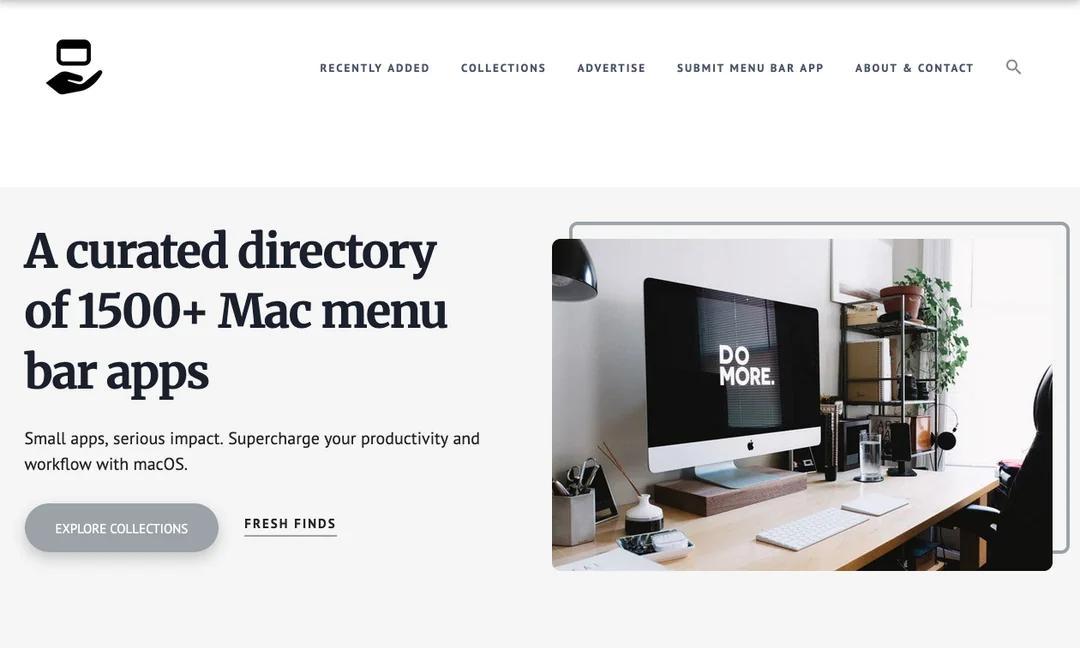
Workflow A directory of 1,500+ Mac apps hiding in your menu bar

Post image
18 Upvotes

If you enjoy discovering little apps you never knew you needed, you might enjoy MacMenuBar.com.

I’ve been collecting menu bar apps for over 7 years, and the directory now features 1,500+ apps across 48 categories. It’s a great place to browse, explore and stumble upon something interesting, even when you’re not looking for anything in particular.

https://MacMenuBar.com


r/MacStack • • Oct 13 '26

App Launch A per-app volume, routing and virtual mic node editor and menu bar app you need

18 Upvotes

macOS has one volume for everything. You can’t turn down a loud Discord call without Spotify getting quieter too, play one app on headphones and another on speakers, or send music into your mic for a call without extra tools.

Comparison:

  • vs paid mixers like SoundSource: free. Every app gets a volume from 0–200% right in the menu bar. A node editor sends any app to any output, even to several at once, and keeps those outputs in sync.

  • vs Loopback or BlackHole: two virtual mics are built in. Pick “Voidamp Mic 1” in Discord or OBS, then wire your real mic and an app like Spotify into it.

  •  profiles for your setups, a Patchbay mode where apps only play where they’re wired and its own volume and brightness overlay

Entirely Free. macOS 14.2+, Apple silicon: https://github.com/lumen-xx/voidamp


r/MacStack • • Aug 07 '26

What subscription Mac apps have you replaced with one-time purchase alternatives? Looking for the best Mac apps without subscriptions

18 Upvotes

I’ve been going through all the apps on my Mac lately and realized how many small monthly and yearly subscriptions have slowly piled up.

$3 here, $10 there, another annual renewal I completely forgot about. Individually they don’t seem that bad, but once you add up your full Mac software stack, it gets expensive pretty quickly.

So I’m curious what subscription-based Mac apps you’ve successfully replaced with a one-time purchase, lifetime license, or even a good free/open-source alternative.

I’m especially interested in replacements for things like:

• productivity apps

• window managers

• clipboard managers

• note-taking apps

• calendar apps

• email clients

• screenshot and screen recording tools

• PDF editors

• writing apps

• menu bar utilities

• Mac cleanup tools

• file managers

• developer tools

• design and creative apps

• password managers

• AI apps and utilities

Basically, if you cancelled a Mac app subscription and found an alternative that was just as good, or better, I want to hear about it.

What did you replace?

What Mac app did you switch to?

How much did it cost?

And most importantly, do you actually prefer the replacement, or did you just switch because you were tired of paying another subscription?

Would love to build a solid list of the best one-time purchase Mac apps and subscription-free macOS alternatives from what people are actually using.


r/MacStack • • Sep 14 '26

Muro 5.0 is out: Native Live Wallpapers for macOS, now as your screen saver too

17 Upvotes

App: Muro : Native Live Wallpapers for macOS

Price: Free. Open source under MIT. No subscription, no one-time fee, no Pro tier, no account, nothing locked.

Source: https://github.com/MrRockySL/Muro

Download: https://murowallpaper.com

Homebrew: brew install --cask MrRockySL/muro/muro

Requires: macOS 14 or newer, Apple Silicon or Intel. Lock screen and screen saver live wallpapers need macOS 26.

Quick reminder for anyone who has not seen it: Muro plays looping live wallpapers on your desktop and lock screen, on every display. It's native Swift, your Mac's video hardware does the decoding instead of the CPU, it uses very little CPU and around 200 MB of RAM, and it pauses when something covers it.

✨ What is new in 5.0:

Major new features, with major bug fixes and major improvements.

🌙 Screen saver. Muro can be your screen saver now, playing a live wallpaper instead of a still picture. You can set how long your Mac waits before it starts, right in Settings.

🖱️ Play only on desktop. The live wallpaper holds still while a window is open and plays when your desktop is clear. Each display decides for itself.

🔁 Replay on Clear Desktop. Pause After starts counting again every time your desktop is clear.

🖼️ Quit Muro and your live wallpaper stays. The desktop keeps a still of it, and the lock screen and screen saver keep playing the last one you set.

🔒 Lock screen live wallpaper on every display. Before, only the last display got one.

Still there if you missed them: likes, Pause After, playlists, automations by timer or by the clock, updates from the menu bar, and 169 free live wallpapers. New live wallpapers show up without updating the app.

First launch: Muro is self signed, so macOS blocks it the first time. Go to System Settings, Privacy and Security, and click Open Anyway. Open it from Applications, not from inside the DMG, or the lock screen and screen saver won't work. If you already have Muro, just replace it. Your library and settings stay.

Thanks to everyone using Muro, If you like it, a star on the repo is the free way to support it and helps people find it. If you want to go further there is GitHub Sponsors (https://github.com/sponsors/MrRockySL)

Happy to hear what is missing. Most of this release came from people asking.


r/MacStack • • Aug 13 '26

macOS never shipped a real productivity hub. So I built one. Meet Droppy.

17 Upvotes

A year ago my Mac workflow was a pile of little tools: a clipboard manager, a drag-and-drop shelf, a window snapper, a screenshot tool, a pomodoro timer, a converter that uploaded my files to someone else's cloud, and a menu bar app to manage the other menu bar apps. Each one fine on its own, together a mess of subscriptions and settings.

So I built Droppy. Droppy lives at the top of your screen, around the notch if you have one, as a Dynamic Island style pill if you don't, and puts everything one hover away:

- File shelf: drag anything up and it holds your files until you drop them where they belong. Jiggle a drag and a basket flies in to catch it.
- Clipboard manager: every copy kept and searchable, ready to paste again.
- A fully free cloud sharing service; Droppy Cloud. With a full online environment to view/download and share files.
- Notifications with inline reply for iMessage, WhatsApp and Telegram, right in the notch.
- Full media controls with the Playing Next queue, AirPlay picker and live lyrics.
- A revamped lock screen: album art, widgets, and brightness and volume sliders before you even log in.
- 27 free add-ons (Droplets) you toggle per workflow: window snapping, screenshots with OCR, pomodoro, a calendar with natural language input, LocalSend to move files to any phone or PC on your network, on-device file conversion, meeting controls for Zoom, Teams and Meet, Obsidian, Spotify, a terminal, and more. Off means off, they only run when you enable them.

The video shows it better than I can write it.

Also SUPER cool: an iOS app is coming, it's been built and published to TestFlight at this very moment. It syncs everything Droppy does with your iPhone (files, clipboard history, Droppy Cloud etc.)

Honest notes:
- Native Swift, signed and notarized, no Electron. Local-first: your clipboard and files never leave your Mac unless you explicitly share them.
- macOS 14+, Apple Silicon and Intel, works on every display. The notch is genuinely optional.
- Pricing: 3-day free trial, then $9.99 one time for 2 Macs. No subscription, ever.
- There's a lot to uncover, but you can keep it as minimalistic as you want.

I ship updates almost every week and the last few features came straight from user feedback, so if you try it and something annoys you, tell me here.

Site: https://getdroppy.app
Privacy policy: https://getdroppy.app/privacy-policy


r/MacStack • • 20d ago

App Launch I built Resurf, a personal context library for your ideas, thoughts, references and inspirations.

Thumbnail
gallery
16 Upvotes

Hey guys,

My name is Deep. I'm a design engineer. I always wanted a place where i can quickly jot down a thought, save a link or keep something i like and come back to it later. I had things scattered across tabs, screenshots, folders and notes. so i ended up building Resurf for myself.

It started as a small capture widget. Over time it became my personal context library for ideas, things i'm reading, and references i want to keep.

These days you can build things pretty quickly with AI. I think taste and judgment matter even more now. A lot of my taste comes from the things i've collected over time and the little notes i leave about why i liked them. When i'm starting a project now, i can ask an AI agent through MCP to pull up the research, notes and examples i've already saved and use them as context.

  • quick capture from anywhere on mac. copy a link, image or text and double tap option to save it without switching windows

  • keep notes, ideas, links, pdfs, images, videos and voice recordings in one library

  • organize with spaces, areas and tags. you can also save a filter as a smart space, like all the pdfs for a project, and new matches show up there automatically

  • search by what you remember or open a saved item to find related captures in the Similar tab. both are optional and run locally on mac

  • keep your library on your devices, with optional private iCloud sync across mac, iPhone and iPad

  • make your own optional AI actions for new captures, like pulling out the details you care about or suggesting a space. these use your own OpenAI key

fyi the mac app has a 7 day free trial. it's $39 one time with 2 years of updates or $79 with lifetime updates. you can still browse, search and export your library after the trial. iPhone and iPad apps are free. Pricing

If you give Resurf a try, i'd love feedback from your actual workflow. tell me what you tried to save or find, where it felt clunky, and what you expected to happen. even one specific example would help me figure out what to improve next.

resurf.so


r/MacStack • • Sep 10 '26

Mooziac — A lightweight, open-source YouTube Music and local audio player for the macOS menu bar

16 Upvotes

I’ve been building Mooziac as a lightweight alternative to keeping YouTube Music open in a browser or using a heavy desktop wrapper.
It lives in the Mac menu bar and combines YouTube Music with local audio playback.

Features
YouTube Music — Access your playlists, Liked Songs and listening history through a sandboxed WebKit integration.
Local music — Play MP3, FLAC, WAV, AAC and M4A files using the native AVFoundation audio engine.
Menu bar player — Keep playback controls available without keeping a full window open.
Interactive waveform — Scrub through tracks directly from the player.
Ambient album-art UI — The interface dynamically picks up colors from the currently playing artwork.
Synced lyrics — Line-by-line .lrc lyrics with automatic fallback to regular lyrics and local caching.
Trackpad gestures — Adjust system volume by sliding along the edge of the trackpad, with haptic feedback. There are also corner gestures for play/pause and skipping tracks.
Offline downloads — Built-in yt-dlp integration with automatic tagging.
Discord Rich Presence — Shows the current song, artist, artwork and playback state in Discord.
Keyboard shortcuts — Playback controls without having to switch away from your current app.
Privacy focused — No analytics, telemetry or tracking. Playlists, history and preferences are stored locally.

The whole project is free and open source under the MIT license. It’s written in Swift and uses native macOS frameworks, with builds for both Apple Silicon and Intel.

GitHub: github.com/shirkeharsh/mooziac

Would love to hear what other Mac users think, especially about the trackpad gestures and menu bar experience.


r/MacStack • • Aug 25 '26

Muro 3.0 is out: it can change your wallpaper for you now

16 Upvotes

Quick reminder for anyone who has not seen it: Muro is a free live wallpaper app for the Mac. Native Swift, about 2% CPU, no subscription, no Pro tier, nothing locked. It does the lock screen too.

3.0 is the biggest update so far. Three things people kept asking for:

Automations. Muro can now change your wallpaper on its own. Either on a timer, ten seconds each or an hour each, or by the clock, where each wallpaper gets its own hours of the day. Something calm in the morning, something else after dark. The day is drawn as a timeline you drag.

You can delete wallpapers. Sounds basic, and it was genuinely missing. Delete them one at a time or select a bunch, your own imported videos included.

Pause after. Let a wallpaper play for a minute after it changes, then hold on a frame. A held frame costs no CPU at all. Nice if you like the motion but not all day.

The whole interface got rebuilt too, and there is a long list of fixes. The big one: lock screen wallpapers now actually stick after installing from the DMG. That was broken for some people and I could not see it because it only happened on a downloaded copy, never on my own builds.

Still free, still open source, still no account.

Download: https://github.com/MrRockySL/Muro/releases/latest

GitHub: https://github.com/MrRockySL/Muro

If you like it, a star on the repo is the free way to support it and genuinely helps people find it. If you want to go further there is GitHub Sponsors (https://github.com/sponsors/MrRockySL)

Happy to hear what is missing. Most of this release came from people asking.


r/MacStack • • Aug 18 '26

Muro: 100% Free Live Wallpapers for macOS

16 Upvotes

Muro: 100% Free Live Wallpapers for macOS

Muro is a native macOS app that plays smooth, looping video wallpapers on your desktop. It supports multiple displays and includes up to 100 live wallpapers, with new wallpapers added every week.

The wallpaper catalog updates automatically inside the app, so you do not need to install a new version to receive new wallpapers. Videos download only when you select them, and you can remove them anytime to save storage.

Muro also includes full-screen previews, playlists, automatic wallpaper rotation, shuffle mode, menu bar controls and the ability to import your own videos. On macOS 26 or newer, wallpapers can also play on the lock screen.

The app is built natively with Swift, SwiftUI and Apple’s hardware video decoder. It does not use Electron or web views. It normally uses around 2% CPU while playing and automatically pauses when the wallpaper is not visible, during full-screen apps, display sleep, Low Power Mode or low battery.

Everything is unlocked. There is no trial, no payment required, no subscription, no account, no license key and no paywall. Muro is completely free and open source under the MIT license.

Requires macOS 14 or newer and an Apple Silicon Mac.

Download and source code:
https://github.com/MrRockySL/Muro

Report a problem or suggest a feature:
https://github.com/MrRockySL/Muro/issues

Optional support for future development:
https://github.com/sponsors/MrRockySL

Muro will remain free whether you sponsor it or not.


r/MacStack • • 2d ago

App Recommendation 100+ more Mac app deals for Black Friday, most pay-once, many end Nov 30 / Dec 1

15 Upvotes

Round 2 of the Black Friday Mac list: deals Mac developers posted in the comments on the first list, plus more I found since. None of these were in round 1. Most are pay-once.

Disclosure: the first four apps are ours. The rest come from their developers' comments and public 2026 deal lists, with no affiliate links. I haven't tested every code, so check the price at checkout. Many end Nov 30 or Dec 1.

Ours

AppWhat it doesDeal
ByteSweepDisk cleaner for Mac, Windows and Linux; removes only what you pick, undo for 7 days50% off: $29.99 $15 once, applied at checkout, until Dec 31
EarmixPer-app and per-tab volume, an output per app, EQ50% off: $12.99 $6.50 once, code BLACKFRIDAY50, until Dec 1
FindowScrolling window manager with tiling and saved workspaces$19.99 $5 once, applied at checkout, until Dec 1
PaneStackFinder alternative with up to 16 floating panesLaunch price $9.99 rising in steps to $29.99

All four are one-time purchases with a free trial.

Utilities and menu bar

AppWhat it doesDeal
BetterDisplayCustom HiDPI resolutions, extra HDR brightness, virtual screens33% off Pro, code BFCM2026, $21.99 $14.73, until Dec 1
EdgeBarTrackpad edges become volume and brightness sliders33% off, code BLACKFRIDAY (first 100 orders, then REDDIT for 20%), $9 once
ChocolatebarA second menu bar for icons hidden by the notch33% off, code BLACKFRIDAY
RubarbEvens out screen brightness so white pages don't flash youFree with code STRAWBERRY
AppGridLaunchpad replacement with pages and folders50% off lifetime Pro, code BF2026, $25 $12.50, until Nov 30
uBarWindows-style taskbar instead of the Dock30% off, code REDDITBF26, until Dec 1
GesturelyTrackpad gestures to snap windows, screenshot, change brightness25% off, code BLACKFRIDAY26, $3.75 once, until Dec 1
Ejectify 2Unmounts external drives before sleep, remounts on wake€6.99 €4.99, code BLACKFRIDAY (applied on the site), until Nov 30
Backup StatusLast Time Machine backup time on your desktop€4.99 €2.99, code BLACKFRIDAY, until Nov 30
Paste FormatterStrips fonts and colours from pasted text, keeps links€4.99 €2.99, code BLACKFRIDAY, until Nov 30
Awesome CopyClipboard manager with snippets and iCloud sync$14.99 $5.99, code BF60, until Nov 30
ShowMeYourHotKeysShows the shortcuts of the app you're in70% off, code BLFRIDAY, until Dec 10
Notch RadioInternet radio that lives in the notch$19.99 $9.99 once on the App Store, no code, until Dec 1
VitalsMenu bar CPU, memory and network monitor73% off lifetime, $49 $12.99, no code, until Dec 5
SenseiMac performance monitor and optimiser50% off, $59 $29.50, no code, until Dec 1
TextSniperCopy text from anything on screen, scan QR codes70% off lifetime, $7.99 $2.40, code IGBF26
LidnightKeeps the Mac awake with the lid closed50% off, $9.99 $4.99, code BF50, until Dec 1
Network RadarScans and monitors devices on your network50% off, $19.90 $9.95, no code, until Nov 30
PaddockMenu bar utility from OpenIn's developer60% off Pro, $9.99 $4, code BLACKFRIDAY26, until Dec 1
Kilobat ProBattery utility30% off, $29 $20.30, code BLACKFRIDAY30, until Nov 30
KeystroShows your keystrokes on screen30% off, $6.99 $4.89, code BFKEYSTRO26, until Dec 4

Windows and Dock

AppWhat it doesDeal
Lattix, Muffle, WindowBunnySave/restore layouts; blur inactive windows; trackpad window switcher50% off all three, code BLACKFRIDAY26, until Dec 2
SnapbackSaves your window layout, restores it in one click40% off, code BF2026, $9.99 $5.99, until Nov 30
DockFlow, ExtraDock, ExtraBar, CoolDock, ShioriDock and menu bar tools, bookmarks50% off all, until Dec 1
ActiveDock 2, DockView 2, SuperTab 7, Quick Exposé 3Dock replacement, Dock previews, Cmd-Tab switcher, window overview30% off each, code MACPLUSBLACKFRIDAY26, until Nov 30
DockMagicDock customisationUp to 50% off lifetime, $25 $12.99, no code, until Nov 30
PaperMacScrolling window manager50% off, Lifetime $99 $49.50, code BF2026, until Dec 1
WinsWindow snapping40% off, code BF_26, until Dec 1
HazeOverDims background windows60% off, $4.99 $1.99, no code
Desktop ComposerDesktop window layouts50% off, $19.99 $9.99, no code, until Dec 7
Cursor Teleporter 2Jumps the pointer between screens50% off, $7.99 $3.99, no code, until Dec 7

Productivity

AppWhat it doesDeal
CaptureQuick notes sent to Things, Notion, Obsidian, TodoistPro Lifetime $19.99 $9.99, no code, until Nov 30
DeskRestBreak reminders with stats and a clock-out reminder80% off lifetime, code BLACKFRIDAY80, $24.99 $5, until Dec 12
NagbarReminders that take over the screen until done, plus dictation$20 $10, code NAGBAR50, until Nov 30
BrisqiOffline-first Kanban board30% off, code BF2026, until Dec 2
ClingSpaceProject files, links and notes in one workspace$19.99 $8 lifetime, code BLACKFRIDAY8
TabLinkerSave and restore browser tabs across browsers, iCloud syncLifetime Pro $17.99 $9.99
GlueysEye, stretch and water break reminders$2.99 $1.99 on the App Store, until Dec 4
SubsDay, Toplify, DeskMinderSubscription tracker; App Store rank tracker; desktop reminders40–45% off lifetime, code BLKFR2026, until Dec 1
journeybotPrivate travel planner and packing list, with MCP50% off lifetime, code BLACKFRIDAY, until Nov 30
BriskmailNative Mac app for Gmail and Google Workspace$59 $39 once, code EARLYBIRD, first 500 buyers
PapermanMakes your Mac feel like paper25% off lifetime
SideNotesNotes in a panel at the screen edge35% off, $19.99 $12.99, no code, until Dec 7
TimematorAutomatic time tracking50% off lifetime, code TM-BLACKFRIDAY26, until Dec 5
PippinTo-do list51% off lifetime, $59 $29, no code, until Dec 2
SmolpadMarkdown notes50% off Pro Lifetime, $29.99 $14.99, code BLACKFRIDAY (App Store), until Dec 1
PasteClipboard manager50% off first year, $29.99 $14.99, code BLACKFRIDAY2026, until Dec 1 (subscription)
SuperlistTasks and notes50% off first year, code SUPERFRIDAY2026, until Nov 29 (subscription)
AnyboxBookmark manager40% off, no code, until Dec 2
EverlogJournal50% off lifetime, $59.99 $29.99, no code
OutlinerOutliner30% off Pro, code BLACKFRIDAY26, until Nov 30

Files

AppWhat it doesDeal
NameQuickRenames PDFs, scans and photos by what's inside25% off, Nov 23 to 30 (in the app: BLACKFRIDAY26), self-managed $69 $51.75
WTFileOffline automatic file renaming$40 $15 once
LocalRemoteFile manager for developers40% off lifetime, code BF2026, $11.40
FileMinutesFile toolsUp to 60% off
VaultSortFile organiser25% off, code BLKFRDAY, $24.99 $18.74
FileOctopusFile manager50% off Pro, $29.99 $14.99, code BLACKFRIDAY2026, until Nov 30
EagleFiler, DropDMGFile/mail/web archive; disk images25% off, code BLACKFRIDAY2026, until Nov 30
HardcopyBacks up iCloud Photos to a local disk60% off, $14.99 $5.99, code BF2026, until Dec 1
PackArchive manager51% off lifetime, $34.99 $16.99, no code, until Dec 1
TidyShelfFile and desktop tidying50% off, $38 $19, no code, until Dec 1
UndupedDuplicate file finder50% off, $14.99 $7.49, no code, until Dec 1

AI and developer tools

AppWhat it doesDeal
LexterTranslator and rewriter running a local model40% off, code LEXTERBF, Standard $19.99 $11.99, until Dec 2
LLM RadarWhich local model is holding your RAM and disk40% off Pro, code BF2026, 1 Mac $9.99 $5.99, until Dec 1
TranscrybeLive translated subtitles, on-deviceLifetime $29.99 $14.99, no code, until Dec 2
SyncletEncrypted dotfile and app-config sync, Mac and Linux50% off, $14.99 $7.49, applied at checkout
WarpletConnects ChatGPT, Claude, Perplexity to local MCP servers40% off first year, code BLACKFRIDAY2026
FontPlonkConvert and subset fonts for the web40% off, code BF2026, until Dec 1
VinaaAI toolsUp to 45% off
TowerGit clientUp to 50% off first year, no code, until Dec 6 (subscription)
TablePlusDatabase client25% off, code BLACK_FRIDAY_2026, until Dec 3
TableProDatabase client40% off Pro, $79 $47.40, code BLACKFRIDAY2026, until Dec 1
DevUtilsOffline developer toolbox60% off, code BLACKFRIDAY2026
RunJSJavaScript/TypeScript playground30% off, code BLACKFRIDAY2026, until Dec 1
PoeditTranslation file editor30% off, code BF26, until Dec 3
DiffactoCompare files and folders40% off Pro, $149 $89.40, no code, until Dec 1
LocalCan.local domains and public URLs for dev serversLifetime $69 with LIFETIME69, or 50% off first year with BF50, until Dec 1
RewriteBarAI rewriting in any app50% off lifetime, $29 $14.50, code BF2026, until Dec 3
EnconvoAI launcher and agent30% off lifetime, $59 $41.30, no code, until Dec 7
Parallels DesktopWindows and Linux virtual machinesFirst year Standard $49.99, code PD50, until Nov 30 (subscription)

Media and design

AppWhat it doesDeal
FluidCastPodcast player synced across devices, ad detection50% off lifetime, $99.99 $49.99, code BLACKFRIDAY2026LT, until Nov 30 (UK time)
GIFBarnMenu bar GIF search for Slack and chatsPro $9.99 $4.99 once, no code, until Dec 1
FacetTurns your photos into frosted-glass wallpapers$2.99 $0.99 (US App Store), Nov 25 to Dec 1
Digital Photo FrameMac as a photo frame from iCloud, Google Photos, Immich50% off first year, $19.99 $9.99/year, until Dec 1 (subscription)
EagleOrganises images and design assets30% off, no code, until Dec 1
ScreenSage ProScreen recorderUp to 53% off, codes BFS2026L / BFS2026P, until Dec 15
ShotomaticAutomatic screenshots40% off lifetime, code BF2026, until Dec 31
SnapAppScreenshot tool50% off, Lifetime $89 $44.50, code SNAPAPPBF26, until Dec 1
DarkroomPhoto and video editor50% off first year, $39.99 $19.99, code BLACKFRIDAY26 (subscription)
BackdropLive wallpapers30% off lifetime, $29.99 $20.99, no code, until Dec 1
WallperMoving wallpapers50% off Pro, $14.99 $7.49, no code, until Nov 30
SoundBarMenu bar audio control76% off, $29 $6.99, no code, until Dec 5
RecutRemoves silences from video$149 $99, no code, until Dec 4
ComprestoCompress video, images and files40% off, code BFCM26

The first list (40 apps: OpenIn, PastePal, Proxyman, BoltAI, VoiceInk and more) is still up on my profile. Developers: post your deal in the comments and I'll add it.


r/MacStack • • 17d ago

WindowShift - a free macOS app for multi-monitor setups.

15 Upvotes

I regularly work with several displays on macOS and have always found moving windows between them more cumbersome than it should be. Some built-in methods require manual dragging, making them inconvenient for keyboard-driven workflows, while others require exiting full-screen mode. I wanted to be able to move any window to any other display in under a second, including full-screen windows, with a simple, reliable trigger.

So I made WindowShift, a small app that lets you move windows between displays using customizable keyboard shortcuts. It's native, fast, and works with full-screen windows.

I use it a lot myself and tried to make the controls intuitive. When using multiple monitors, I naturally think about them by their relative positions: this display is to the left of the current one, this one is above it, etc. WindowShift works exactly this way: it sends the current window to a neighboring display based on its relative position ↑↓←→.

The attached video is a real screen recording showing the app in action.

In recent update, I improved the responsiveness so that you can press the combinations repeatedly while the fullscreen transition animation is running, and this will change the target screen accordingly.

Note that WindowShift isn't a full-featured window manager like Rectangle, AltTab, or the many other alternatives out there. However, unlike most window managers, it can move full-screen windows between displays and works great alongside them.

The app is very lightweight (current version ~1.2 MB)

Minimum macOS version: macOS 12 Monterey

Pricing: Free. 0 data collection.
The app is notarized.

I made it free because, to me, this feels like a basic feature that should be included in macOS by default.

Artworks used as wallpapers in the demo: https://www.artstation.com/tohad, https://www.behance.net/febinraj


r/MacStack • • 25d ago

Indie Mac apps that have already confirmed Black Friday 2026 deals (codes included)

15 Upvotes

Disclosure: I run a free deal tracker called IndieMarkdowns, and I'm not affiliated with any of these apps. I emailed the devs about their Black Friday plans, and these are the ones that have confirmed a 2026 deal so far. Most start around Nov 20 to 25, and two are live already.

Live now
- Shotomatic: 40% off lifetime licenses, code BF2026 (subscriptions excluded)
- Cutfac: 40% off new one-time licenses, code BF2026, through Dec 31

50% or more
- ShowMeYourHotKey: 70% off, code BLFRIDAY, Nov 23 to Dec 10
- Slashspace AI (was RabbitHoles AI): 51% off, code BF2026
- SQLPro Studio: 50% off first year of yearly (BFHALFOFF) or 25% off lifetime (BFLIFETIME), Nov 25 to Dec 1
- NewsNinja: 50% off the one-time purchase, Nov 25 to Dec 5
- Protego for Reddit: 50% off ($1.99, was $3.99), Nov 22 to Dec 5
- DevUtils: 50% off all plans
- Blip AI Pro: 50% off first year, code SWITCH50, new customers, Nov 20 to 30

30 to 49%
- JuxtaCode: 40% off, code BLACKFRIDAY26, Nov 20 to Dec 1
- Compresto: 40% off, code BFCM26, ends Dec 1
- MuteDeck: 35% off lifetime, code BFCM2026, Nov 27 to Dec 13
- BirdFrame: $19.99 instead of $29.99 one-time, no code, Nov 20 to Dec 1

Smaller but solid
- EagleFiler, SpamSieve, DropDMG: 25% off, code BLACKFRIDAY2026, Nov 20 to 30
- Dropshare: $29 instead of $39, Nov 23 to 29

A few are first-year-only on a subscription, so read what the % applies to. I'll update this as more devs reply. What are you waiting to buy on sale this year?


r/MacStack • • 29d ago

Dynamic island for the rest of us! (free app)

15 Upvotes

Now that Apple has released a MacBook with a Dynamic Island, I figured I'd (re)share my app that does something similar: SmartNotch.

You hover over the notch and it opens up into a little panel. Move the mouse away and it tucks back in.

It does music controls, a timer/pomodoro, your next calendar events with a join button for Zoom/Meet/Teams, a file tray you can drag stuff onto (or AirDrop from), a quick camera mirror, system stats, and a keep-awake toggle. When music's playing or a timer's running it shows a small live activity next to the notch.

It's free, no subscription (there's a tip jar if you want to buy me a coffee).

https://apps.apple.com/us/app/smartnotch/id6783508084?mt=12

I'm the developer, so feedback is very welcome. Bugs, feature ideas, anything.


r/MacStack • • Oct 21 '26

App Launch I built Mooziac, a native macOS menu bar music player — v1.2.0 adds a YouTube video player

15 Upvotes

Hey everyone!
I’ve been working on Mooziac, a lightweight music player for macOS. I wanted something that felt native to the Mac, with music controls in the menu bar, quick trackpad gestures, and lyrics without needing to keep a full app window open.
Version 1.2.0 is now out, and the biggest addition is a dedicated YouTube video player. You can switch from listening to watching videos without leaving Mooziac.

What it does
Menu bar player: Control playback without keeping the main window open.
YouTube video player: Watch videos in a separate window with playback up to 4K and 1080p as the default.
Trackpad gestures: Adjust volume using the edge gesture, including while watching videos.
Keyboard shortcuts: F for fullscreen, J/K/L to seek, [ / ] to change playback speed, and Cmd+Shift+C to copy a timestamped link.
Synced lyrics: Display synchronized .lrc lyrics, including in the menu bar.
Interactive waveform: See and navigate through a track visually.
Offline playback: Download tracks for listening without an internet connection.
Local music library: Supports FLAC, MP3, WAV, AAC, and M4A alongside YouTube Music.
Discord Rich Presence: Share what you’re listening to.
Native, lightweight, and privacy-focused
Mooziac is built with Swift and AppKit, with no Electron runtime. It supports both Apple Silicon and Intel Macs.
No account required
No analytics, tracking, or remote logging
Free and open source under the MIT license
The video player uses WebKit, with hardware-accelerated video decoding where supported.
I’m continuing to improve the app and would genuinely appreciate feedback, bug reports, or ideas for features that would make it more useful.
GitHub: https://github.com/shirkeharsh/mooziac
Website: https://mooziac.pages.dev

Installation note: Mooziac isn’t notarized by Apple yet, so macOS may block the first launch. Right-click the app and select Open. If needed, run this in Terminal:
xattr -cr /Applications/Mooziac.app
Download: https://github.com/shirkeharsh/mooziac/releases

I’d especially love to hear what you think of the video player and the combination of menu bar controls, lyrics, and trackpad gestures. What would you improve or add?


r/MacStack • • Jul 12 '26

My Stack 👋 Welcome to r/MacStack - Introduce Yourself and Read First!

15 Upvotes

Start here: share your Mac stack

Hey everyone, welcome to MacStack! This is a place to discover useful Mac apps, tools, utilities, setups, and workflows. Share your stack, compare alternatives, ask for recommendations, or get help with a macOS problem.

Introduce yourself in the comments with:

  • What you use your Mac for.

  • Your three most useful Mac apps.

  • A small utility or workflow you recommend.

  • An app recommendation or problem you need help with.

Pick a post flair to help others find the right discussion: App Recommendation for useful finds, Looking for an App for requests, My Stack for your setup, Workflow for how you work, App Launch for new releases, and Help for troubleshooting.

Keep things helpful and respectful. If you created, work on, or are affiliated with an app you recommend, clearly disclose that connection. Include useful details such as pricing and limitations, and follow the community rules.

What has earned a permanent place on your Mac?


r/MacStack • • 28d ago

App Launch I made Shotbolt, a Mac screenshot app where you can edit the text inside your screenshots (1.2.4 video)

14 Upvotes

Hey!

I'm Sam, and I made Shotbolt. It's my first real launch. The first week brought 300+ downloads and a lot of feedback, and I've spent the last days shipping what people asked for. The video shows version 1.2.4.

Why I built it

The screenshot tools I used for years kept ignoring feature requests. So I'm building one screenshot app to rule them all, shaped by what the community asks for. Even the niche stuff.

What makes it different

  • Edit or translate the text inside a screenshot. Fix a typo or change a label without retaking it

  • Search your screenshots by any word in them, through a searchable History

  • Niche Features tab with things like Stitch and Cut Out

  • Customizable UI, so it works the way you do

  • Fully local. No cloud, no analytics

  • Imports your CleanShot X shortcuts and settings on first launch

Pricing

  • Free forever: area, window and full-screen capture, the annotation editor, OCR/QR text capture, pins and searchable History

  • Pro, one-time purchase: recording and GIFs, scrolling capture, element capture, automatic redaction, the Apple Intelligence features and Shortcuts actions. $9.99 until Dec 31, no subscription

  • Every install starts with 7 days of Pro, and there's a 14-day no-questions refund

Limitations

  • Requires macOS 26 or later

  • The Apple Intelligence features need a Mac that supports Apple Intelligence

  • Optional cloud save isn't there yet. It's planned, probably for the next update

Try it here: shotbolt.app


r/MacStack • • Oct 24 '26

App Recommendation I made a flexible Finder replacement called Tilde.

Thumbnail
gallery
14 Upvotes

Tilde is a native macOS file manager built to replace Finder. Work across folders in split views, find files and run actions from a command palette, and organize your files with custom properties, filters, and groups. It's a drop-in Finder replacement that transforms how you interact with your filesystem.

Features:

  • Split views - Work with multiple folders side by side in one window, with tabs in each pane.

  • Command palette - Find files, jump to folders, and run file actions from the keyboard.

  • Workspaces - Saved split pane layouts for quickly jumping back into your work.

  • Custom sidebar groups - Bring the folders you use together into groups you define.

  • Auto-updating sidebar groups - Live groups makes your sidebar dynamic. Matching items appear in your sidebar automatically and update as things change.

  • Properties, filtering and grouping - Add custom fields like Status or Priority to files and folders, then use them to filter and group your views.

  • Pinned folders - Keep important folders at the top inside another folder without moving or duplicating them.

  • Related items - Mark folders and URLs as related to specific folders so you can jump between them, even when they live in different places.

  • Markdown editing - Built-in markdown editing and code formatting allowing you to do more without leaving Tilde.

  • Tonnes of little features that make sense - Space overviews, Nicknames, Related folders & URLs, custom folder icons, 'Open in Finder' replacement, and more.

  • + much more...

Similar apps:

  • Forklift - This is the obvious 'Finder replacement' alternative. Tilde builds on this idea, in a more native-feeling approach, with far more features fleshed out for the everyday poweruser. Tilde offers more versatile split pane functionality (essentially unlimited splits horizontally and vertically), a command palette, custom properties, sidebar spaces, live groups, a more beautiful user interface and much more.

  • Bloom - Probably the closest alternative, though Tilde takes a different approach. Tilde focuses the UI on being completely flexible to your needs: it's highly adaptable Split View system offers a more flexible, fluid way to work across folders. Custom Properties, Related Items, Sidebar Spaces, Custom Groups, Live Groups and Pinned Folders change how you interact with a file manager and make it truly adapt to your work, not the other way around.

Pricing: $29.99 USD for use on 2 Macs. No subscription. Lifetime license with one year of free updates. You can use this forever. Then, if you want another year of updates, it's $19.99.

Free trial: 7 day free trial, no credit card required. Give it a go and let me know what you think!

Apple notarized: Tilde is Developer ID signed and notarized by Apple.

I’ve been building this for a long time, and I’m so excited to share with everyone, get feedback and make file management actually delightful.

Website


r/MacStack • • Sep 30 '26

I built MacIgniter — a curated directory for Mac apps 

14 Upvotes

I wanted a simple place to discover useful Mac apps without digging through endless search results.

So I built MacIgniter.

→ Browse Mac apps
→ Discover new tools
→ If you've built a Mac app, you can list it too

Would love to hear what you think and what features you'd want in a Mac app directory.

https://macigniter.com


r/MacStack • • Sep 27 '26

Floodtide - Mac app updater to replace Macupdater

Post image
14 Upvotes

I built Floodtide, a Mac app updater that keeps all your apps up to date from one place.

It scans the apps already installed on your Mac and checks multiple update sources, including Sparkle feeds, Homebrew casks, GitHub Releases, Electron update feeds and the Mac App Store.

Some of the main features:

  • Update multiple apps from one place

  • Automatic backups before replacing apps

  • Roll back an update if something goes wrong

  • Code signature and Team ID verification

  • Hold or ignore individual updates

  • Works with both Intel and Apple Silicon Macs

  • No account required

  • Scanning for updates is completely free

I originally built it because I wanted something that could fill the gap left by MacUpdater while still being safe and simple to use.

It’s still being actively developed, so feedback from other Mac users would be really useful, especially if there are apps it doesn’t detect properly yet.

https://bhopstudio.com/floodtide

There’s a 14-day free trial for updating, then it’s £10.99 one-time for up to 3 Macs.

Would love to hear what you think or what you’d want to see added.


r/MacStack • • Oct 19 '26

With FREE and open source NullPlayer 0.33.0, Audion faces can be used again on macOS - not to mention and ALL Winamp and Windows Media Player skins too. NullPlayer also supports Sonos, Plex, Youtube, Chromecast, Emby, Navidrome, jellyfin, projectM, local files and more

13 Upvotes

r/nullPlayer

https://github.com/ad-repo/nullplayer

nullPlayer is 100% free and open source


r/MacStack • • Oct 14 '26

App Launch I made Dojo a free Mac app with 84 dev tools that all run locally

13 Upvotes

I wanted one modern Mac app for the small jobs that come up all day: decoding a JWT, formatting JSON, making a UUID, checking a color's contrast. And I wanted it to run on my machine, so tokens and API responses never get pasted into a website.

Dojo is that app. It's free, and everything runs locally on your Mac.

What's in it:

- Formatters for JSON, SQL, YAML, XML, HTML, CSS, JS and GraphQL

- Converters for JSON to YAML, CSV, TOML, XML and code, plus cron, dates, number bases and units

- Decoders for JWT, Base64, URLs, gzip and certificates

- Generators for hashes, HMAC, bcrypt, UUID, ULID, passwords and RSA keys

- JSON diff, JSONPath, JSON Schema and semver testers

- Color contrast checker, image compressor and app icon generator

It's new, so expect a few rough edges. Apple Silicon only for now.

Download: https://github.com/IndieGoodies/Dojo

Which tool do you still open a website for that should be on this list?


r/MacStack • • Oct 02 '26

[OC] OpenNotch: a free, open-source AI assistant that lives in the MacBook notch

13 Upvotes