r/tasker • • Nov 17 '15

How To [How to] Replicate Pushbullet features (Notification Mirroring / SMS / Clipboard)

137 Upvotes

With the ridiculous pricing of the newly announced "Pro" version of Pushbullet, I figured I might jot down the basics on how you could go about replicating its features (which were honestly pretty buggy and unreliable to begin with). You'll need a couple of plug-ins for this; the ones I use are Notification Listener (to catch notifications in Tasker) and AutoRemote (to send / receive messages from a computer).

Notification mirroring

Create a profile with the condition: Event > Plug-in > Notification Listener > Posted, and tick all the apps you'd like to include.

Then, in the task, have your phone send a message to your computer with AutoRemote. In the message, depending on how you want the mirrored notification to look, you'll have to include the variables passed to the task from Notification Listener. Something like this:

%nlapp = owner app name
%nltitle = notification title
%nltext = notification text

There are of course all sorts of things you could do with the AutoRemote message, such as including the app icon, setting it up to trigger other Tasker actions when you act on the computer notification, etc. but I'll leave all that since I'm on a Mac and have never been able to use any of that stuff.

SMS

Profile context: Event > Phone > Received Text, leave Sender and Content blank.

In the task, following the same principle as above, send an AutoRemote message to your computer with the relevant variables:

%SMSRF = sender's phone number
%SMSRN = contact name
%SMSRB = SMS text
%SMSRD = SMS date
%SMSRT = SMS time

I'll leave out how to send and / or reply to messages from the computer, since everyone's setup is different. Again, I'm on a Mac, so I'm using a combination of SSH and Applescript, which I'm guessing is not all that relevant to most people here. In most cases, though, you'd basically send an AutoRemote message to Tasker with the contact name / number and the message content (i.e. sms=:=Jane Doe=:=Hi! I'm John.) then parse and send it in the corresponding task.

Clipboard sync

To catch the phone's clipboard content, you'd have to setup a profile with this condition: Event > Variable > Variable Set > Variable: %CLIP, Value: [leave empty]. This will trigger every time the clipboard is set.

As for the task, it really depends on how things are set up on your computer. AutoRemote communicates with my Mac via SSH, so I can easily send a message with a shell command to set the clipboard to %CLIP. How exactly you would do it on a PC, I'm not sure, but I'm guessing you'd have to use AutoRemote in conjunction with Eventghost. The basic principle, in any case, is to pass the Tasker variable %CLIP to the computer.

As for the other way around, i.e. passing the computer clipboard to Tasker, all you would need technically is to send an AutoRemote message to catch in Tasker with a "Set clipboard" actionโ€”assuming, of course, you can get your computer to react to clipboard changes and do this automatically.


r/tasker • • Sep 27 '21

Developer [DEV] TaskerNet 2.0 is Live!! Public Shares, Edit Shares on the Website, Download as XML and more!

136 Upvotes

This is super exciting for me!

Tasker finally has an official list of projects, profiles and tasks that everyone can access and easily import! ๐Ÿ˜„

Check out how it works: https://youtu.be/RiVfHg4lsWw

Public Shares

By visiting https://taskernet.com/ you now have the option to check out what other users have publicly shared and easily import anything you want!

The list will be pre-filtered with the Basics tag so that new users will have an easy time finding "getting-started" type shares but you can add/remove any tags you want to the filter to check out other shares!

The public list mostly consists of stuff I shared myself for now, but hopefully that'll change soon when other users start to share their own stuff!

Your Shares

You can also see your own shares and edit them directly on the website!

If you want to publicly share your own projects:

  • In Tasker long-click the project/profile/task of your choice > Export > To Link

  • Go to https://taskernet.com/?shares, edit the share, add a few tags and enable the Public option (in the future this will be possible to do via the app itself)

  • Save the share and it'll be publicly available for anyone to try!

Other User's Shares

Do you usually like the shares made by a certain user? You can check out their own list of public shares! For example, here's mine!

Download XML

You now don't need to be signed in to your Google account to import a share. You can simply download the XML and import it old-school style!

Thanks for everyone that tested this on the test server and provided feedback. Hope everything's working!

Enjoy! ๐Ÿ˜


r/tasker • • Dec 23 '14

2014 Best of r/Tasker

136 Upvotes

So its the end of 2014. Time to talk about your favorite, best, most used ,eCt. tasks of 2014 (or any other year I guess).

Lets poll out all the steps and Show off what our phones are capable of.

I think we should (for now) post what our set-up accomplishes Ahd then, if asked, add in how we acheived itif asked. Maybe a simple screenshot will do , but some may require more info.

Heres some of my favorite ones :

  • Change wallpaper based on time (i have the same wallpaper but one is a day pic and the other is a night pic )

  • When Car blutooth is disconnected at a certain spot (on the road), send a notification at 1OPM telling me to pull it in to the driveway.

  • Silence my phone at a given time (kind of a staple for tasker )

  • Turn ringer/ notification sound way down when screen is on.

  • Change screen timeout when my butoothfor my car is connected . Also turn off Wi-fi / turn on GPS

  • Turn on GPS when using apps like maps, ect.

  • I had a work in progress for a while that would be "ShowBox play %movie", that would open ShowBox, screen tap the search bar, type the variable,wait, select the first one (usually accurate), wait, hit watch now, wait, (showbox automatically opened localcast), wait, tap the connect to..., select my chromecast, wait, then hit play now.

A few problems that came with this one was it wasn't recognizing my initial instructions (that was anniying) and with local cast I never know if my chromecast would be at the coordinated I specified when selecting my chromecast or my roommates. I think I solved that with autoinput selecting the text instead of a location on the screen but the task was so hit and miss I never figured it out

I've also been trying (you've probably seen my post) to see if I can set it up so that when I am casting something via showbox, it takes the movie art of said movie and puts it in my Zooper widget that normally shows album artwork when listening to podcasts or music.

Let's see what you guys/gals have come up with!


r/tasker • • Jul 08 '25

Developer [DEV] Tasker 6.6.2-beta - Shizuku Integration!

135 Upvotes

Note: Google Play might take a while to update. If you donโ€™t want to wait for the Google Play update, get it right away here. (Direct-Purchase Version here)

If you want you can also check any previous releases here:

Shizuku Integration is Here!

Demo: https://youtu.be/9StQBtUuOl0

This has been a long time coming! ๐Ÿ˜ƒ A LOT of people have asked me to add this to Tasker, and it's finally here!

If you don't know, Shizuku is an app that connects itself to ADB Wifi without the need for a computer (Android 11+; on Android 10 and below you still need a computer) and then allows other apps (like Tasker) to run special Android APIs that they usually can't because of the lack of permissions.

Shizuku is available on Google Play, but I recommend installing the latest Github version because it fixes a few issues on the more recent Android versions.

Running Restricted Android APIs

For example, on Android 16, Google changed how Wifi Tethering works under the hood, and normal apps can no longer toggle it. But since Shizuku gets access to elevated permissions, Tasker can now connect to it (with your permission) and toggle Wifi Tether once again!

Running Restricted Shell Commands

Tasker can also run Shell Commands with Shizuku, with a new option in the Run Shell action. Simply enable the new option, and commands that were previously only available to root or adb wifi users, can now be ran normally, and transparently!

For example, you can now easily enable/disable your lock screen, toggle permissions for apps, disable apps or even uninstall them altogether!

Run Shell Helper

You now have access to the Run Shell Helper with Shizuku, which allows you to very easily select from one of these pre-defined commands, or you can even try to find hidden commands under the Services option there! The Services option looks at your phone and gets a list of ALL service commands that your phone provides, and allows you to select from ANY of them. Who knows what hidden gems people will find there! ๐Ÿ˜…

To use the Run Shell Helper:

  • go into a Task

  • add a Run Shell action

  • Use the Magnifying Glass above the Command field

  • Select the Services option

If you do find something useful there, let everyone know so everyone can benefit! ๐Ÿ˜Ž

Built-In Actions Using Shizuku

Some restricted actions can be ran with Shizuku transparently, meaning that you just need to have Shizuku running in the background, and they'll work! These are the actions I intergrated Shizuku in for now:

  • Airplane Mode

  • Wifi Tether

  • Wifi

  • Bluetooth

  • Kill App

So, for Wifi and Bluetooth for example, you don't even need to install the Tasker Settings app anymore! I need to take a look at the other actions and see what else I can use Shizuku with!

Check Shizuku

I also added the Check Shizuku function to the Tasker Function action in Tasker, so that you can easily check if Shizuku is running or not, and if Tasker has the Shizuku permission enabled.

You get access to 4 variables:

  • %can_shizuku_be_used (if this is true, you can be sure that you can use Shizuku)

  • %has_shizuku_permission (if Tasker has the Shizuku permission enabled inside the Shizuku app)

  • %is_shizuku_running (if Shizuku is even running)

  • %is_shizuku_installed (if Shizuku is even installed at all)

Hopefully these will fulfil all your needs ๐Ÿ˜…

Small Get Sunrise/Sunset Times Enhancements

In this action you can now specify the date for which you want to know the sunrise/sunset times, so you don't always have to get them for the current day.

You can also specify a custom sun elevation angle and know at what times the sun will be at that angle in the sky!

Full Changelog

  • Added option to Run Shell action to run the command with Shizuku

  • Allow using the Shell helper to run many commands with Shizuku

  • Made Airplane Mode, Wifi, Bluetooth and Kill App actions use Shizuku if available

  • Added Check Shizuku function to Tasker Function action

  • Added Custom Sun Elevation Angle input to Get Sunrise/Sunset action and the corresponding output variables

  • Added optional Seconds Since Epoch input to Get Sunrise/Sunset action to allow getting the times for different dates

  • Added a bunch of new outputs to the Get Sunrise/Sunset action

  • Changed output times of Get Sunrise/Sunset to seconds since epoch (it was previously millis since epoch)

  • Disable USB Midi handler if user doesn't use MIDI Play action in their setup

  • Fixed some issues with the Get Sunrise/Sunset action's output

  • Fixed translations when picking the type of Widget v2 to use

  • Fixed some crashes related to having Lock enabled in Tasker

  • Fixed issue when importing some specific kinds of projects where it wouldn't correctly detect the type being imported

  • Fixed Wifi Tether action for Android 16+ by using Shizuku

  • Updated min SDK to 24 (Android 7.0)

  • Made the app's APK smaller


r/tasker • • Sep 10 '20

PSA: If you have any automations using IFTTT and are not yet aware, IFTTT is moving to a subscription service! Limited time offer for first year.

135 Upvotes

I'm extremely disappointed to say, starting in October, the free/standard IFTTT plan the company will offer will only allow the use of Edit 2: you to create 3 applets (not sure how many can be used or other restrictions might come with the free plan yet). After that, the Pro plan will be $10/month (yes, that is the correct price). They are currently running a "pay what you want" offer, but the promotion ends in a few weeks.

Thought I'd put it out there in case anyone else uses IFTTT with any of your Tasker profiles and you want to opt for the $3/month rate for 12 months instead while you still can!

EDIT: Forgot to mention that the pro version does have some added functionality though.


r/tasker • • Jan 25 '23

Developer [DEV] The "Tasker Settings" app may be in risk of not working on Android 14. If you like it make Google know before they disable it.

134 Upvotes

Recent news said that Google might be considering not allowing apps that target old APIs to be installed on Android 14.

Tasker Settings is an app that relies on having an old target API to be able to do stuff like toggling your Wifi or changing certain settings on your phone.

An issue in Google's issue tracker was opened asking Google for an option of disabling this restriction.

Issues on the issue tracker like these usually don't change Google's minds but in my opinion that's often because the damage has already been done by the time it's brought up. I hope that if the issue has enough comments and stars by the time Google release Android 14 that they will at least add the option in developer settings to allow apps like Tasker Settings to be installed.

So, if you like Tasker Settings, go to the issue tracker and add a star to the issue and possibly even comment on it just to let them know of your concerns.

Hope this will help and if not, well, at least we tried... ๐Ÿ˜…

Thanks in advance!


r/tasker • • Jun 22 '18

Announcement Tasker 5.2 released

134 Upvotes

This update โ€“ the first one since Joรฃo (of AutoApps fame) took over โ€“ looks to be pretty substantial, with lots of new actions added and old broken ones fixed.

More info here. Full changelog here.


r/tasker • • Jul 20 '16

25,000 SUBSCRIBERS TO /r/Tasker!!!

134 Upvotes

ย 

25,000 SUBSCRIBERS - WOW!!

ย 

Almost 5 years ago to the day today - /r/Tasker was born, and here we are at 25,000 subscribers!!

ย 

I've been a mod only for a portion of that time, and I have to give great credit to the great mods /u/brodie7838 and /u/JadoJodo for putting together the foundations for this subreddit.

ย 

In the past year alone average daily views have gone from 100k/mo, to over 150k/mo, and /r/Tasker is ranked in the top one percent of all subreddits, i.e. - we rock more than 99% of all the other subreddits ;)

ย 

Of course the most thanks goes out to everyone who contributes here and makes this a great knowledge hub and helpful sharing experience for the entire Tasker community, including users and developers.

ย 

So keep up the great posts and community participation, and if you have any Tasker stories related to /r/Tasker to share, feel free to post!

ย 


r/tasker • • Dec 20 '24

Developer [DEV] Going away for a bit

133 Upvotes

Hi everyone! It's that time of the year again.

I'm going away for a few weeks and hope to be back on the week of the 13th of January.

Since it's the time to give, I'm leaving you with a small present that I hope you enjoy:

The Ultimate Weather Widget Base Build!!

It looks something like this: https://imgur.com/H9WNIta

Right now, it's MY ultimate weather widget because it has the exact info I care about, and looks good enough for me, but the idea is that you can take that widget as an example, and modify it so it looks just the way you like it, and has the exact info that you want it to have! As always, that's the beauty of Tasker! ๐Ÿ˜

It's not a finished widget (probably never will be) but it's a start for you to build on and create YOUR Ultimate Weather Widget!

BTW, this uses OpenWeather, a partially free weather API, and Widget v2, so make sure to install the latest Tasker beta to use it!

Happy Hollidays everyone and see you soon!


r/tasker • • May 15 '23

Developer [DEV] Tasker 6.2 Beta - We're back in business! I can update Tasker Beta on Google Play again and, to celebrate, this one's a banger!! ๐Ÿ˜

132 Upvotes

I'm so excited for this one!!! REALLY want to see what you can come up with! ๐Ÿ˜๐Ÿ˜ I was so tired of not being able to put out new features for so long that I just thought "screw it" and made this one happen ASAP! I've wanted to release this one for a while now!!

Sign up for the beta here.

If you don't want to wait for the Google Play update, get it right away here.

You can also get the updated app factory here.

If you want you can also check any previous releases here.

Tasker Can Now Be Your Personal HTTP Server!

Full Video Walkthrough: https://youtu.be/0R9Go6tJqKY

Tasker has 2 important new features:

  • HTTP Request Event

  • HTTP Response Action

With just these, a whole new world of remote Tasker opens up! ๐Ÿ˜ฎ

For example, you can create a simple profile that allows you to get the value of a Tasker variable from any other device, including devices with Tasker of course!

Or you could go all out and create a whole remote control UI for your device that's accessible for everyone on your network!

To exemplify this I've created this project: https://taskernet.com/shares/?user=AS35m8ne7oO4s%2BaDx%2FwlzjdFTfVMWstg1ay5AkpiNdrLoSXEZdFfw1IpXiyJCVLNW0yn&id=Project%3AHttp+Server+Example

It contains a web page that you can open (the web page itself is hosted by Tasker) and it shows a plethora of use cases where you can do stuff like:

  • show toasts on your device

  • Say "Hello" out loud

  • Write some text on your phone from the web page

  • View images and videos stored on your device from the page

  • Upload files from the page to the phone

  • Open files directly on your phone

  • Show or download a screenshot of your phone on the page

  • Get the value of a Tasker variable and show it on the page

  • Open your phone's location from the page

  • Open an app by name on your phone

  • Control the media playing on your phone

  • Get the name of the media playing on your phone and show it on the page

You can take a look at how these examples are done so you understand how this works and are able to adapt them for your own use cases.

And, of course, these are just a few examples of what you could do with this. Your imagination is really your limit here! ๐Ÿ˜†

I can't wait to see what you can do with this so please do experiment and let me know how it works for you!

Fixing an Old Bug (hopefully?)

There's also a potentially very important fix included in this release: in some rare circumstances actions in a Task were hanging indefinitely and would never continue running. I'm happy to say I've fixed this issue now! If you have ever experienced this, please let me know if you still do with this version!

A Few Other Notable Changes (Already in Production)

I didn't mention these here yet, so I thought I would now:

  • Added %tasker_current_action_number local variable to running tasks so you can know which number the task is on at any time

  • Added ID field to the Flash action when using Tasker Layout so that you can control which toasts overwrite each other

  • Made the delay when showing toasts with the Tasker Layout option shorter

  • Fixed bug with App Factory where nothing would show up after the app was generated making it seem like the process was stuck

Full Changelog

  • Added "HTTP Request" event and "HTTP Response" action. Tasker can now be a web server!

  • Fixed long-running issue where sometimes, in certain situations, some actions could get stuck indefinitely

  • Fixed issue with license checking in certain situations

  • Fixed issue where App Factory apps wouldn't include icons used in custom Tasker flash actions

  • Tried fixing issue where scanning NFC tags in certain situations could result in Tasker crashing

As always, enjoy!! ๐Ÿ˜Ž


r/tasker • • Sep 12 '19

Developer [DEV] I'm back! Sorta... (lots of requests to go through)

132 Upvotes

Hi everyone. After a long break, I'm now back! :)

Here's what I'm up against now though...

Those unread counters are from:

  • joaoapps support gmail

  • personal email

  • reddit

  • joaoapps forum

  • patreon

Please forgive me if I'm not very present in the next few days/weeks. This will take a while...

Hope everything went well while I was gone! Good to be back! :)


r/tasker • • Feb 09 '26

Developer [DEV] Tasker 6.6.18 - Shizuku Integration, Java Code, Sunrise/Sunset, Enhanced Notifications and more! Available for Everyone on Google Play!

131 Upvotes

Check out the release video: https://youtu.be/7HWBTYEALx8

You can read all about this release here: https://tasker.joaoapps.com/changes/changes6.6.html

Note: Google Play might take a while to update. If you donโ€™t want to wait for the Google Play update, get it right away here.

Highlights of this release include:

Shizuku Integration: Power Without Root

You can now perform root-like actions without actually rooting your device!

Tasker now has full Shizuku integration, which allows you to run shell commands, toggle system settings, manage permissions with elevated privileges that were previously restricted and provides access to many hidden Android APIs that were previously unable to be used.

Check out the demo: https://youtu.be/9StQBtUuOl0

This means that:

  • Logcat Entry is back: It works for everyone again, just like before Android restricted it! https://youtu.be/W27EURIzCgw

  • Reliable Actions: Airplane Mode, Wifi, Mobile Data, and more now use Shizuku automatically so they work seamlessly.

  • Android 16+ Support: It makes Wifi Tether work on the latest Android versions! https://youtu.be/aoruGlnBoQE

It even includes a Run Shell Helper to help you find your specific phone's hidden APIs! https://youtube.com/shorts/ykrIHS0iM3U

Java Code Action: Tasker Future Proofing

You can now run arbitrary Java code and native Android APIs directly inside a Tasker action. This means that I don't have to implement stuff myself for you to use in Tasker necessarily. You can just add new features yourself!

Check it out: https://youtu.be/4cJzlItc_mg

Don't know how to code? The AI Assistant is built right into the action to help you write and modify the code you need. Just tell the AI what you want to achieve, and it'll whip up the Java code for you! https://youtu.be/s0RSLdt9aBA

Or you can export the Java Code action system instructions and then use them in any AI of your choice!

You can interact with Accessibility Services, Notification Listeners and more in this new Java Code action! https://youtu.be/mgG9W5Qi-ac

Offline Sunrise and Sunset

There's now a new totally offline action to get info about sunrise and sunset!

You can get exact times for sunrise, sunset, dawn, and dusk based on your location (or any location really).

Demo: https://youtu.be/I5gJCn1HvrU

You can even calculate times for specific dates or custom sun angles!

Enhanced Notifications

Demo: https://youtu.be/m1T6cEeJnxY

You can now use Live Updates to show status chips in your status bar or expanded info in the notification itself. You also have full control over notification Grouping, allowing you to fix some behaviours Android introduced in recent Android versions!

Even More Additions!

  • Import from Clipboard: Just copy an XML or Data URI and press CTRL+V (or the '+' button) in Tasker to import it instantly! https://youtu.be/eiCkSKDH8S0

  • Extra Triggers: Tasker can now be triggered by dedicated apps for "Home", "Car", or "Bixby", creating shortcuts that feel native to your device! https://youtu.be/LShS2AqOiC4

Full Changelog

Check out all the additions/changes/fixes here: http://bit.ly/tasker6_6_changelog

Enjoy! ๐Ÿ˜Ž


r/tasker • • Jun 12 '22

anyway of emulating an NFC tag and use ANDROID as the card?

131 Upvotes

I have an NFC tag to enter work. I wonder if I can somehow read it with tasker or other programs, and use my phone instead of the tag/card to enter?


r/tasker • • Mar 18 '15

What are some *unusual* things you have done with Tasker?

131 Upvotes

The original post content no longer exists here. The author used Redact to remove it, exercising their right to control their data & privacy.

Fall unbelievable unite bedroom attempt direction lavender copper plant


r/tasker • • Mar 12 '26

Developer [DEV] Tasker 6.7.0-beta - Scenes V2!

127 Upvotes

Alright, it is finally here! The much awaited update to Scenes is finally ready to be shared! Hopefully this will revolutionize how UI automation works as a whole! ๐Ÿ˜

Sign up for the beta and download from Google Play here: https://play.google.com/apps/testing/net.dinglisch.android.taskerm

Note: Google Play might take a while to update. If you donโ€™t want to wait for the Google Play update, get it right awayย here. (Direct-Purchase Versionย here)

Scenes V2

(Very Long) Demo Video: https://youtu.be/SU0pG36GkUo

Here's how the editor looks like: https://imgur.com/nTJ1DZm

Here's the manual.

Where to start ๐Ÿ˜…

I've spent the last 3 weeks developing and daydreaming about this every waking hour, and now I'm finally ready to show it to you! It's awesome to be this excited about a new feature! ๐Ÿ˜

Comparing to V1

The old scenes had multiple issues, all of which I hope I can fix with V2:

  • they had fixed sizes, meaning they could look good one 1 screen, but would look wrong on other screens

  • Outdated controls

  • Weird, unreliable way of positioning stuff

  • You couldn't show 2 scenes that weren't overlays at the same time

  • No undo button

...and many more.

All of this is fixed in the Scenes v2!

Scenes V2 Highlights

  • Declarative, responsive layouts - no more pixel grids that break on different screens

  • Full Material 3 theming with automatic dark/light mode

  • 4 display modes: fullscreen, dialog, overlay, and accessibility overlay

  • Scaffold - build app-like UIs with TopAppBar, BottomAppBar, and FAB

  • Reactive variable binding - support for local variables that you pass from your tasks, and automatically updating Global Variables that update the scene in real time as they are updated in Tasker

  • Interactions - tap, swipe, long press, multi-click (1, 2, 3, etc clicks) with haptic feedback, each can run tasks or run commands

  • Conditional visibility - hide/show elements based on expressions, no task needed

  • Overlay system - draggable, animated, passthrough, stackable, auto-dismiss

  • AI generation - describe a layout in natural language, iterate with follow-up prompts

  • Inline scenes - build a scene directly inside the Show Scene V2 action in Tasker, no separate scene required

  • Full visual editor - live preview, undo/redo, drag-drop tree, JSON editor, provides system

If you're up for it, here's a full list of features!

All Scenes V2 Features

Layout System

  • Automatically adapts to any screen size

  • JSON-based scene definition

  • Material 3 rendering engine

Components (Lots more are coming; These are just the basics; Before adding more I want to make sure that the base system is working as it should. When I iron out all the kinks with the engine I can add loads more components)

  • Slots concept - each component can have slots of content that you can put other content in

  • Column / Row / Box - flexible layout containers (vertical, horizontal, stack)

  • Spacer - fixed gap between elements

  • Scaffold - full app structure with 4 named slots (topBar, bottomBar, FAB, content)

  • TopAppBar / BottomAppBar / FloatingActionButton - Material 3 app structure components

  • Text - configurable size, color, alignment, vertical alignment

  • Image - URL, Material Icon, SVG support, contentScale, tint

  • Divider - separator line with color + thickness

  • Button - Material 3 styled with dismiss + action support

  • Switch - toggle with state tracking

  • TextInput - hint, autofocus, live value dispatch

  • Variable - renders %var JSON as full component tree at runtime

  • Placeholder - runtime injection slot (update with the Update Scene V2 action in Tasker)

  • NavigationBar / NavigationItem - bottom navigation

Modifiers (Same as components; Will add more later!)

  • Padding - all/horiz/vert/individual sides

  • Size / SizeIn - fixed dimensions or min/max constraints

  • FillSize / FillWidth / FillHeight - fraction-based (0-1)

  • Weight - proportional sizing in Row/Column: Fill empty spaces

  • Offset - shift x/y position

  • Align - 9-position alignment in Box

  • Background - hex color or Material 3 theme color name

  • Border - width, color, shape (rect/rounded/circle)

  • Clip - shape clipping with radius

  • Shadow - elevation-based shadow

  • Alpha - transparency (0-1)

  • Rotate - rotation in degrees

  • Interactable - tap/long/swipe/multi-click + ripple + haptic

  • VerticalScroll / HorizontalScroll

  • WindowDrag - make any component on the screen be the anchor to drag an overlay

Display Modes (4)

  • Fullscreen - edge-to-edge, status/nav bar control, immersive mode

  • Dialog - centered window, blur-behind, auto-size to content

  • Overlay - floating window, any position, draggable, passthrough

  • Accessibility Overlay - displays over System screens like the notification panel, system settings screens, etc

Tasker Actions (new Scene V2 category)

  • Show Scene V2 - fullscreen/dialog/overlay + inline scene support (define scenes directly in the action and show them)

  • Dismiss Scene V2

  • Update Scene V2 - push variable values or update elements directly

  • Update Scene V2 Overlay - reposition, animate, resize at runtime

  • Get Scene V2 Element Value - read current element state

  • Wait For Scene V2 Result - block task until scene closes

Interactions

  • Tap / Double-tap / Triple-tap / N-click (single, double triple, etc click)

  • Long press

  • Swipe - 8 directions with path data (you can get the gesture you made with the swipe in the task)

  • Haptic feedback

  • Each gesture can: run a Tasker task, dismiss scene, return result values, send a Tasker command

Conditional Visibility (showWhen)

  • Show or hide components on the screen based on variables

  • Variable-based expressions on any component

  • Comparisons: == != > < >= <=

  • Boolean: & (AND), | (OR), ! (NOT)

  • No task needed - entirely declarative

Variable Binding

  • %var in any JSON field (text, color, visibility, etc.)

  • Global dynamic variables auto-update the scene in real time (e.g. %WIN, %BLUE, %BATT)

  • Live update via Update Scene V2 action + variable passthrough

  • Environment variables: %sv2_display_width, %sv2_render_is_portrait, etc. (9 total)

  • Variable component renders JSON as full component tree - you could build a dynamic UI list from API data for example

Theming

  • Full Material 3 color system

  • Theme color names (primary, surface, onBackground, etc.)

  • Automatic dark/light mode - toggle device theme, scene adapts instantly

  • Provides - define custom colors at scene level or container component level, use anywahere in their children components

Animations (10 presets)

  • SlideFromBottom / Top / Left / Right

  • FadeIn / FadeOut / ZoomIn / ZoomOut

  • BounceIn / Slide+Fade combo

  • Auto-reversed on dismiss

Easing Curves (6)

  • Linear / EaseIn / EaseOut / EaseInOut

  • Overshoot / Bounce

Overlay Features

  • Positioning: dp, percent, dpFromEnd

  • Runtime repositioning with animations and duration + easing

  • Passthrough - touches go through to app behind

  • Draggable with WindowDrag modifier

  • Multiple overlays simultaneously (same ID = in-place update)

Screen Properties

  • Status bar color + light/dark icons

  • Navigation bar color + light/dark buttons

  • Hide system bars (immersive)

  • Screen name (shown in recents)

Editor

  • 5 tabs: Elements, Properties, Interaction, Raw JSON, AI

  • Live preview - real-time render, click-to-select component in preview to select them in the tree

  • Undo/Redo - 50 snapshots

  • Component tree with drag/drop reordering

  • Multi-select, copy/cut/paste, indent/outdent, rename, change type, duplicate

  • Multi-monitor support - spread editor panels across displays (up to 4 displays supported)

  • Color picker - HSV + alpha + hex + M3 theme colors

  • Icon picker - Material 3 icon search, tap icons in preview to switch selection

  • Test variables panel for showWhen preview

  • Tag search for components and modifiers (eg. search for "Padding" find "Spacing")

  • Tooltips on all components & modifiers

  • Inline scene building - build directly inside Show Scene V2 action

  • Layout type picker (Scaffold or Column) at creation

  • Slot defaults editor for Scaffold

  • Scope-aware properties (ColumnScope, RowScope, etc.): each child knows what its parent is, so it can use modifiers specific to that parent

AI Generation

  • Natural language โ†’ layout generation

  • AI knows what you already have so it supports iterative refinement with follow-up prompts

  • Export system instructions for custom AI setups

Multi-Display

  • Target specific displayId in Show Scene V2

  • External monitor support

  • Editor multi-monitor preview

PHEW! ๐Ÿค“

That's a lot!

I think the best way to go about it is, you try it out and let me know how you feel about and how it works for you.

Anything missing from Scenes V1 that I need to put in V2?

Other than new Components and Modifiers, what should this new Scene engine support?

Let me know!

PS: I also added a Wait For Command action ๐Ÿ˜๐Ÿ‘


r/tasker • • Jan 15 '15

I found this gesture to be surprisingly useful. I use it for my home screen, but it could work for anything you use a lot.

127 Upvotes

First post here. New to Android, just came from an iPhone 5 and all I can say in the past 2 weeks since I got it has been WOW. Love tasker, and recently noticed I was going to my homescreen a lot and thought tasker was up to the challenge. I was right!

https://www.youtube.com/watch?v=JyEj1myzCt4


r/tasker • • Jun 15 '23

Developer [DEV] Taking ChatGPT to the Next Level: Allow It to Control Anything You Want on Your Phone!

125 Upvotes

Full Demo: https://youtu.be/CjNzpYGsW5c

Yesterday OpenAI added a new feature in the ChatGPT API: function calling!

What this means is that, if you tell ChatGPT about some "functions" you have, it'll intelligently figure out how to call them!

Do you know who has functions? Lots of functions? Tasker does! ๐Ÿ˜๐Ÿ‘ Do you know what they're called?

Tasks!

So now, you can call any Task with ChatGPT by using natural language!

Import the project here!

Please read the full TaskerNet description of the project so you understand what it needs to work and how it works.

This is how it works in 3 easy steps:

  • Describe your tasks with the supplied editor (ChatGPT Function Setup task)

  • Call the ChatGPT Voice Task task

  • I lied, there were only 2 steps! ๐Ÿ˜„

Parameters

This even supports parameters!

As you may know, when you call a task you can supply 2 parameters, %par1 and %par2. If you add descriptions for those in the editor, ChatGPT will send the appropriate inputs to your tasks!

For example, you could say

Set my bedroom light to red

And ChatGPT could call a task called Bedroom Light with a parameter set as red

But this is ChatGPT right? It allows for much more than that!

If you tell it that the color has to be in an hex RGB format, and that it should convert any words referring to colors to the appropriate format, you could then say stuff like:

My room is dark, make it look like grass

and it'll turn the light to green! Really, I just tried this exact sentence and it works! ๐Ÿ˜

Return Value

You can even return a value back to ChatGPT to make it respond appropriately!

For example, you could ask it

Where's my son?

and if you have a task that:

  • sends a Join push to your son

  • on your son's phone, it checks its location

  • your son's phone's sends the location back to you

  • back on your phone you check the address for that location

  • you return that address back to ChatGPT with the Return action

then ChatGPT will process that value and tell you about it accordingly, in natural language!

In my opinion this takes ChatGPT from a fun chat bot, to a super useful tool that you can have on your phone! It basically allows you to use natural language to do anything you want!

This is like ChatGPT plugins for your phone!

Let me know what you think!

Enjoy! ๐Ÿ˜Ž


r/tasker • • Sep 04 '19

Why all the downvotes?

125 Upvotes

I haven't been on Reddit for a bit, and decided to stop by r/Tasker.

WTF happened to this place? Sorted by "new", over half of the posts on page 1 have been downvoted to zero. Why? Because someone thought it was a stupid question? The majority of you needed help when you started out with Tasker. I'm a dummy - I know I read everything I could get my hands on to understand this shit. That was in like 2009, and I still need help.

Look, I know there are thousands of sites, just a Google away, where a newcomer (or idiot like me) can get their questions answered. But they came here, and we told them their question wasn't worth answering. It's not like this sub is a hotbed of activity - what else can we do but help people learn the intricacies of this app, which I love and to me is the epitome of Android and the #1 reason why I'll never switch OS's.

We are the niche of the niche - we enjoy making our phones do... things. Nobody I know thinks it's cool. If someone comes here looking for help, they're interested in the same obscure thing we are.

Downvote me to hell. I'm too high to care.

Edit: weird capitalization, more dramatic


r/tasker • • Feb 26 '21

Developer [DEV] Tasker 5.12.3-beta - Sleep Tracking!

124 Upvotes

Demo here: https://youtu.be/jjTQl_Ok43E

Another New beta! Google released some new sleep tracking APIs today so naturally I had to put those into Tasker ASAP! ๐Ÿ˜…๐Ÿ‘

Sign up for the beta here.

If you don't want to wait for the Google Play update, get it right away here.

You can also get the updated app factory here.

Important Note: there's currently an issue with Play Store updates: Google for some reason thinks that I can't have links in my Play Store description for Tasker anymore, for some reason. I'm working to get this out on Google Play as fast as I can but rest assured that the APK above is exactly the same as the one that will end up on Google Play, so it's just as safe. Hopefully this will be on Google Play by next week.

Sleep Tracking

As mentioned, Google has released a new version of Google Play Services that allows for an app to easily add Sleep Tracking capabilities. This was easy to integrate into Tasker this morning, so here it is!

The downside to be totally dependent on Google is that it works as a "black box". If the state isn't working for you, then I can't do anything about it since I only use the info Google provides and nothing else.

It seems to create its confidence level based on how much light and movement there is and some other unspecified factors as well. I haven't had the chance to use it during the night yet so I'm not sure how well it works yet.

It seems to update the sleeping state every 10 minutes or so, so please don't expect it to trigger the moment you fall asleep ๐Ÿ˜‹

Even so, I thought this was a worthy addition, so here it is! Hopefully many people will be able to benefit from it somewhat.

Full Changelog

  • Added Sleeping state: track your sleep with Tasker

  • Added helper in HTTP Request action's Headers field to easily set commonly used headers

  • Added ADB Wifi helper for easy setup of permission granting/revoking commands

  • Made the Monospace-not-wrapped text in certain input fields optional (Preferences > UI)

  • Fix Tick event not working reliably if the screen is off on some devices

  • Try to fix clipboard change sensing on Android 11 on some specific devices

  • If you search for something like Perform when adding an action and you have some tasks with the word "perform" in them, don't use them to autofill the Perform Task's Name field

  • Don't show structured global variables with . in their name in the VARS tab

  • Now when reading a structured output, if there's no match and the variable has been marked as a structured variable, it'll correctly evaluate in the "If Not Set" condition. If you use the variable with structure access, the literal value will be used.

  • When reading HTML structure with the square bracket notation use curly braces for attribute matching eg. {attr=value} instead of [attr=value]

  • Allow using an empty key when accessing a structured variable, eg. %json[]

  • Check if a variable is of the specific type used in the "Set Variable Structure Type" action

  • Fixed crash when adding certain events/states

  • Fixed using setLocal() function in Scene WebView for project/profile/task variables

  • Fixed setting project/profile/task variables from the "Java Function" action

  • Fixed bug where if you select the "Perform Task" action based on a search for a task name, the priority would be incorrectly initiated to 5 instead of %priority

  • Try to fix external SD card or USB OTG on Android 11+. Not fully working yet.


r/tasker • • Oct 25 '18

Tasker 5.6 is rolling out!

124 Upvotes

A new Tasker is now starting to roll out. It'll be available for everyone in the next few days.

Release video

The major focus is new Google Drive stuff. Download example profile here**.**New Google Drive actions:

  • Downloadย - Download files or full folders from Google Drive onto your device

  • List - List the files and folders in a folder on your Google Drive

  • Trashย - put files or folders into Trash, or remove them from Trash

  • Sign Inย - Show a prompt to sign Tasker into Google Drive. Useful if you want to share a project which allows the user to login when importing

The Upload action now also allows you to upload full folders instead of just files. Tasker now also has the ability to optionally see any file or folder on your Google Drive, instead of just the ones that itself creates.Other notable changes:

  • Beginner Modeย is gone. It only generated more confusion than it helped according to all the feedback I got

  • Restart Tasker monitor after setting Reliable Alarms preference via the Setย Tasker Prefย action so that it applies right away

  • Profile and Task descriptions now export with 4 leading spaces instead of tabs so they can easily be shared in forums like Reddit

  • Fixed Operation not permittedย bug in App Factory on some devices

Full list of changes here!

As always, you can import a large number of pre-made Tasker projects here.

Let me know if there are any new issues! Thanks! :)


r/tasker • • Aug 28 '20

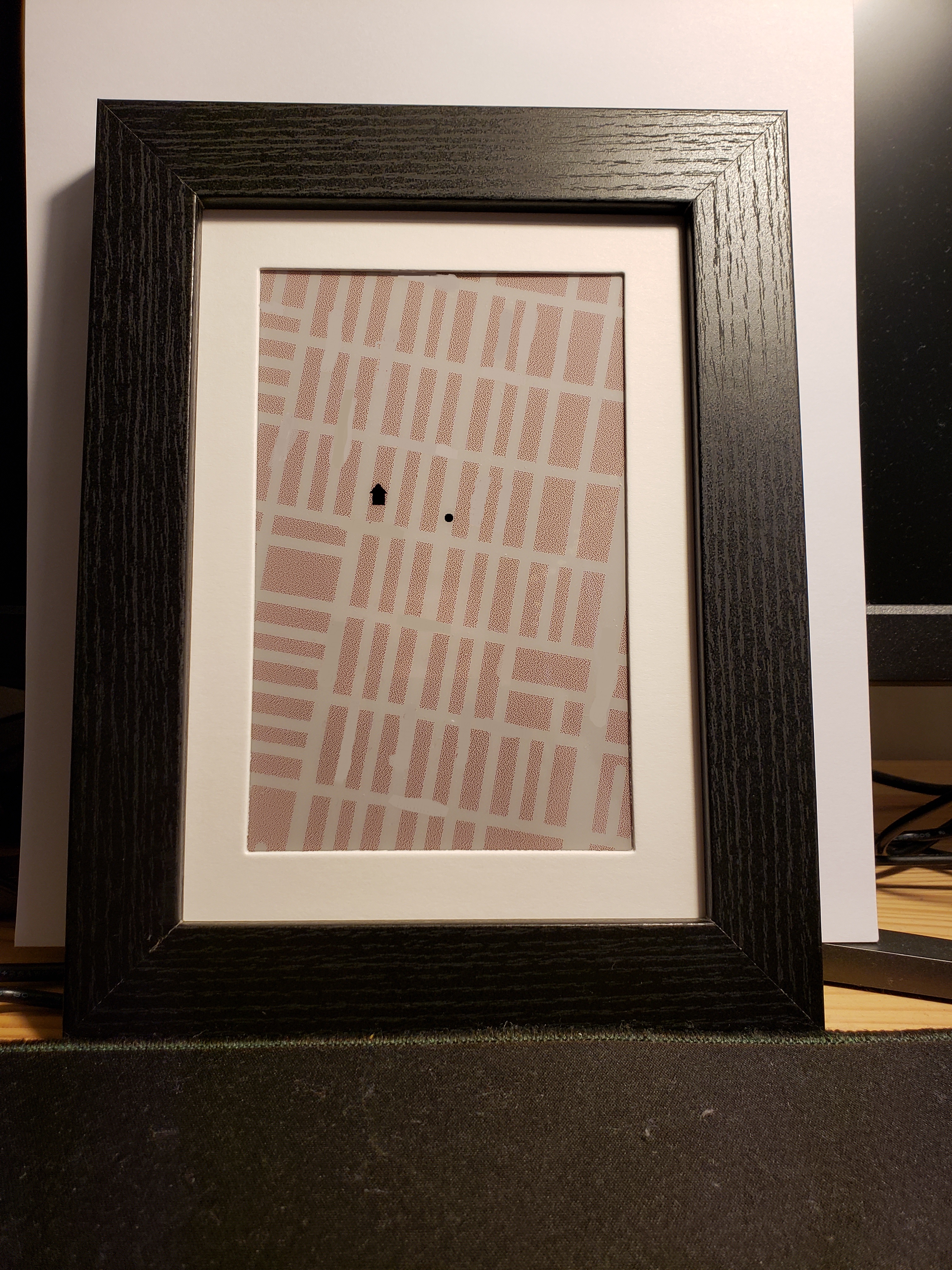
Someone asked for super-specific Tasker use cases? I have a pi-powered ePaper display that shows my car's location when it's parked, updated by Tasker.

121 Upvotes

Here's an image of the display.

Whenever my phone disconnects from my car's bluetooth, my coordinates are saved in a Google Sheet. The rest is done by the Pi.

Here's a link to an explanation of the full project.

s/o to /u/lefthand_thread for their help with the Tasker automation on this project.


r/tasker • • Apr 19 '15

How To I'm surprised this tutorial series hasn't been posted yet. I found it extremely helpful for learning how to use Tasker.

121 Upvotes

https://www.youtube.com/playlist?list=PLjV3HijScGMynGvjJrvNNd5Q9pPy255dL

Eric Wrye, AKA hollywoodfrodo's Tasker 101 tutorial really helped me understand how to use the app. I especially found his intro to variables really easy to understand.


r/tasker • • Apr 14 '23

Developer [DEV] The Tasker Update Saga continues. Still not being accepted into Google Play.

120 Upvotes

The main takeaway from my last post about this issue was that maybe I was being too zealous by declaring too much stuff in Data Safety section so I changed it to this:

https://imgur.com/Sd1C9yx

Unfortunately that wasn't the issue at all. I still got this back (the exact same as before):

https://imgur.com/p3ervev

I took the decision of explicitly adding a disclaimer to one of the very first screens you see before actually get to Tasker so the reviewers couldn't possibly miss it (I had already added it in 3 other places):

https://imgur.com/NQ2CH3o

https://imgur.com/vLyjAVN

That seems to have done something, but I'm not sure what. Now they sent me this:

https://imgur.com/lLWr7lH

So now, Tasker is no longer uploading users' phone numbers, but is uploading users' image information and SMS information? What even is a user's image information? ๐Ÿ˜ตโ€๐Ÿ’ซ

Anyway, I'll now try to explicitly say in that disclaimer that it's not sending:

  • image information

  • phone number

  • sms information

  • contact information

  • etc...

and I'll add all of these just for good measure:

https://imgur.com/uKfJf0T

Can't wait to see what happens next in this exciting adventure that is uploading an app to Google Play! It's oh so much fun! ๐Ÿคค I really like spending most of my days trying to guess what to do next to appease random reviewers instead of adding cool new features to my apps! Yay!


r/tasker • • Jan 06 '22

How To [HOW-TO] Advanced swipe gesture shortcuts using Tasker, for running any task or automations

120 Upvotes

Table of Contents

  1. Preface

  2. Requirements

  3. Difficulty

  4. How it works!

  5. Uses

  6. Autorun

  7. Demo, screenshots, TaskerNet & project backup

  8. Tips

  9. Why not those easy-to-use apps from PlayStore?

  10. Endnote.

  11. Updates

1. Preface

Before getting my hands on the Pixel 6, I was using a Samsung Galaxy S8 running on an Android 10 custom ROM. Samsung provides an advanced, and very useful app called Good Lock, in which the "One Hand Operation +" feature helps us to set up freaking 36 swipe gesture shortcuts, from the left and right (top, center, and bottom) sides of the screen, irrespective of which screen or app is currently active on the screen.

The only thing that I was sure about missing in the Pixel 6 was these swipe gestures. That's why I did my research and started building even before receiving my Pixel. Now I've successfully implemented a replica of Samsung's swipe gesture into my Google Pixel.

โ€”> This gesture setup made it easy for me to show my Control Panel created in Tasker, whenever I need it, irrespective of which app or screen I'm in.

2. Requirements

  • Tasker

  • Tasker terms to understand (Only for those who are new to Tasker)

    • TASK : An action or set of actions that will be later run by Tasker by itself, when defined conditions are met. Can also be run manually via the Tasker app.

      • Examples: Launch an app, change ringer volume, toggle WiFI, disable auto-rotation, etc.

    • PROJECT : An individual Tasker set up, where we define the conditions to meet, and the tasks to be performed when the defined conditions are met.

      • Example 1: A profile that automatically enables the auto-rotation (task), when YouTube is opened (condition) and disables auto-rotation when you leave YouTube.

      • Example 2: A profile that automatically enables mobile data (task), when your device is connected to your car WiFi (condition) or Android Auto.

    • SCENE : A visible, or invisible shape which will be displayed on the screen, and can be configured to respond to a swipe, tap, or long tap on it, and then accordingly perform a pre-defined task. A scene can only be enabled (show) and disabled (destroy) through a task or a project.

      • Example 1: A visible button that can be displayed on the screen, or an invisible location on the screen, which disables WiFi when we long tap on it.

      • Example 2: A visible button that can be displayed on the screen, or an invisible location on the screen, which opens the recent apps list when we swipe on it.

    • "If" variables to be used in scenes for assigning shortcuts, to each combination of a swipe length and a swipe direction:

      • %stroke_len : Defines the length of the swipe in pixels.

      • %stroke_dir : Defines the direction of the swipe. (Read How It Works section)

    • Actions that can be performed on a scene:

      • Tap: A single touch, ON the scene.

      • Long tap: Single touch & holding, ON the scene.

      • Stroke: A regular swipe started FROM the scene, and ended anywhere on the screen. (Don't get confused, there are NO different swipe types like a long swipe or short swipe in Tasker by default. For this project, we can mention a swipe with %stroke_len more than a user-specified number as a long swipe, and a swipe shorter than that as a short swipe.)

3. Difficulty

You only need to know the basics of the Tasker app and scenes. If you are okay with creating, editing, showing, and destroying scenes, then it's just a cakewalk.

You just need to create scenes wherever you want, then inside the tap, or long tap, or stroke tabs of your scene, add the if statements with any one of %stroke_len > or %stroke_len <, AND %stroke_dir ~ as two conditions, and then your desired set of actions inside each if statement, between If and EndIf. (Refer to Demo, Screenshots & Project Backup section).

If you are not comfortable with creating, editing, showing, and destroying scenes, it will take a maximum of 1-2 hours to understand the same.

It is time-consuming, only during the initial setup from the scratch. After that, it is editing or adding conditions and shortcuts, again, it's just a cakewalk.

4. How it works!

Using the scenes inside Tasker, we are setting up three different areas on the screen, which are, the top (horizontal), left, and right (vertical). Inside each scene, we can make small multiple shapes, on which we can add different tasks to run when we do a swipe, tap, or long tap on it.

When it comes to swiping, we can define the swipe length (using %stroke_len) and the swipe direction (using %stroke_dir), where we can assign different tasks to each condition, which are made with a pair of a swipe length and a swipe direction.

What is more interesting is that the swipe directions can be any vertical or horizontal directions like Up, Down, Left, or Right, and also diagonal directions like UpLeft, UpRight, DownLeft, and DownRight. (But try not to use vertical and diagonal directions together at a single location, as it might bring conflicts and may end up giving you the wrong responses because of failing to read your swipe correctly.)

These gestures are NOT restricted to the home screen but work irrespective of which screen or app is currently active on the screen (Exception: To make scenes work in the device Settings app, you need to enable Allow Screen Overlays in Settings through developer options of your device).

5. Uses

For instance, a task (i.e, a set of actions) can be assigned into a swipe gesture like a short swipe to the UpLeft direction, another task to another swipe long swipe to the UpRight direction, etc.

Examples:

  1. Short swipe from the left-center edge in the UpRight direction, opens YouTube.

  2. Short swipe from the right-center edge in the DownLeft direction, jumps to the last app.

  3. Long tap on the top middle (1st scene) of the screen, toggles WiFi.

  4. Long tap on the top middle (2nd scene) of the screen, toggles mobile data.

  5. Long swipe from the right top edge in the Up direction, takes a screenshot.

  6. Long swipe from the right bottom edge in the Down direction, kills the foreground app.

6. Autorun

You can assign the same task (which is set up to show the scene), to a new profile that gets triggered on the device boot. This will make these swipe gestures enable automatically a few seconds (or so) after booting (after unlocking, in some devices like Pixel 6) your smartphone.

However, you can always open the task inside the Tasker app, and click on the play button (โต) to run the task manually, which will show the scene (or enable the swipe gestures).

Since I'm using Nova Launcher, I also added the same task to a Nova's home screen gesture, so that I can easily restart this swipe gesture from the home screen itself, whenever required, or just after editing the scene via Tasker. This is very helpful because whenever we edit an active scene via Tasker, the scene will get automatically destroyed. So every time you modify a scene, you have to manually re-enable (show) it.

7. Demo, screenshots, TaskerNet & project backup

  • Demo: โ€‹

    • Google Pixel: In this screenshot, I have mentioned all of the possibilities we have for the Pixel 6, which doesn't get into conflict with the existing system gestures provided by Google.

    • Others: I suggest using these kinds of directions in other android devices which doesn't have native gestures like the left swipe from the right edge, and the right swipe from the left side edge.

  • Screenshots: This is the screen where we edit or add a set of tasks to be performed, using if statements with conditions %stroke_len > (or %stroke_len <), AND %stroke_dir ~.

  • TaskerNet: Projects for Pixel 6 and Galaxy S8.

  • Project Backup: To start with setting up this project, if you want, you can also refer to these regularly updated backups of my setup where I included all the scenes, required tasks to activate the scene, and the project to autorun this setup on the device boot. The folder includes files for both Galaxy S8 and Google Pixel 6. (You can refer here for assistance on how to import tasks and scenes into your Tasker).

8. Tips

  1. If your device (like Google Pixel) already got a native swipe gesture like a left swipe from the right screen edge, and a right swipe from the left screen side edge, you should not create a similar gesture via Tasker, which will conflict with your existing system gestures.

  2. Swipe direction Down from a top horizontal scene might also end up in issues since most Android devices natively use the same gesture to pull down the notification panel.

  3. Try not to use vertical directions and diagonal directions together. For example, on the right side, don't use the Up or Down series AND UpLeft, and DownLeft series together. Both these series at a single location might bring conflicts and it may end up giving you the wrong responses because of failing to read your swipe correctly.

  4. Try to avoid using the tap. Instead, use the long tap, to avoid accidental touches.

  5. Always keep the size of the scenes thin, because these scenes are blocking scenes which makes the area behind them untouchable. So anything below the scene is impossible to touch. (Refer to tip number 8 along with this)

  6. Always re-activate (show) the scene after making any changes, because making changes disables (destroy) the scene.

  7. Assign the (scene enabling) task to any swipe gesture of your launcher like Nova (if any), to make restarting the scene easy. However, you can always open the (scene enabling) task via the Tasker app itself, and click on the bottom left play button (โต) to run the task manually.

  8. This is a workaround to make these blocking scenes hide temporarily so that we can touch whatever was behind the scene. (Thanks to user ActivateGuacamole for this idea)

  9. Few other valuable tips for choosing the right swipe length for tasks considering their frequency of usage. (Thanks to user ActivateGuacamole for this idea)

9. Why not those easy-to-use apps from PlayStore?

Because Tasker is powerful. Period.

I have tried a few popular gesture setting apps but I always came back to Tasker itself because of the level of control, and customization we have here. Tasker can do impressive automation, which can also be implemented into these swipe gestures, something that can't be achieved with other easy-to-use and ready-made gesture apps.

With this method, I can add a set of actions (not just one single action), one by one, to be performed, into one single gesture. So if I wanted to do a swipe on the screen, and then another direction swipe, and then a click on a specific area, all these automatically, I can easily do with Tasker.

  • Examples:

    • Kill and remove foreground app from recent: You can watch this screen record video which shows my simple swipe gesture running the task where Tasker automates actions (a) open recent apps list, (b) a swipe action to swipe away the app, and (c) another swipe action to go to home screen. All this within a fraction of a second. Impressive. isn't it?

    • Clear all recent apps: In Pixel 6, the clear all button is placed at the end of the recent apps row. Now watch this one, a simple gesture is enough and the Tasker will take care of the rest. Again, Impressive. Isn't it?

For implementing such complicated automation, advanced settings, and toggling, all into a simple swipe gesture, Tasker is the only solution.

10. Endnote.

It took weeks of questions, answers, trial, and errors to first understand, and then make this thing work flawlessly. I and a couple of my friends really find this useful in our smartphones, so I decided to share it with you also. If you find this useful for you, go ahead. And if you think this is not worth the time and effort required, you can kindly ignore it.

I, a noob, wouldn't have made this possible without receiving help from another person. So, a big thanks to u/adbenj for the initial guide and idea.

Always remember that there is nothing in the world like suitable for everyone, so stick to whatever is suitable for you.

โ€‹ .

UPDATED ON: July 14, 2022


r/tasker • • Mar 12 '16

XDA Tasker Week: March 7th - March 11th [Compilation]

120 Upvotes

Tasker Week Kick Off.

Tasker Day #1: One-Handed Mode, Security Features, Add Contacts Swiftly, and More!.

Tasker Day #2: Shake to Toggle Brightness, Automate Screenshot Editing, Monthly Call/Data Monitoring and More!.

Tasker Day #3: Automatic 2G Toggle, TWRP Backups, Driving Mode, and More!.

Tasker Day #4: Read Calendar Events, Get Best Route for a Commute, Hotspot Monitor, and More!.

Tasker Day #5: Community Best-Of!.

Other Guides:###

Beginner:###

[GUIDE][Difficulty: Beginner] Read Aloud Track Name and Artist.

[GUIDE][Difficulty: Beginner] Switch to 2G when Connected to WiFi.

[GUIDE][Difficulty: Beginner] Prompt to add Previous Caller as Contact.

[GUIDE][Difficulty: Beginner] Enable 'Smart Lock' on Bluetooth LE devices.

[GUIDE][Difficulty: Beginner] Enable Speakerphone when Phone is Placed on Table.

[GUIDE][Difficulty: Beginner] Take a Picture and Grab Location on Failed Unlock.

[GUIDE][Difficulty: Beginner] Shake your Phone to Increase Brightness.

Intermediate:###

[GUIDE][Difficulty: Intermediate] Hold/Swipe-up Home Button to Enable One-Handed Mode.

[GUIDE][Difficulty: Intermediate] Monitor Monthly Call/Data Usage.

[GUIDE][Difficulty: Intermediate] Read a Random Top Voted Thread from Reddit.

[GUIDE][Difficulty: Intermediate] Determine Best Route for Daily Commute.

[GUIDE][Difficulty: Intermediate] Weekly TWRP Backups.

[GUIDE][Difficulty: Intermediate] Driving Mode (Answer Calls, Texts, Read Notifs).

Advanced:###

[GUIDE][Difficulty: Advanced] Create a Hotspot Monitor to Watch Who's Connected.

[GUIDE][Difficulty: Advanced] Custom Sleep Timer for any Audio App.

[GUIDE][Difficulty: Advanced] Prompt to Edit Screenshot and Upload to Imgur.

[GUIDE][Difficulty: Advanced] Send an SMS with Address, Speed, and URL for a Map Pin.

Also:###

Tasker Week: Utilize NFC Triggers!.

Tasker Week: Theming and Design using Scripts and Scenes!.

I hope you enjoy & find these useful :)###

Please also see Tasker Tips & Tricks on XDA.